Smooth Motion Blur with iPhone
Sharp Handheld Time Exposures!
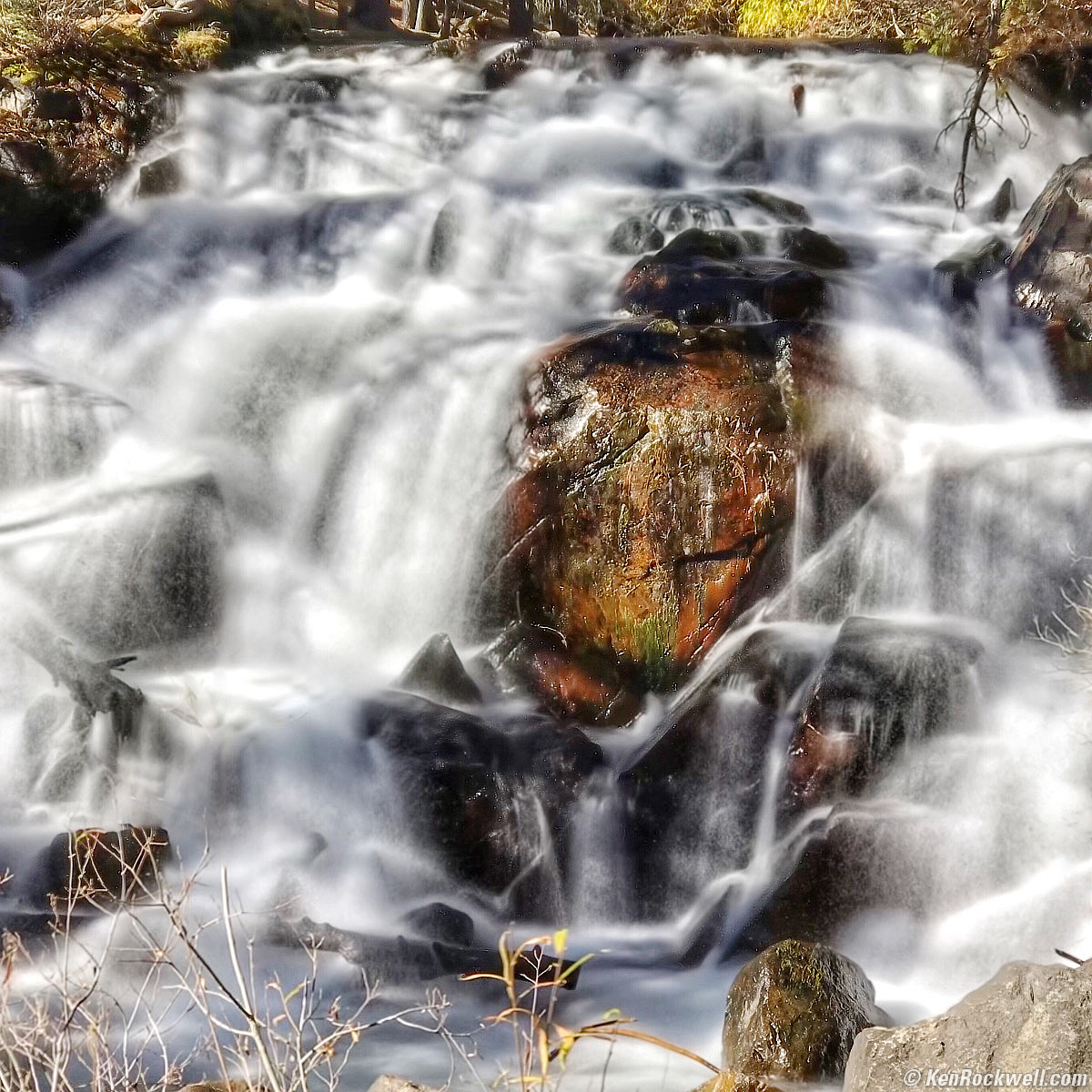
Lee Vining Falls, 11 AM, 24 October 2017. 2½ second hand-held time exposure. bigger.
This all-content, junk-free website's biggest source of support is when you use any of these links to my personally-approved sources when you get anything, regardless of the country in which you live. Use the same approved sources I use myself for the best prices, service, return policies and selection. Thanks for helping me help you! Ken.

December 2025, April 2025, March 2023, November 2017 Apple Reviews All Reviews
NEW: How to Change the Focus Distance AFTER SHOOTING on iPhone!!!
NEW: How to Change the Depth-of-Field — AFTER SHOOTING on iPhone!

|



Introduction
This is how to get deliberate motion blur in daylight with iPhone.
For long exposures in low light and at night, see How to Use the Night Mode on iPhone.
On iOS 26 (2025~2026)
Long 2½ second time exposures are easy to do and can be done hand-held with iPhones that can do Live Photos, but it takes two steps.
All you have to do is shoot a Live Photo, and then select LONG EXPOSURE in the Photos app on your iPhone:
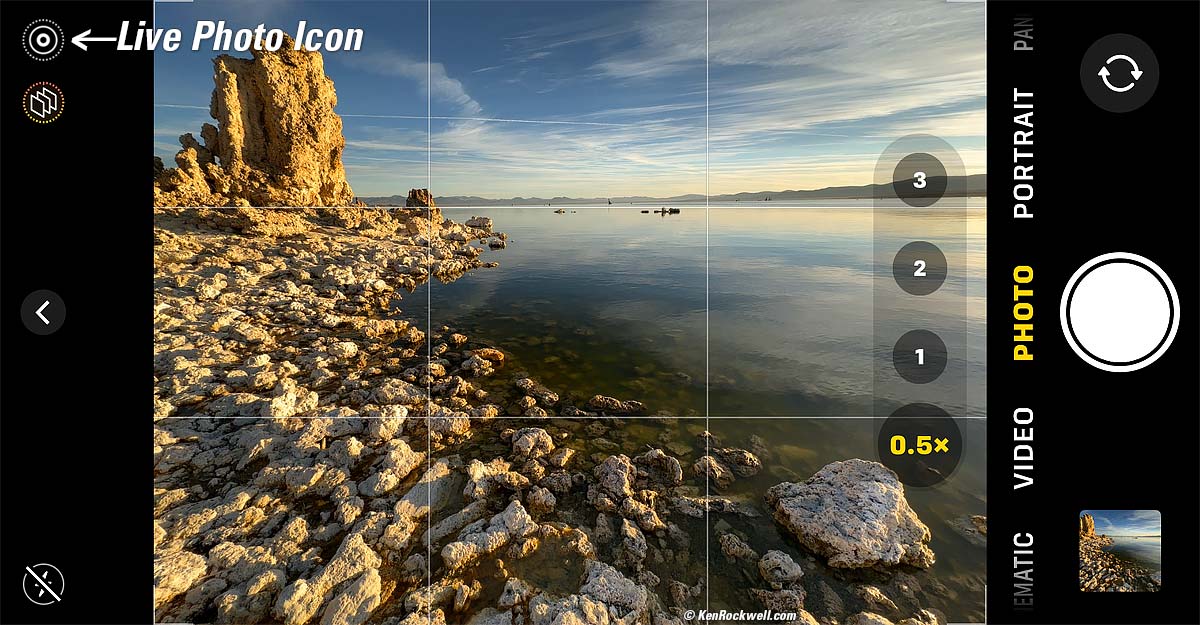
1.) Be sure you have the LIVE PHOTO mode active.
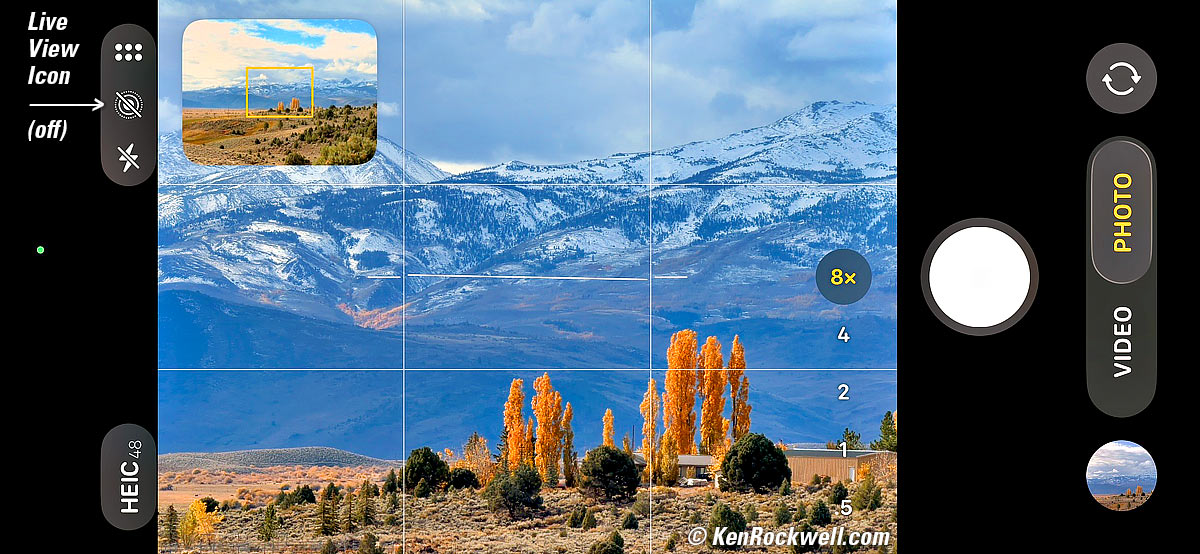
Live Photo icon, Phone 17 Pro Max (iOS 26). bigger.
If the weird bullseye "Live Photo" icon has a backslash across it as shown above, tap it to make the backslash go away and activate Live Photo.
2.) Shoot your photo. Be sure to hold your iPhone reasonably steady from about a half second before you take the picture, and hold it steady as long as the LIVE icon is lit. LIVE stays lit for two seconds as it makes the time exposure:
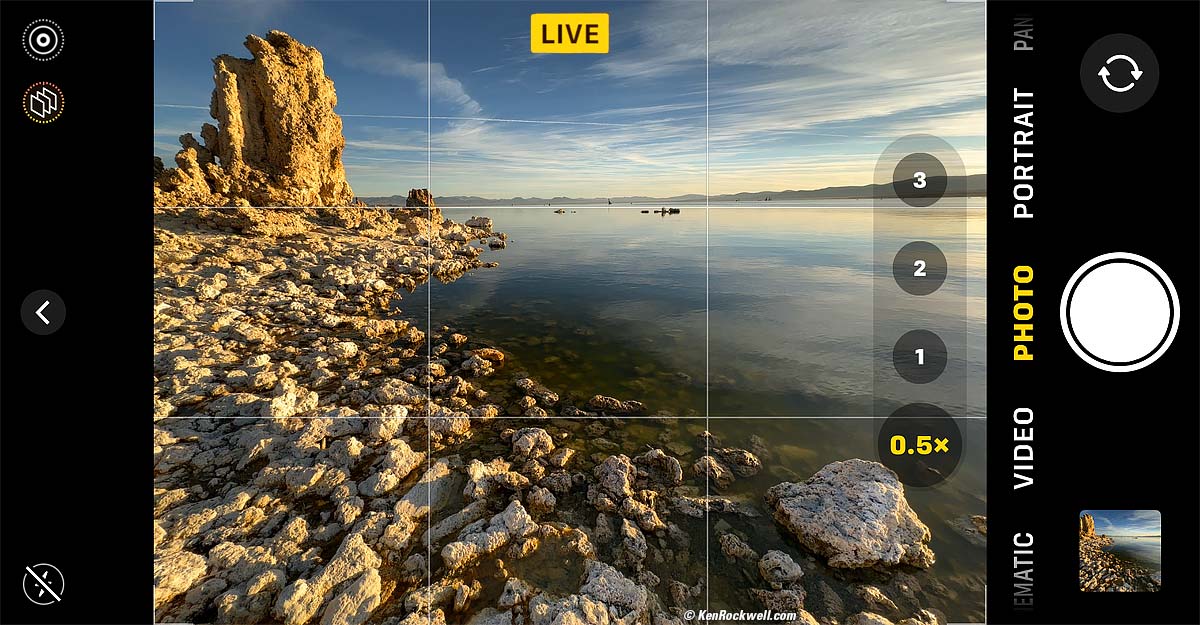
LIVE icon, Apple iPhone 14 Pro Max (iOS 16). bigger.
The iPhone's optical and electronic video image stabilization systems will compensate for the motion from hand-holding and give super-sharp results. Mirrorless and DSLR cameras don't have the electronic stabilization ability of the iPhone, so they can't do this and require you use a tripod, ha!
3.) Here's the trick: play the Live Photo image you just shot in the Photos app, tap the LIVE dropdown at the top left to see a set of options, tap Long Exposure, and voilà:
Open the image in Photos and find the LIVE icon top left: |
Tap LIVE for a drop-down: |
Select Long Exposure… |
…and you're done! |
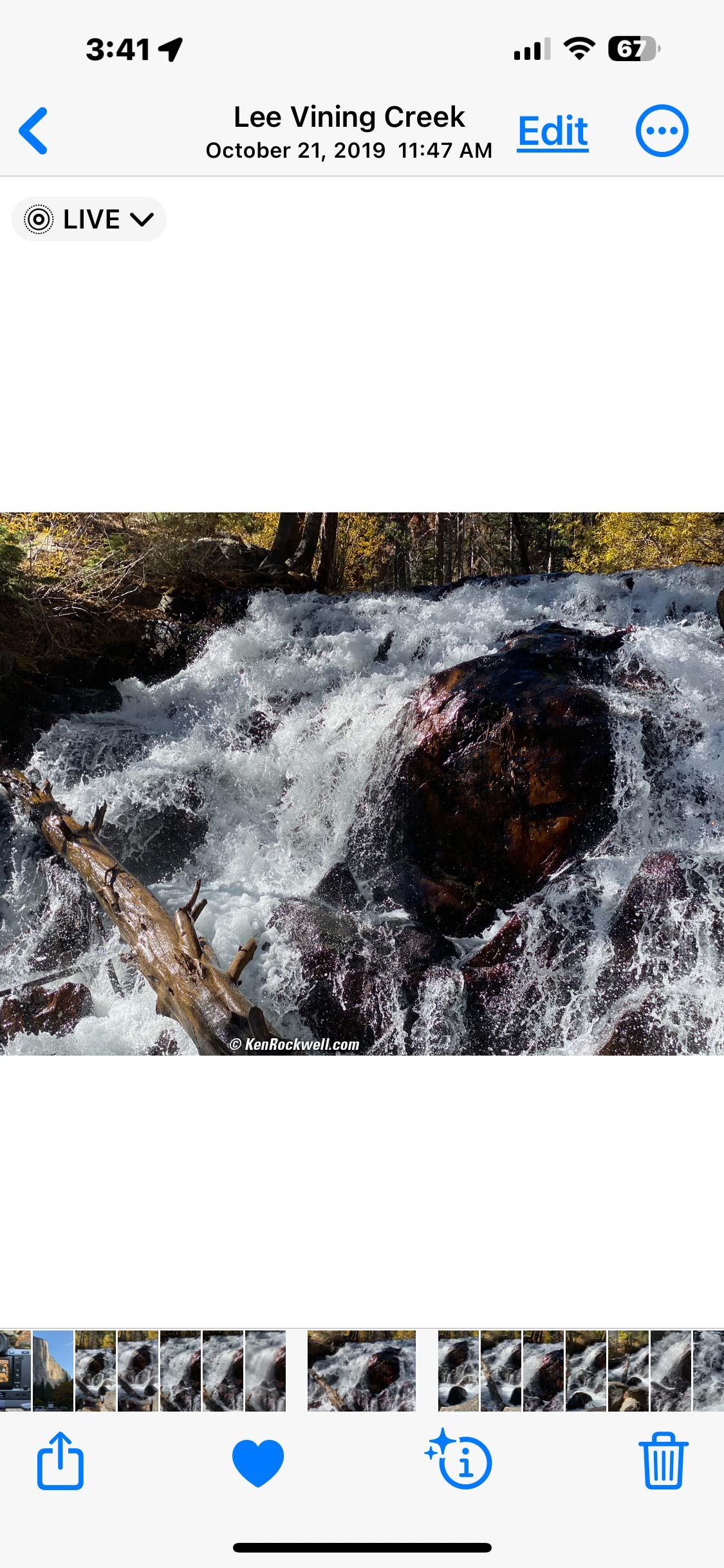 |
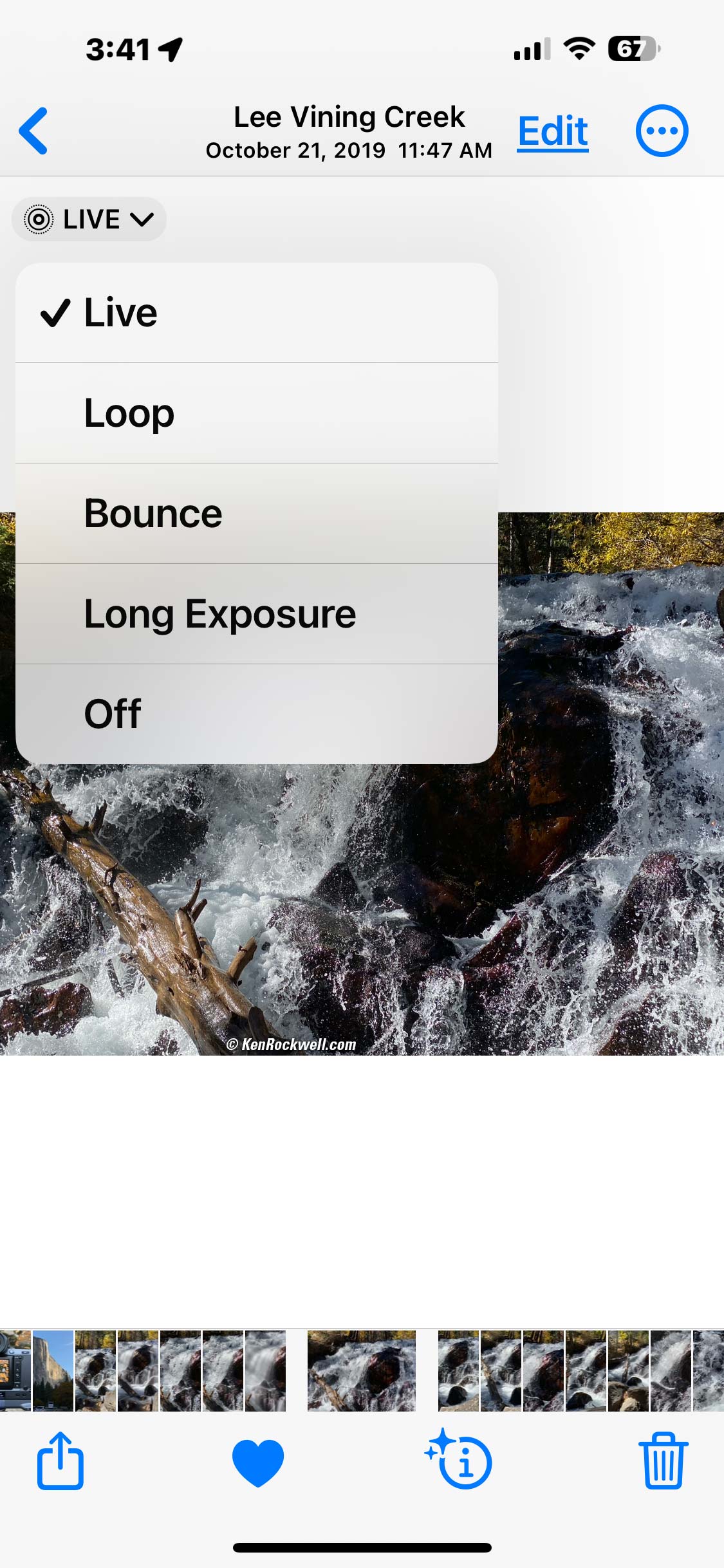
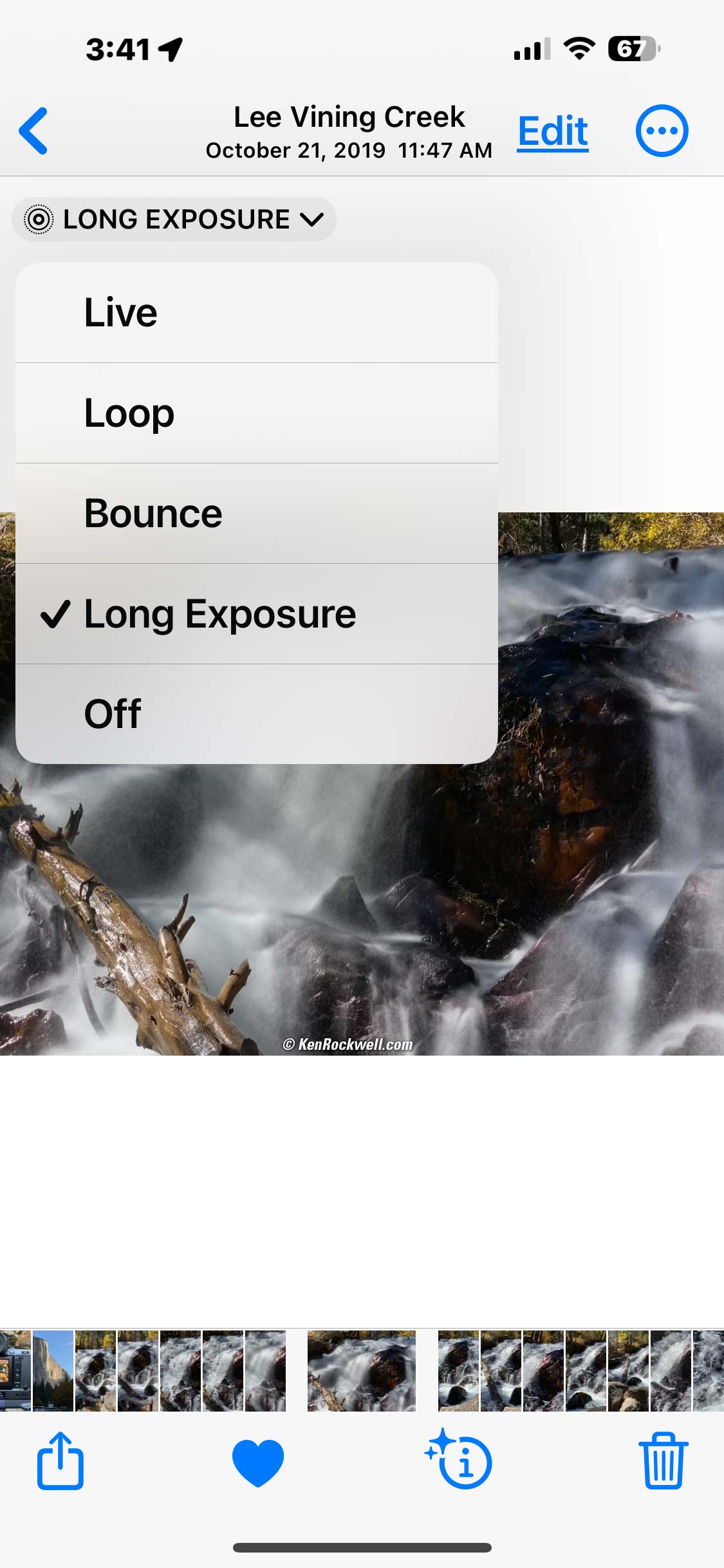
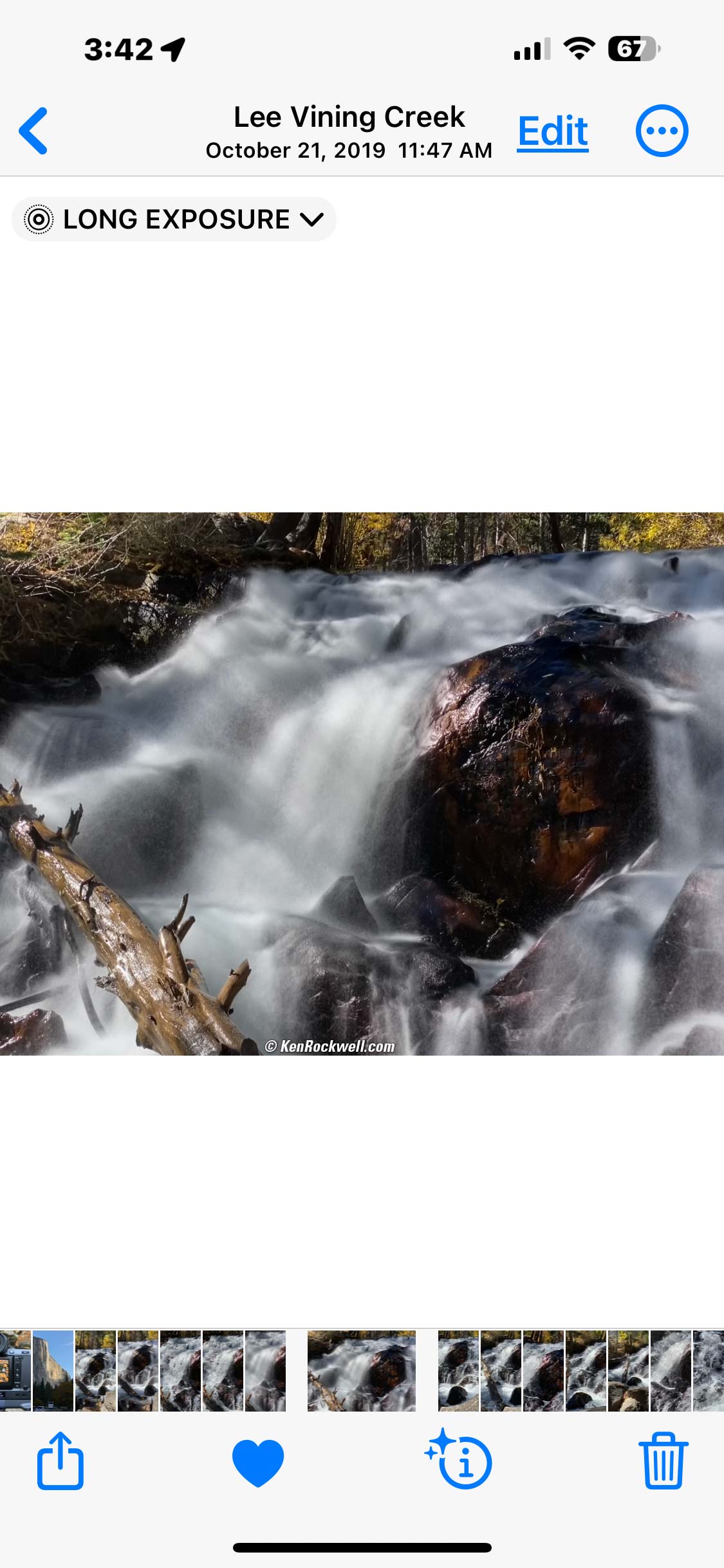

Magic Lee Vining Creek, Magic 21 October 2019. Tap any to enlarge.
I created these graphics in March 2023 with a Live Photo I shot in October 2019 (my favorite trip of all time!) with my iPhone 11 Pro Max. These screens look almost the same in December 2025 on myPhone 17 Pro Max with iOS 26.
On iOS 16~18 (2023~2025)
1.) Be sure you have the LIVE PHOTO mode active. The weird circular "Live Photo" icon should be as seen here without a diagonal line across it, if not, tap it to activate:
Live Photo icon, Apple iPhone 14 Pro Max (iOS 16). bigger.
2.) Shoot your photo. Be sure to hold your iPhone reasonably steady from about a half second before you take the picture, and hold it steady as long as the LIVE icon is lit. LIVE stays lit for the two seconds it takes to make the time exposure:
LIVE icon, Apple iPhone 14 Pro Max (iOS 16). bigger.
The iPhone's optical and electronic video image stabilization systems will compensate for most motion from hand-holding and give super-sharp results. DSLR systems don't have the electronic stabilization ability of the iPhone, so they can't do this and require you use a tripod, ha!
3.) Here's the trick: play the Live Photo image you just shot in the Photos app, tap the LIVE dropdown at the top left (or swipe up in iOS 16) to see a set of options, tap Long Exposure, and voilà:
Open the image in Photos and find the LIVE icon top left: |
Tap LIVE for a drop-down: |
Select Long Exposure… |
…and you're done! |
|
Magic Lee Vining Creek, Magic 21 October 2019. Tap any to enlarge.
I created these graphics in March 2023 with a Live Photo I shot in October 2019 (my favorite trip of all time!) with my iPhone 11 Pro Max. It looks the same in April 2025 on my iPhone 16 Pro Max with iOS 18.
iOS 11 (November 2017)
I've tried this on iPhone 6S Plus, iPhone 7 Plus and iPhone X, and should also work on iPhone 8 plus and others running iOS 11 and newer. It won't work on the non-plus iPhone 6 or older iPhones.
First you shoot a Live Photo, and then play it back and swipe up to find the option to create the time exposure after you shot it. Crazy!
1.) Be sure you have the LIVE PHOTO mode active. The weird circular "Live Photo" icon should be yellow as seen here; if not, tap it to activate:
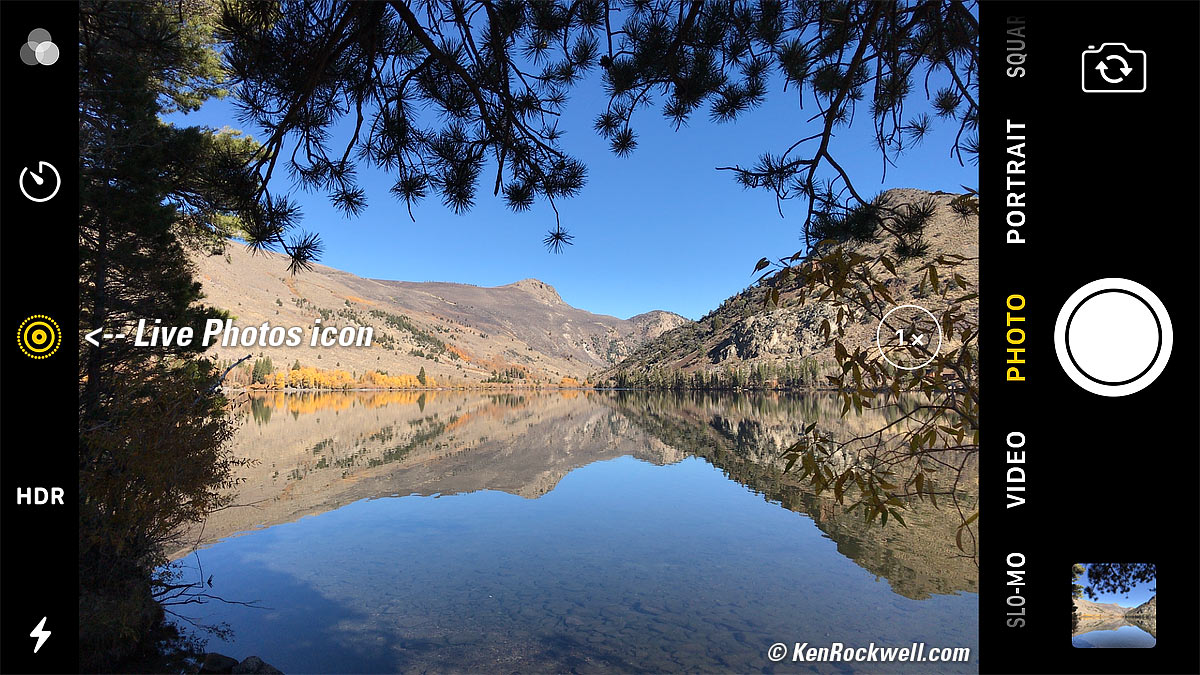
The Live Photos icon (iOS 11), Silver Lake, California, October 2017. Yellow means ready to shoot. bigger.
2.) Shoot your photo. Be sure to hold your iPhone steady from before you take the picture, and hold it steady as long as the LIVE icon shows at the top, which stays lit for the two seconds it takes the time exposure.
The iPhone's optical and electronic video image stabilization systems will compensate for most motion from hand-holding and give super-sharp results. DSLR systems don't have the electronic stabilization ability of the iPhone, so they can't do this and require you use a tripod, ha!
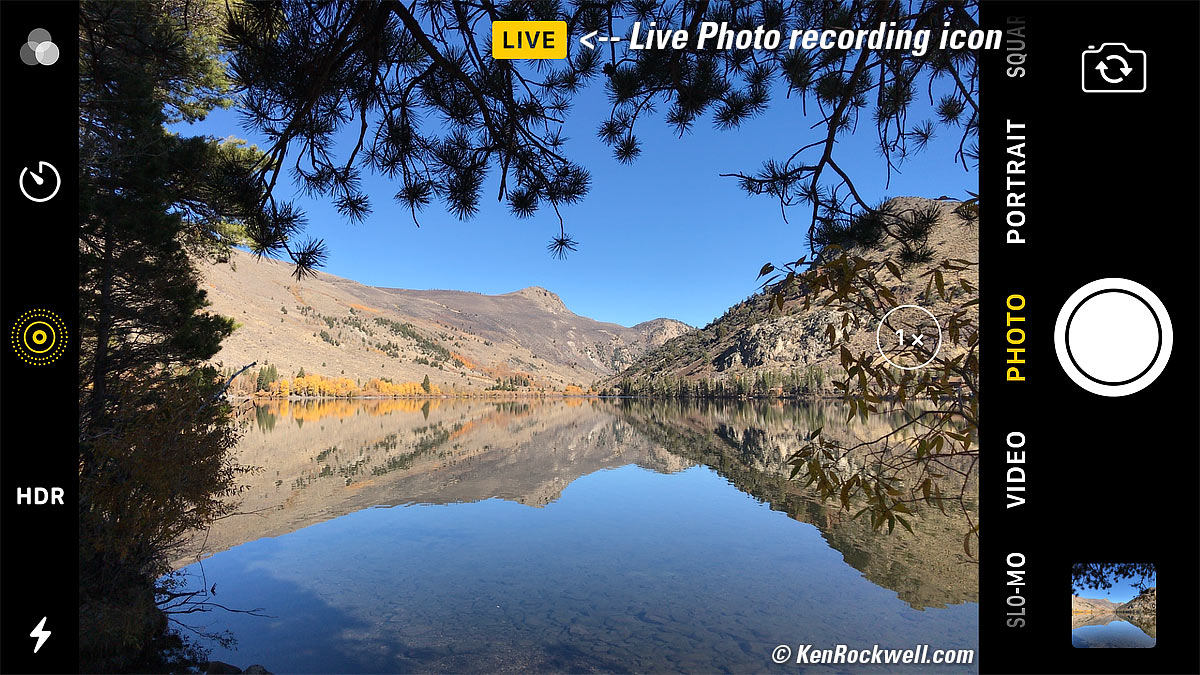
The iPhone is recording a Live Photo (or Time Exposure) while this LIVE icon is lit. It also is recording for about a half second before you take the picture. bigger.
3.) Here's the trick: play the image you just shot, and swipe up to see this new set of options:
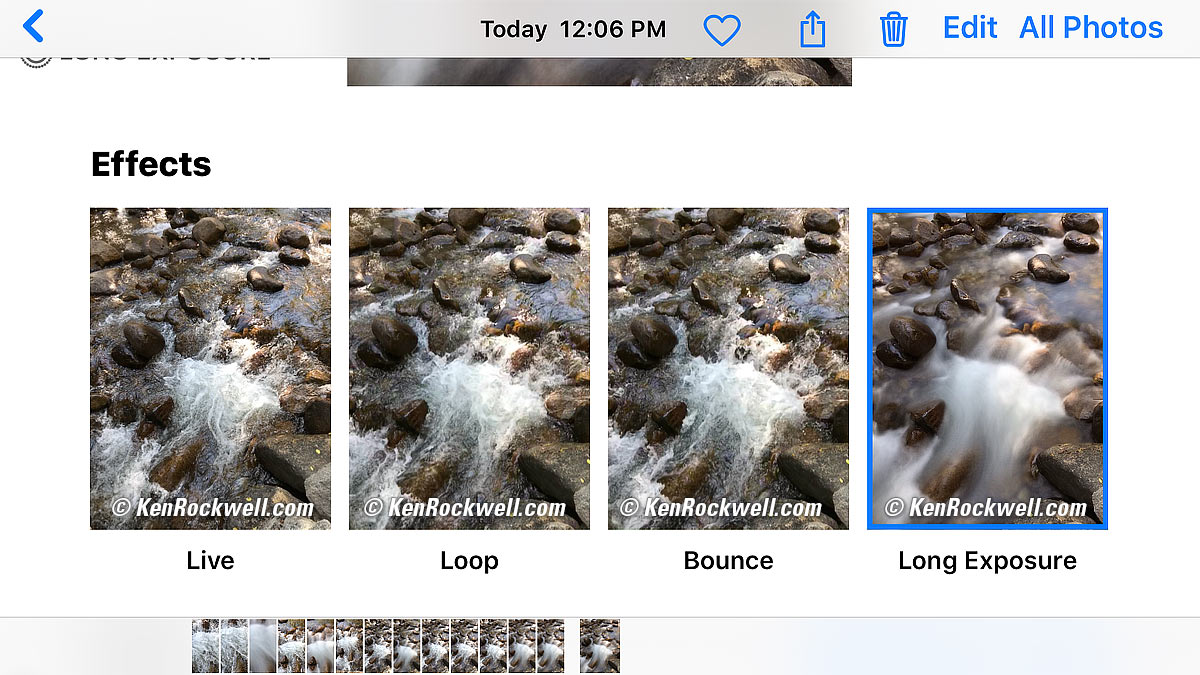
Select "Long Exposure," your iPhone processes the data and saves an image that is a genuine 2½ second time exposure. bigger.
The iPhone's fantastic video stabilization corrects normal hand motion, so you don't need a tripod.
Since the iPhone is doing this magic by taking a high-resolution still photo and mixing it with a 2½ second simultaneous video capture, it can do this just as well with a still HDR image, which it also captures automatically when needed — as it did for this waterfall image with bright water against black shadows. Try doing that on your DSLR this fast!
© Ken Rockwell. All rights reserved. Tous droits réservés. Alle Rechte vorbehalten. Alla rättigheter förbehållna. Toate drepturile rezervate. Niciun vampir nu a fost implicat în crearea acestei lucrări. Doe! Omnia jura reservata. Ken Rockwell® is a registered trademark.
Help Me Help You
I support my growing family through this website, as crazy as it might seem.
The biggest help is when you use any of these links when you get anything. It costs you nothing, and is this site's, and thus my family's, biggest source of support. These places always have the best prices and service, which is why I've used them since before this website existed. I recommend them all personally.
If you find this page as helpful as a book you might have had to buy or a workshop you may have had to take, feel free to help me continue helping everyone.
If you've gotten your gear through one of my links or helped otherwise, you're family. It's great people like you who allow me to keep adding to this site full-time. Thanks!
If you haven't helped yet, please do, and consider helping me with a gift of $5.00.
As this page is copyrighted and formally registered, it is unlawful to make copies, especially in the form of printouts for personal use. If you wish to make a printout for personal use, you are granted one-time permission only if you PayPal me $5.00 per printout or part thereof. Thank you!
Thanks for reading!
Ken Rockwell.