Apple Watch Series 10
Faces Specs Compared User's Guide
|
|
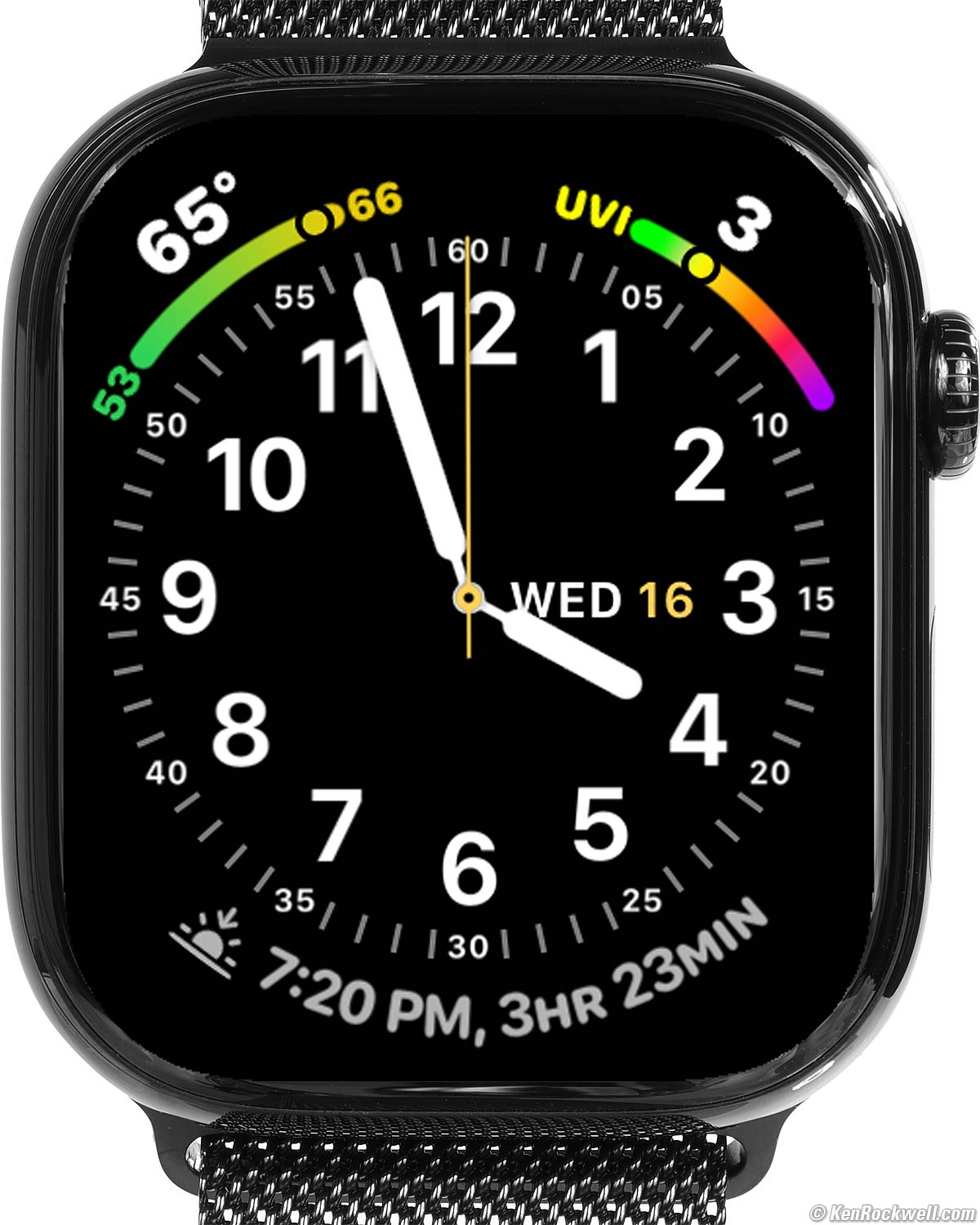

46mm Apple Watch Series 10 Titanium (2,000 nits peak, 496 × 416 pixels at 326 PPI LTPO OLED always-on display, 1.469 oz./ 41.6g; 2.870 oz./81.3 g total with 46mm Milanese Loop band as shown). I'd get my Apple Watch Series 10 at Adorama, at Amazon or at eBay, or any Apple Watch at Adorama, at Amazon, or at eBay if you know How to Win at eBay.
This all-content, junk-free website's biggest source of support is when you use those or any of these links to my personally-approved sources when you get anything, regardless of the country in which you live. Get yours only from the trusted sources I've used personally for decades for the best prices, service, return policies and selection. Thanks for helping me help you! Ken.
November 2025 Apple Reviews Watch & Clock Reviews All Reviews

Introduction top
Faces Specs Compared User's Guide

I buy only from these approved sources. I can't vouch for ads below. |



The Apple Watch is amazing in how it lets us run our entire world from our wrist, and the Series 10 is the thinnest Apple Watch yet. Back in the 2000s we were amazed at how we could communicate, get our news, sports, weather and stock information and do our banking and shopping from our computers. In the 2010s we could do all of this even more easily from our iPhones. Today in the 2020s we can do much of this from our wrists, and for fitness nuts like me, my Apple Watch lets me measure, track, compete and share all my workouts for effort, distance, elevation and more.
The Series 10 is beautiful, with a brilliant display that appears against the inky black depths of its sapphire crystal. Its screen always responds instantly to our touch as we expect from Apple, its response isn't delayed or often irresponsive like the crummy touch display of a $134,000 Mercedes S580.
For bicyclists and classic car buffs we can do our all communication and navigation from our wrists regardless of what we're driving - even on a hoverboard. Heck, I can make calls and run navigation by voice alone in my classic convertible, no need for a car with Bluetooth or GPS!
The Apple Watch is the world's top selling watch because it's the world's most accurate watch, the world's most legible watch and the world's most functional and useful watch. It is also supremely comfortable, with a choice of many different cases and band styles.
The Apple Watch's design is astounding in how well we can control everything intuitively right from its tiny screen. It may be tiny, but it's so well programmed it's super-legible and always easy to use. It's Apple at its best.
The Apple Watch works as an extension of your iPhone. Everyone who has an iPhone should have an Apple watch. Just like the iPhone, you don't think you need it until you have one for a few days, and then you know why you can't live without it.
I'd get my Apple Watch Series 10 at Adorama, at Amazon or at eBay, or any Apple Watch at Adorama, at Amazon, or at eBay if you know How to Win at eBay.
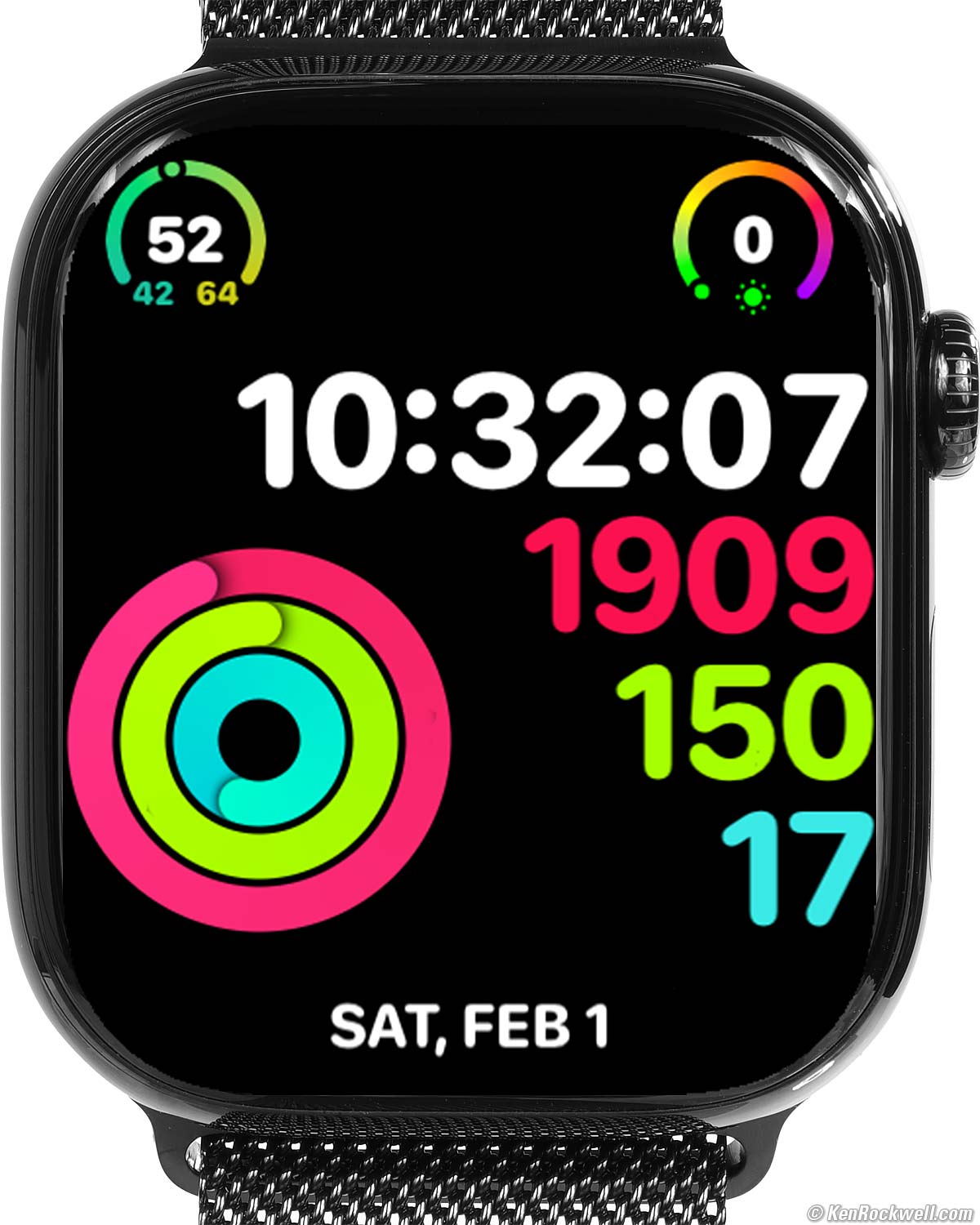
Activity Digital face shows my workouts and exercise so far throughout the day. It shows calories burned, minutes of exercise and clock hours during which I've stood up. Tap your watch for explicit details. bigger.
New top
Faces Specs Compared User's Guide
 The 46mm model has what Apple claims is its biggest watch screen yet.
Thinnest Apple Watch yet: at least 1mm (10%) thinner than any other Series watch and 2.2mm thinner than the ULTRA 2 or ULTRA.
Good top
Faces Specs Compared User's Guide
 Easy to use! While it does a zillion things, it's super-easy to do them all with just a fingertip, as we expect from Apple. This is an extremely well thought-out product.
Much improved over earlier years, it's easy to have at least two different watches synced to your iPhone, and whichever one you put on becomes active and coupled to your iPhone.
Mine arrived fully charged, making setup easy.
Built-in automatic fitness tracking and coaching encourages daily exercise so you'll feel better and have a longer life. Not many products can do that!
Brilliant and colorful 496 × 416 pixel LTPO OLED always-on display.
Perfect automatic brightness control: flawless legibility from direct sunlight to total darkness.
Perfect Stratum-2 level accuracy; rated to ±50 milliseconds maximum absolute error.
Onboard temperature-compensated quartz crystal oscillator (TCXO), like the most exotic chronometers, to keep extraordinarily good time even if offline.
Always sets itself.
Always has the correct day and date.
Just like $287,000 mechanical watches that correct automatically for leap year, so does Apple Watch.
Also sets itself for daylight savings time and leap seconds.
Heart-Rate sensor.
Do-it-yourself EKGs monitor your heart, and it creates PDFs to send to your doctor.
Tracks heart rate and route while running, biking or otherwise working out.
Weighs less than an iPhone, which you can leave at home to make you faster in competition.
It syncs remotely via the cellular signal to your iPhone, if you have the Cellular version.
If you have no coverage, syncs everything automatically when you return or do have signal.
Magnetic compass.
Sound-Pressure Level (SPL) Meter reads from 30 to 120 dBA, and logs and tracks noise exposure in your iPhone's Health app.
Fall detection, and it can call 911 for you automatically if you've fallen or crashed and can't get up.
Smooth-running hands. They don't jump each second or jitter around with the ticking of a mechanical or quartz watch.
1/100 second stopwatch, timers, alarms and everything any other watch has done — and they are all very easy to set and use.
"Nightstand" Mode shows time, day, date and alarm if you just tap a nightstand on which the watch is sitting.
Clever alarm starts brightening the screen gradually a few minutes before wake time to help you wake up more pleasantly.
You may set your own text sizes to taste.
Easy to zoom the screen (two-finger double-tap).
Additional "Do Not Disturb for One Hour" option perfect for meetings and appointments. You also can control the regular Do Not Disturb Mode from your watch.
"Theatre Mode" keeps the display off unless you tap it or rotate the crown up; the automatic wrist-flick and always-on modes are deactivated so you don't bother anyone else.
Unlocks your Mac automatically; no need to type in password when you wake it.
Make and answer phone calls direct from your watch, and be able to use your phone for other things at the same time, assuming you have your iPhone near or have the Cellular option.
Built-in flashlight, and so smart it dims when pointed at your face.
Voice-controlled everything, including navigation.
If you have a classic car with no phone, GPS navigation or Bluetooth, no worries: the Apple Watch lets you do all this by talking to your wrist! Honestly, my Apple Watch works better than most modern day infotainment systems, so I'm missing nothing by driving a classic.
Built-in GPS works everywhere on land, sea or air, even if there's no cellular signal. (You won't see much in the way of maps without a data connection, but it will track your location.)
Can control your iPhone camera remotely, complete with a self-timer and previewing the picture on your watch!
Bands are easily interchangeable without tools.
Fitness apps even encourage you to get up and walk around if you've been sitting too long.
Controls iPhone music or video playback, and the watch's crown sets volume faster and more precisely than the up-down button on my iPhone!
Tiny battery will recharge numerous times from a small USB power bank with the included Charging Cable.
In November 2025 I left my fully charged Series 10 on my nightstand. It used 30% of its charge each 24 hours, so three days later it was still fully functional at 10% charge. I didn't try it in Low Power Mode, and of course if I turned it off it would retain much more.
Innumerable other features not found on regular watches.
Works with many third-party iPhone apps like PayPal, Canary, Ring doorbell, YouTube, many news and weather apps and so much more to ding you every time anything interesting happens — or warn you anytime something is about to happen.
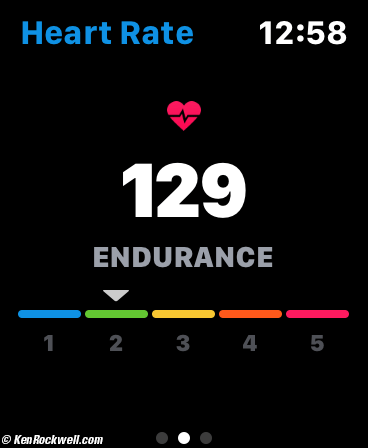
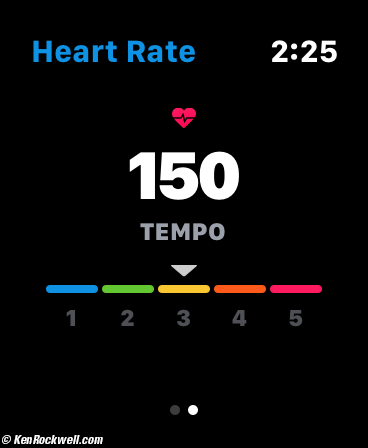
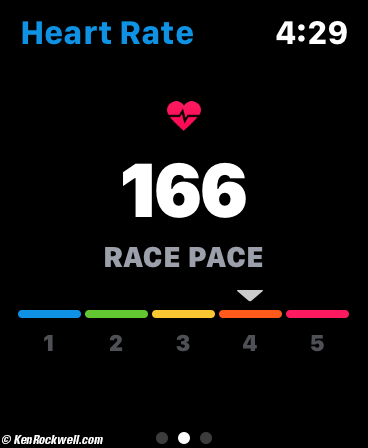
Heart Rate Zones in some workouts, including my favorite, Outdoor Cycle.
Bad top
Faces Specs Compared User's Guide
 When we swipe to swap faces it defaults to 10:09:30 for a moment until each face updates to the correct time. 10:09:30 is a time that puts the hands in a pretty position for photos, but otherwise it should swap instantly to the correct time on each face as earlier versions of Watch OS have done. Weird.
Missing top
Faces Specs Compared User's Guide
 Nothing, unless you opt for the "GPS" model which lacks cellular LTE.
Sample Watch Faces top
Faces Specs Compared User's Guide
I'd get my Apple Watch Series 10 at Adorama, at Amazon or at eBay, or any Apple Watch at Adorama, at Amazon, or at eBay if you know How to Win at eBay.
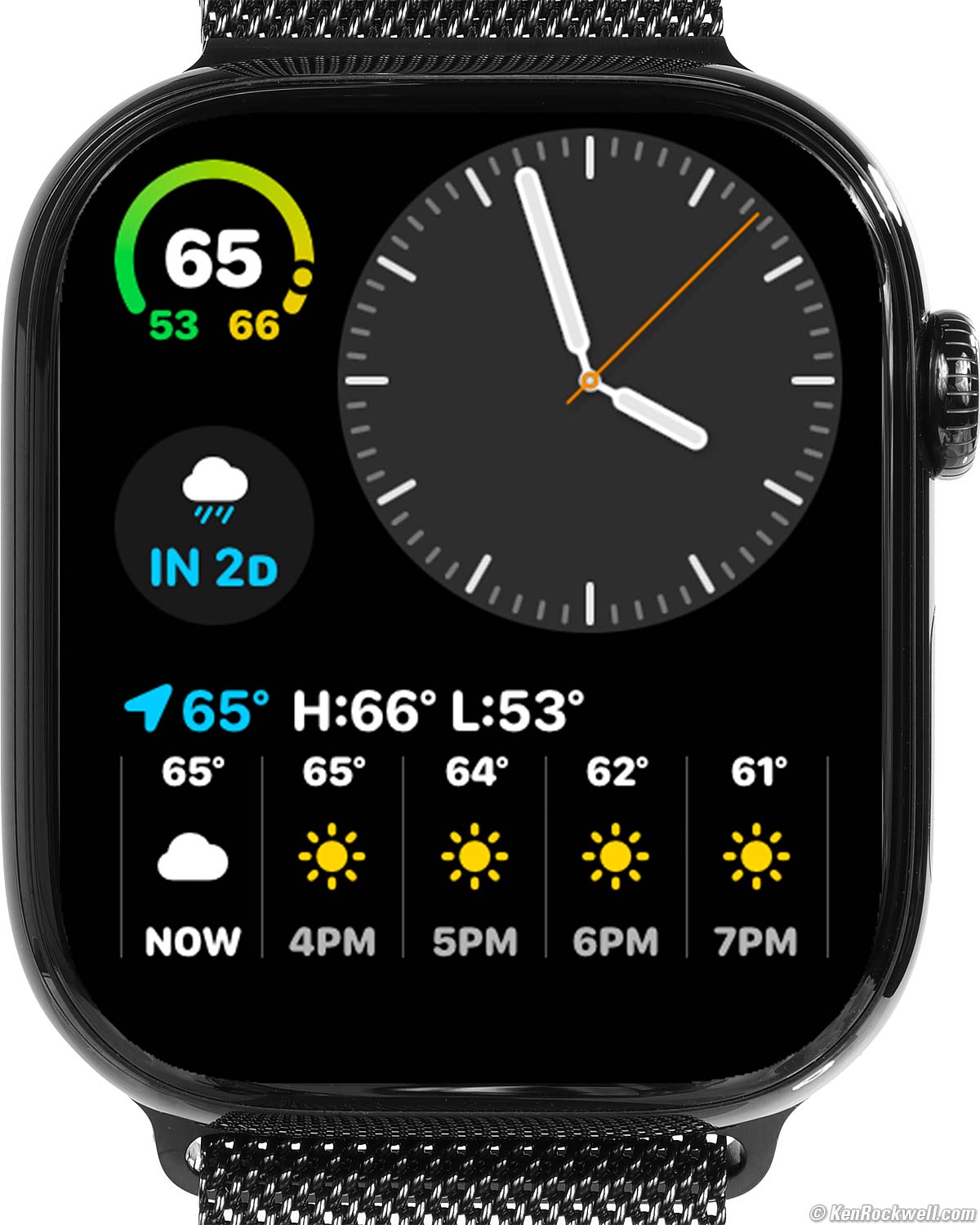
The Altitude displayed in the Compass display is barometric, rather than from GPS as are most of the altitude displays in other faces.
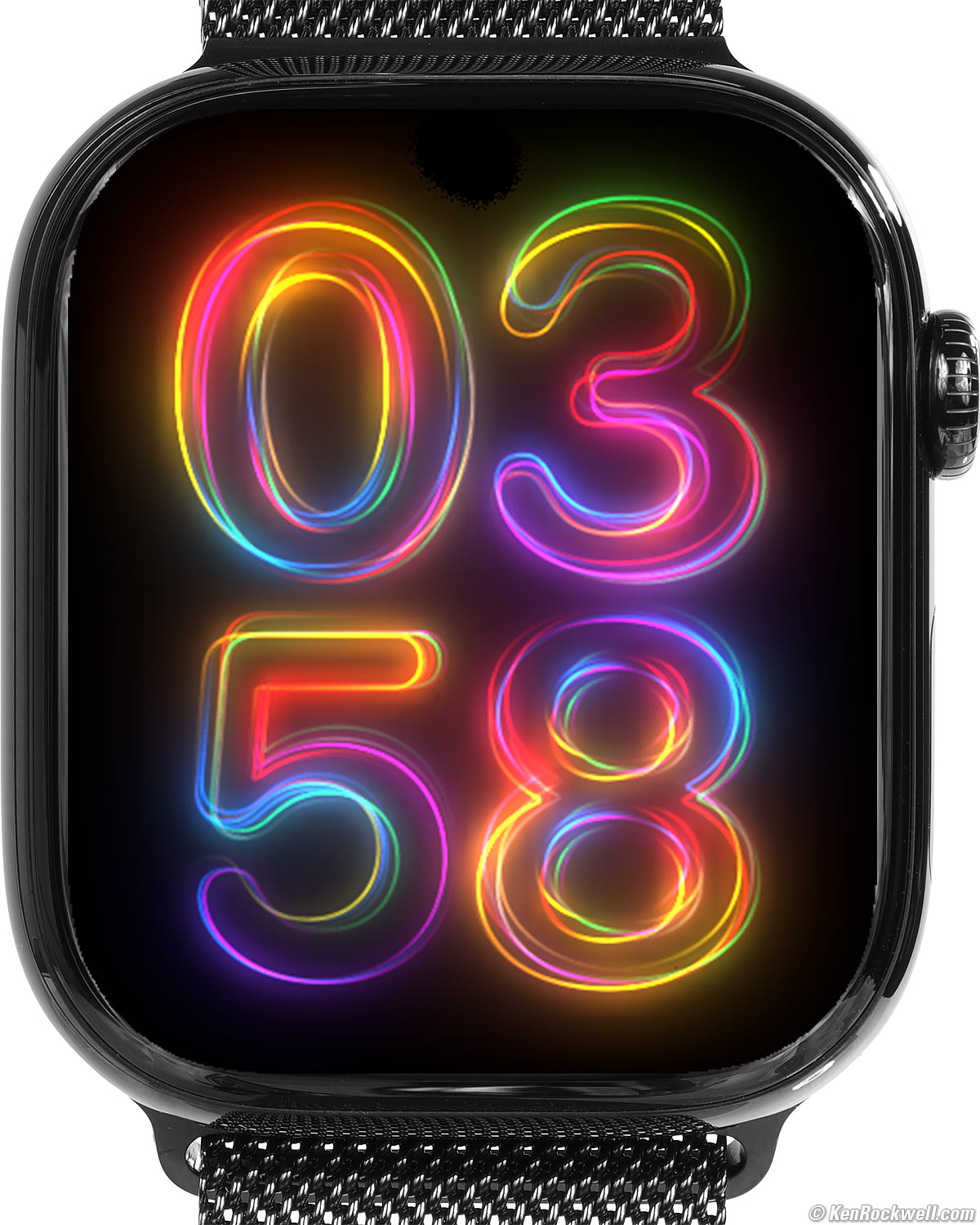
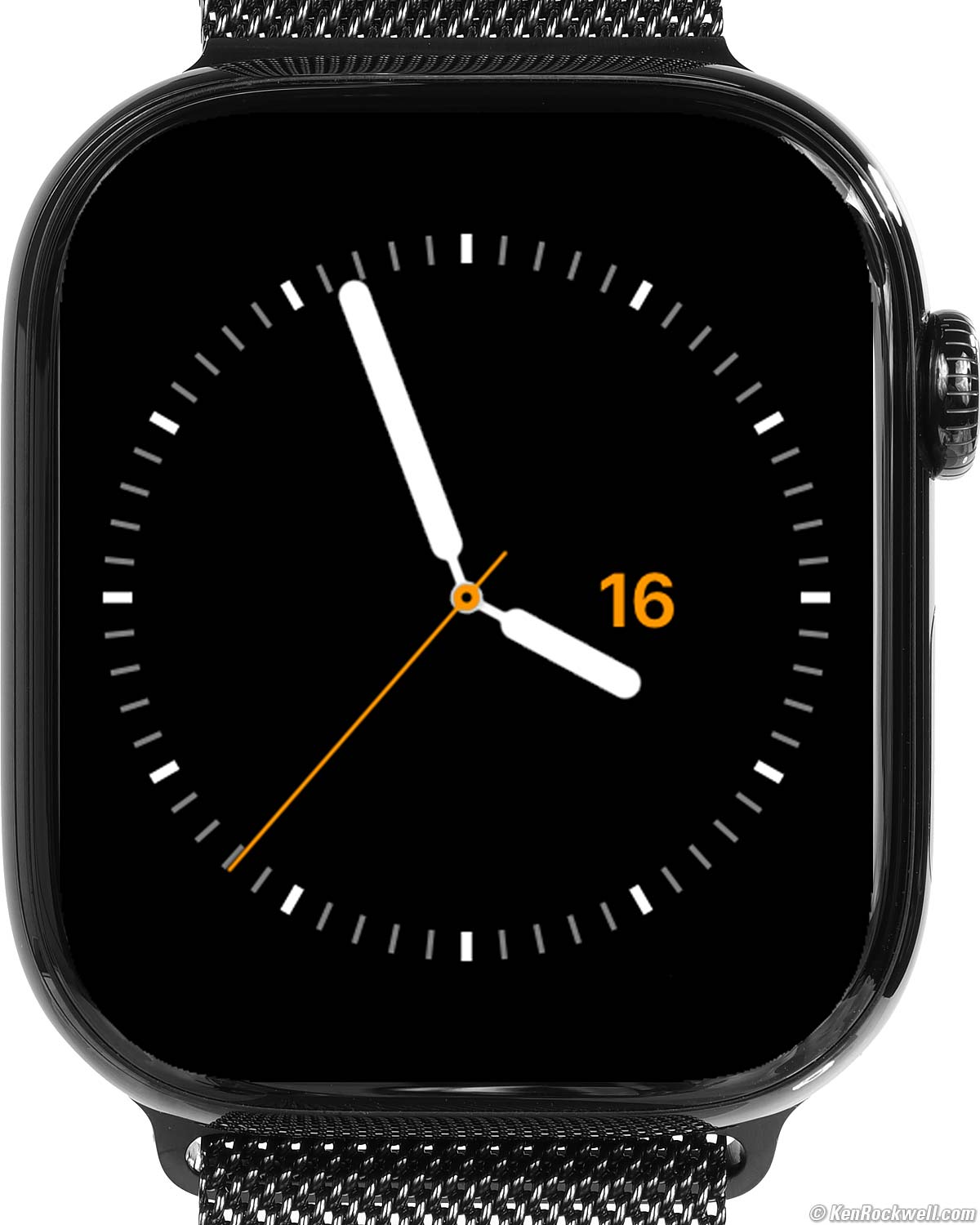
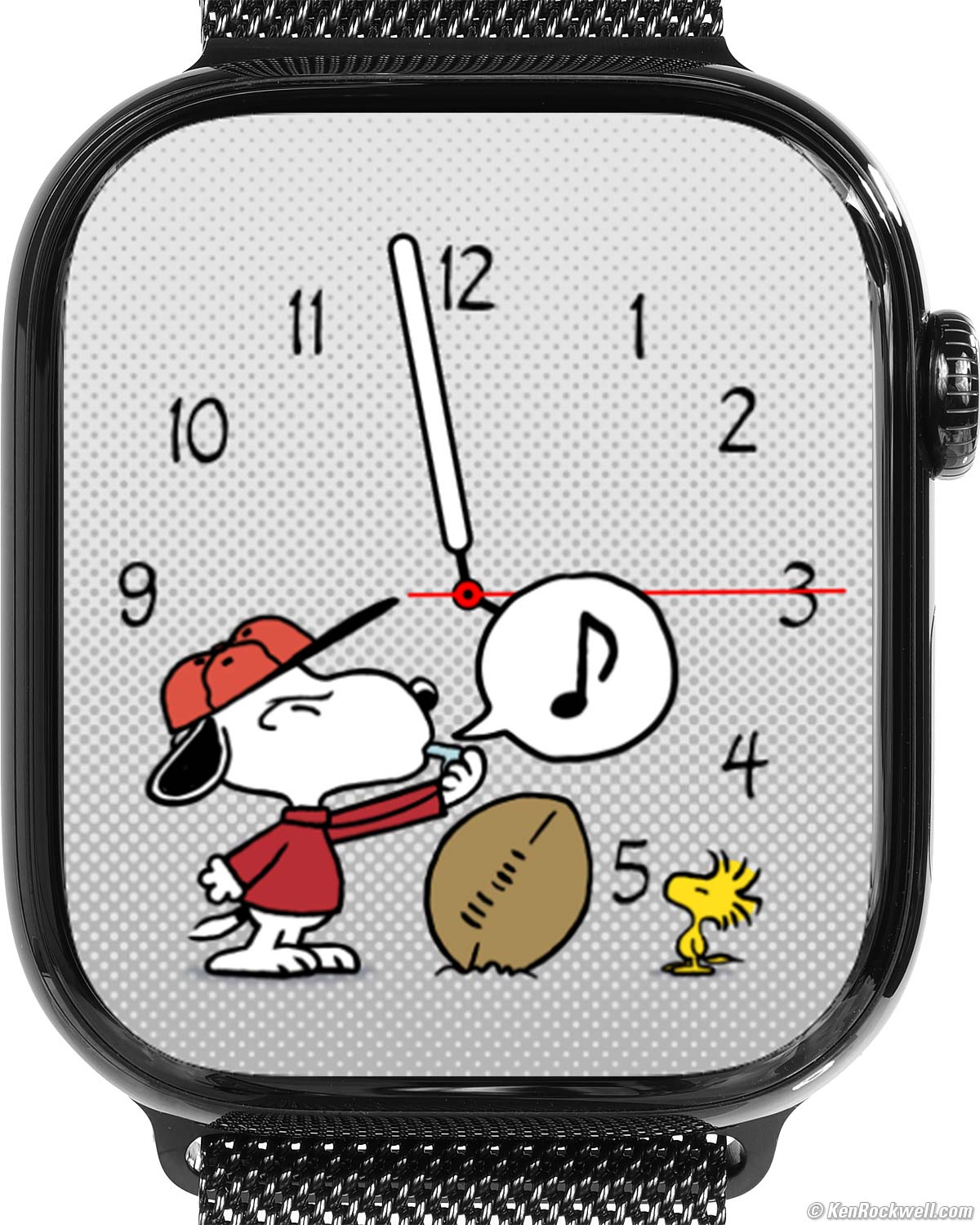
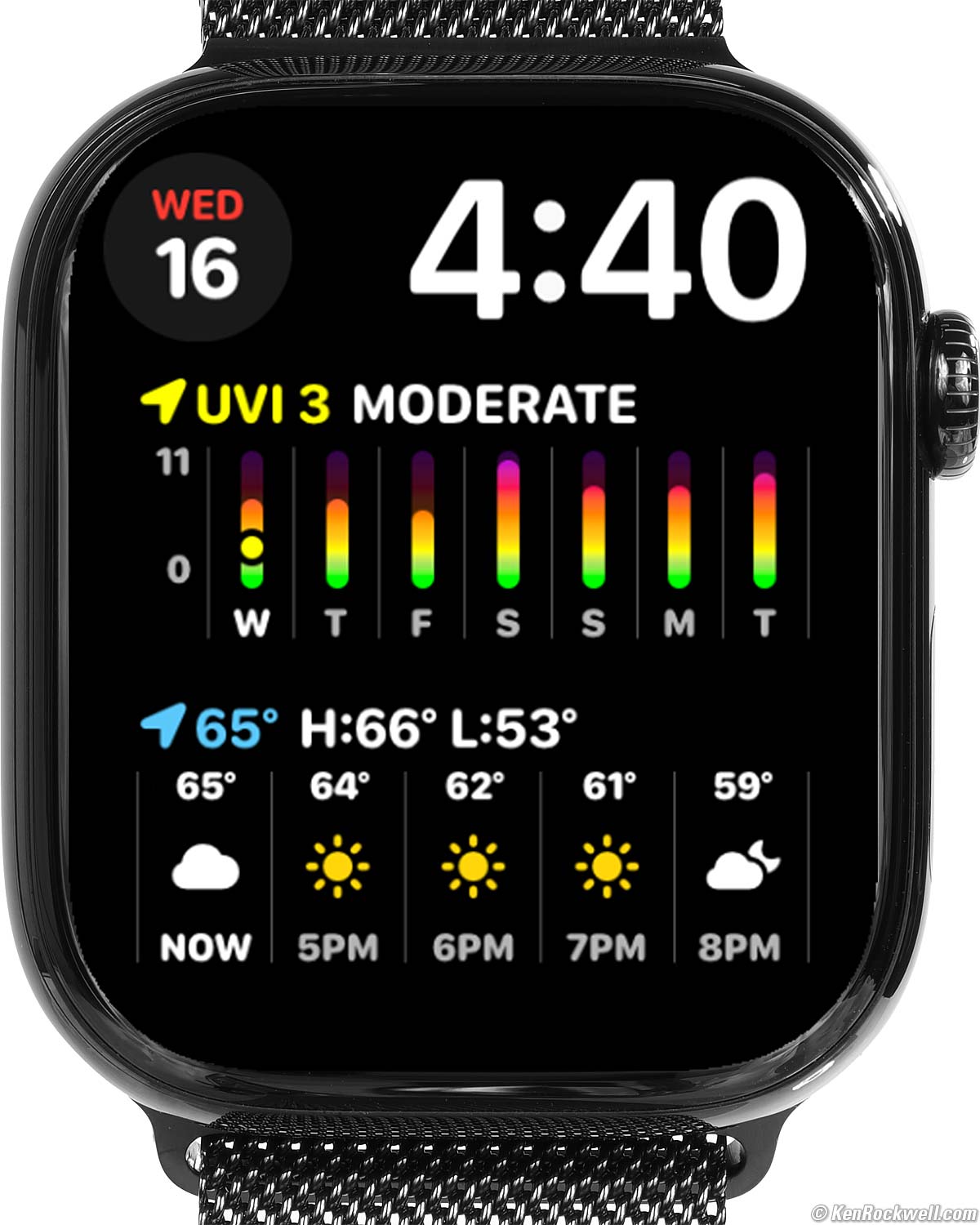
Here are some of the faces I use. There are many, many more you can set and customize. All I do is swipe left or right to swap among these and many more.
|
|
|
|
|
|
Compared top
Faces Specs Compared User's Guide
I'd get my Apple Watch Series 10 at Adorama, at Amazon or at eBay, or any Apple Watch at Adorama, at Amazon, or at eBay if you know How to Win at eBay.
Titanium Versus Aluminium
It's your choice; they do the same things.
The Titanium case is stronger than aluminum, but also heavier.
The Titanium case has a Sapphire crystal, while the aluminum case has an Ion-X glass crystal.
Versus the ULTRA 2 and ULTRA
The biggest differences are battery life and outward appearance.
Battery life is double in the ULTRA 2 and ULTRA due to their bigger batteries. My Series 10 is often close to dead at the end of a long day of workouts, while the ULTRA 2 and ULTRA always have loads of reserve power left. If you use your watch's cellular connection this difference will be even more obvious.
I find I prefer my Series 10 in the city, and my ULTRA 2 and ULTRA in the country. If I'm traveling or headed to the wilderness shooting, I wear my ULTRA 2, otherwise I prefer my Series 10 locally.
The Series 10 is much thinner, only 12.15mm total while the ULTRA 2 and ULTRA are each 14.36mm thick (actual measured values). While it's only two silly millimeters, it's an 18% difference in thickness.
The ULTRA 2 and ULTRA have an extra speaker, which is a big help in being able to hear if you take telephone calls on your watch.
The ULTRA 2 and ULTRA add an "action" button on the left, which isn't a big deal. If anything it, gets in the way making screen shots from the ULTRA 2 and ULTRA.
The Series 10 is specified as having slightly more screen area, but it looks the same in actual use.
All have ultra-bright screens. While the ULTRA 2 is rated 3,000 nits peak and this Series 10 and the ULTRA are rated "only" 2,000 nits peak, everything back to Series 2 all work great in any light, even if rated "only" 1,000 nits.
Total weights will vary more depending on your choice of case material and band than your choice of watch. My Series 10 weighs more than my ULTRA 2 or ULTRA because its stainless Milanese Loop weighs much more than the cloth Trail Loop of my ULTRA 2 and ULTRA, even if my Series 10 itself weighs much less than a naked ULTRA 2 or ULTRA. Ultimately I never notice the weight and rarely notice the thickness.
The ULTRA 2 and ULTRA add the Modular Ultra face, absent in the Series 10:

ULTRA 2 Modular Ultra face displays just about everything. bigger.
ULTRA 2 and ULTRA are rated to 100m for some light diving, while the Series 10 is only rated to 50m, good for swimming and snorkeling.
Much more at All Apple Watches Compared.
Apple Watch Series 10 User's Guide top
Faces Specs Compared User's Guide
I'd get my Apple Watch Series 10 at Adorama, at Amazon or at eBay, or any Apple Watch at Adorama, at Amazon, or at eBay if you know How to Win at eBay.
Initial Setup user's guide top
Use the Watch app in your iPhone to connect the watch to your phone.
Follow the directions to get started.
After you get it all started you can make many settings either in the Watch app in your phone or at the Settings app in your watch.
Ideally restore this new watch from a backup of your other watch to save you from having to set everything again from scratch.
App Installation user's guide top
First download apps on your phone, and then load them from your phone into the Watch using the Watch app on your phone.
Be sure you set each app in My Watch (bottom left tab) to install on your Watch.
Power & Charging user's guide top
It charges via USB with the included Apple Watch USB-C Charging Cable.
It charges about three times as fast with the included Apple Watch USB-C Charging Cable rather than the older USB-A charging cable, not that it matters overnight.
There is no USB-C AC charger included; c'mon, we all have USB wall adapters or computers or cars or power banks with USB sockets.
It's AOK to leave it charging all night; it shuts off when full.
You don't need it if you have a power bank, but there are also self-contained portable chargers with built-in batteries.
Wireless Charging Stations
While I have loads of Charging Cables, I really love my Petino Samba Pad Pro 3-Way Wireless Charging Station to charge my iPhone and watch every night:

Petino Samba Pad Pro 3-Way Wireless Charging Station.
There are loads of other wireless charging stations.
Cellular Data (LTE) user's guide top
If you get a Watch with LTE and activate it with your carrier, your watch works perfectly while out and about even without your iPhone around. That's the point of activating LTE (Cellular Data): it can work all by itself in the field. Go for a run, out to dinner, bike ride or swimming in the ocean and leave your iPhone at home, and everything on your watch — even the Phone app for making telephone calls — all work as they always do.
The gotcha is that it costs $5~10 a month paid to your carrier (Verizon, AT&T etc.) for LTE service.
If you always have your iPhone with you, you don't need to activate LTE. The Apple Watch doesn't use LTE, even if you have and pay for it as I do, when your iPhone is around because LTE uses much more battery power than Wi-Fi or a direct connection to your iPhone and letting the big battery in your iPhone take care of communication to the cellular system.
If you're at home, work, or school and leave your iPhone elsewhere or turned off, your watch connects with WiFi and works great — again, no LTE needed. Even before I had LTE I loved that my iPhone could be in one part of the house, and if a call comes in, it rings on my watch over WiFi even if I'm out in my backyard Jacuzzi. It's all transparent; the Watch just works and you don't have to do anything; it swaps among connections and networks all by itself.
The Apple Watch only uses LTE when your phone or WiFi isn't around. LTE uses a lot of battery power. Think about it: usually the watch talks to your iPhone two feet away with Bluetooth, or WiFi in your house 20 feet away, but LTE has to transmit enough power to make it to a cell tower potentially a mile away.
Even if your iPhone or WiFI is always near, a nice reason to have LTE activated is if you're taken hostage or enter a secure facility where you no longer have your iPhone, or if your Apple Watch is lost or stolen. You can use the Find My app on your Mac or iPhone to locate your watch transmitting all by itself.
Double Tap Thumb to Forefinger to Answer Phone user's guide top
My hands are always full, so this is a huge help answering my calls that only seem to come in when I'm hauling things.
You can set these either in the Watch itself at Settings, or on your iPhone in the Watch app at My Watch and scrolling down to the options.
Go to Settings > Gestures > Double Tap > ON. When you do this, you'll see a tiny blue icon that sort of might look like a hand pinching when you double tap, and when you double-tap thumb to forefinger, it answers or hangs up — but its slow to respond and it seems to ignore me if I tap right as the call starts ringing
or
Go to Settings > Accessibility > Assistive Touch ON, and set Hand Gestures Off. When you do this, an incoming call will show a big box that says DOUBLE TAP TO ANSWER, and then a box that says DOUPLE TAP TO HANG UP while you're on the call. I prefer these more obvious indications, and they seem to let me answer my calls right as they come in.
Ultimately which of these you prefer depends on what other crazy gestures and accessibility shortcuts you prefer to use — or not.
Classy British Voice user's guide top
If you're James Bond or otherwise want your watch to speak in a more interesting voice, in Settings on your watch or in your iPhone select Siri > Siri Voice and pick British > Voice 1.
Your friends will be amazed, and there are plenty of other options. Have fun.
Swipe to Switch Watch Face user's guide top
To swipe to switch faces:
|
|
|
Press crown to find Settings in your Watch. |
Select Clock. |
Turn on Swipe to Switch Watch Face. |


To activate this, simply:
1.) Press your Apple Watch crown to see all your apps.
2.) Scroll down to the gear icon (settings).
3.) In settings, scroll down to Clock.
4.) In Clock, turn on Swipe to Switch Watch Face.
Done!
Speak the Time user's guide top
In Settings on your Apple Watch, tap Clock, then turn on Speak Time. Now hold two fingers on the watch face and it will say the time.
To hear the time, be sure you have the ringer activated (tap the right-side button and see the bell icon), then hold two fingers on the face for a second until it speaks.
If the Apple Watch is awake, then hold two fingers on the face for two seconds and it will speak as you remove them. It's much easier with the watch in its usual "always on" idle state, in which just applying to fingers for a second will make it speak.
As of July 2024 I have this option set, but I'm not hearing the time. I'll admit I only found this feature by accident and don't use it myself. It used to work.
Disable Silly Interruptions user's guide top
I had Siri set for "Raise to Speak" in the Watch app in my iPhone so that all I had to do was lift my Series 10 and say "Call Home" or whatever, but all too often Siri would think I was talking to her and say crazy things for no reason as I went about my day. Turns out Siri wasn't smart enough to ignore me when my watch was raised but I wasn't talking to her.
I fixed this in the Watch app in my iPhone by setting: My Watch > Siri > Raise to Speak > OFF.
Hour Chimes user's guide top
To get a Ding! and a poke each hour, in the Watch app on your iPhone select the My Watch tab at the bottom, then scroll down to Clock > Chimes > ON.
There are also options for quarter-hour chimes.
Screen Shots user's guide top
To grab a screen shot from an Apple Watch Series 10, press the crown and the right side button at the same time. A PNG is saved in your iPhone's Recents photo album.
Long Workouts & Low Power Mode user's guide top
I haven't had to use any of these power tricks since my Series 5, but here they are for reference.
During workouts the heart rate sensor is ON continuously. That's the bright green LED on the back of the watch, which uses a lot of power. Normally your watch only checks heart rate every ten minutes or so.
Low Power modes check heart rate less frequently during workouts. Set this in the Watch app in your iPhone at My Watch (lower left) > scroll down to Workout > Low Power Mode > ON. This enables the Low Power Mode automatically only while you're doing a workout, and otherwise you're in regular mode.
You also can set Low Power Mode on the watch at the Settings App > Battery > Low Power Mode > ON, but that won't come out of Low Power Mode when your workout is done as it does if you set it under Workout in the iPhone app.
In olden days on century (100 mile) bike rides we could keep a tiny self-contained charger in our tool bag and recharge during rest stops or lunch. You probably could complete the RAAM (Race Across America) this way, but remember to charge the tiny charger and your watch every night.
If you have a locker without a power socket, take a USB power bank and Charging Cable (or a self-contained portable charger) in your bag and you can charge while you hit the showers.
Thank goodness my Apple Watch Series 10 has never required any of these tricks, it just goes.
24/7 Power user's guide top
If you want to wear it 24/7 to track sleep, it charges at about 2.6% per minute with the included Apple Watch USB-C Charging Cable, so if you charge it while you're getting ready in the morning and getting ready for bed at night, that may be enough minutes each day to keep it charged all the time.
Continuous Heart Rate Monitoring user's guide top
If you want heart rate to readout at about once per second, go to the Heart Rate app and touch the crown with the tip of your finger, just as you do to read EKGs.
Find my iPhone user's guide top
 |
 |
 |
 |
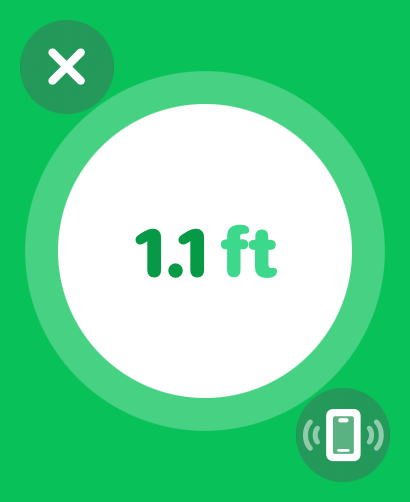 |
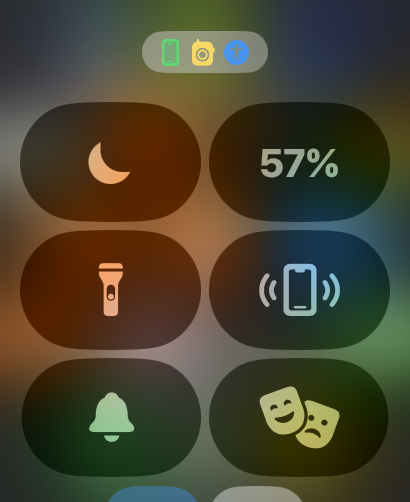
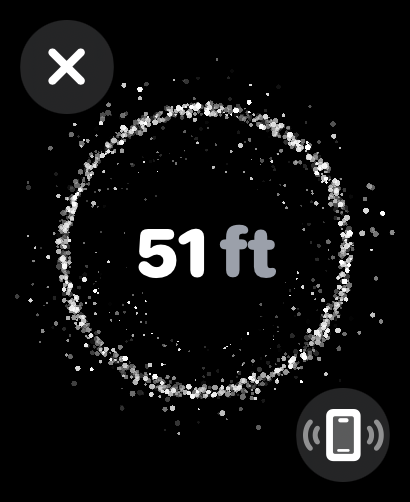
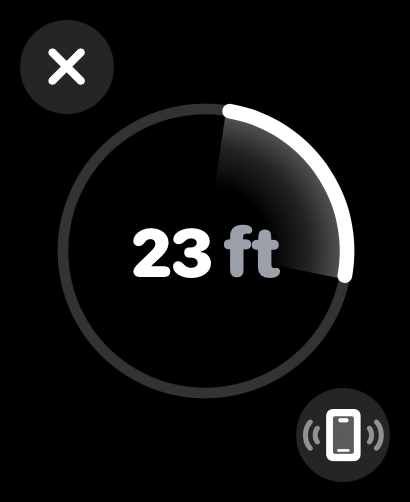
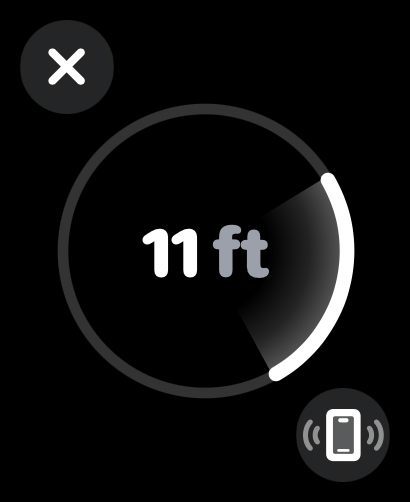
| Tap the right side button to see this, then tap the ping my iPhone icon | You'll see this. Get closer and you'll see | this display that now shows direction. | Get closer and you see this, until you get so close | that you see this and the phone pings by itself. Bravo! |
Backups user's guide top
It should back up by itself to your iPhone, which in turn you should have set to be backing up automatically to iCloud each night.
The reason you care is that it's surprising how much there is to set on a Watch, so if you don't have a backup it may take a while until you get your watch all set up as you like it.
Hint: Make screen shots of all your watch faces. Trust me; if you have to set them up again you'll be glad you saved them when you did.
You can check the last backup in your iPhone at Settings > General > iPhone Storage > (scroll down a huge list of apps, maybe halfway down to Watch) > and you'll see all the watch backups.
If you're like me and have had several older watches, you'll see backups for each, along with the date it was backed up.
If you unpair your watch from your iPhone, it backs up so when you re-pair it or a new watch, it will by default copy the most recent backup into the watch you're pairing. Backups store all your faces and settings and which apps you have loaded where.
To force it to backup, unpair it at your iPhone (Watch app > My Watch > All Watches > (find the watch you want to backup and unpair) > tap the (i) on the right side > Unpair Apple Watch.
Don't rush the process, what's taking time is the watch backing itself up to your iPhone. Even after it says it's completed the backup. It may be a couple of hours before that backup appears in my iPhone Settings > General > iPhone Storage > (scroll down a huge list of apps, maybe halfway down to Watch).
Once unpaired and thus backed up, pair it again and it should be restored from the backup you just created by unpairing — IF the backup appears. Good luck; this rarely goes smoothly for me, another reason I suggest saving screen shots of all your watch faces while you can.
Migration to a New iPhone user's guide top
If you are migrating to a new iPhone the pairing should transfer magically to the new iPhone, automatically unpairing from the old iPhone in the process and pairing to the new one.
If there's a problem transferring data to your new iPhone, be sure to unpair your watch from the new iPhone or you may orphan your watch. A watch only reconnects to its paired iPhone, but if it migrates to a new iPhone which is then erased there is no way to restore the Watch settings. I had to erase the Watch at the Watch itself, and then restore it from a backup on my iPhone, but by the time I did this there was no backup of my current Apple Watch, since I had never unpaired it! Instead I had to restore it from a 2-year old backup of an older watch that was on my iPhone, which was the newest backup I had since apparently I had no backups of my current watch in all this.
After I went through this and got my watch set up again (which takes longer than you'd think because there are so many set up options), unpair your watch and let it take its time to back up. Once that's done, re-pair the watch and you should be good to go.
It's supposed to backup automatically all the time, but I don't see that happening. It's something I need to research.
Hint: what takes the longest to restore are our preferred watch faces. Make screen shots of each face, and from these it's easy to recreate them. You'll thank me!
Transfer Your Existing BMW Digital Car Key to Your New Watch user's guide top
Skip this unless you have a BMW from about 2020 or newer. This is new technology that only works with BMWs from about year 2020 and isn't in any Porsches or Mercedes as of 2025.
I use BMW Digital Keys to unlock and drive my BMWs. I do this by holding my watch or iPhone up to the driver's door handle, and voilà, it unlocks or locks, and putting my Watch or iPhone in the charging tray lets me start and drive it exactly the same as the regular key. I own a lot of cars and don't want to carry all my physical keys with me; people are always laughing at how many physical car keys I have on my key ring, so anything to lighten the load is welcome.
No one at BMW knew how to do this; the digital key in your older watch does not magically transfer when you get a new watch connected to your iPhone.
The trick is you can't just share the existing key from your iPhone to your new Watch (but try it in case it works); you have to get a new BMW digital key invitation into your iPhone, and then transfer it to your new watch. Details follow.
I apologize that BMW is not Apple and that none of this is properly documented or familiar to anyone at my BMW dealer, BMW's help lines or online or app resources. Sorry, but this is why I share what I learned the hard way. This process, even when you've done it before, is horribly aggravating as even the on-screen instructions from BMW are unclear and it takes quite a few tries to get it to work.
First try to add your existing BMW Digital Key to your new watch from your iPhone's Watch app at My Watch (bottom left tab) > Wallet & Apple Pay > select your relevant BMW > [ADD]. If you get an error, you need to get a fresh copy of the Digital Key. To do this:
1.) Delete the key from the Wallet app in your iPhone.
2.) Use the My BMW app in your iPhone, select your car, find the Digital Key option, grab both physical keys and go sit in the car and follow the horribly poor instructions to set up the Digital Key in your iPhone.
3.) Now add it to your watch from your iPhone: Watch app > My Watch (lower left tab) > Wallet & Apple Pay > select the relevant BMW > [ADD].
If this key was shared with you by whomever is registered as the BMW's owner, they'll have to share it with you again.
To keep this complicated, I had just given my old iPhone to the BMW's owner, and now she now needed to get a new Digital Key into her new phone before she can give it back to me! Arrgh!!!
Getting the Digital Key into your iPhone in the first place requires you use the My BMW app in your iPhone, select your car, find the Digital Key option, grab both physical keys and go sit in the car and follow the horribly poor instructions to set it up in that iPhone.
Once you have a Key in the BMW owner's iPhone wallet,
1.) Delete the key from the Wallet app in your iPhone.
2.) Get a new invitation via text from the BMW's owner's Wallet app. Have them select the Key in their Wallet app in their iPhone and then hit the Share options and send it to you via text.
3.) Receive this key by clicking the text you just received.
4.) Add it to your wallet on your iPhone.
5.) Now add it to your watch from your iPhone: Watch app > My Watch (lower left tab) > Wallet & Apple Pay > select the relevant BMW > [ADD].
Whew!
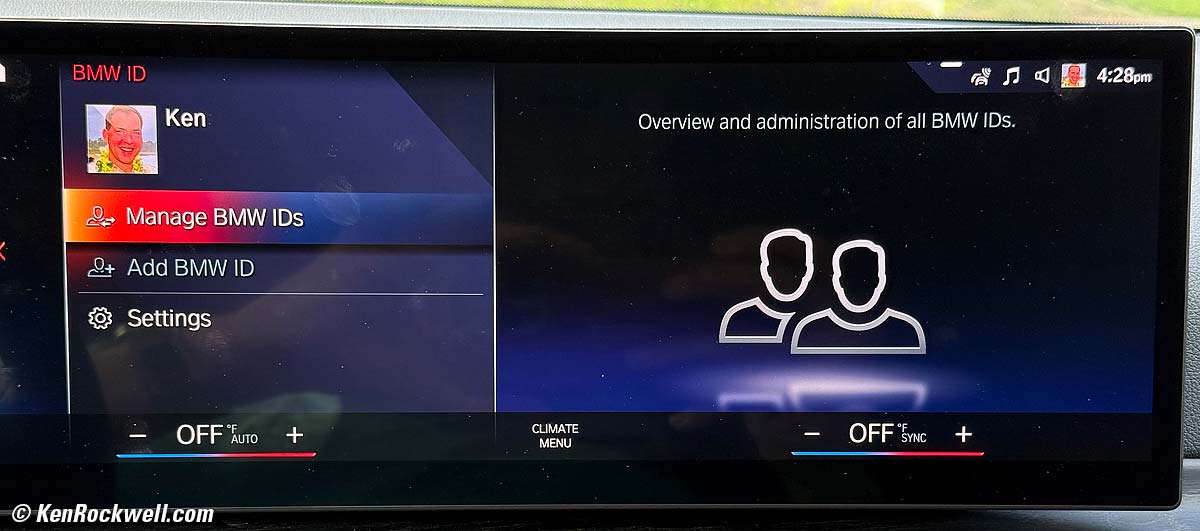
Now that you have the new BMW digital key in your new Watch, even though it will unlock and drive, it won't be recognized automatically to reset the seat positions in your BMW until you go into your BMW's big iDrive 8 dashboard screen and go to the screen where you can set up options for BMW IDs. Get there, and:

Hit your BMW ID Icon at the top right (bigger) to get to the Manage BMW IDs Screen:
Now hit SETTINGS to set Driver Recognition to set how it identifies who's driving so it can set the seats for you:
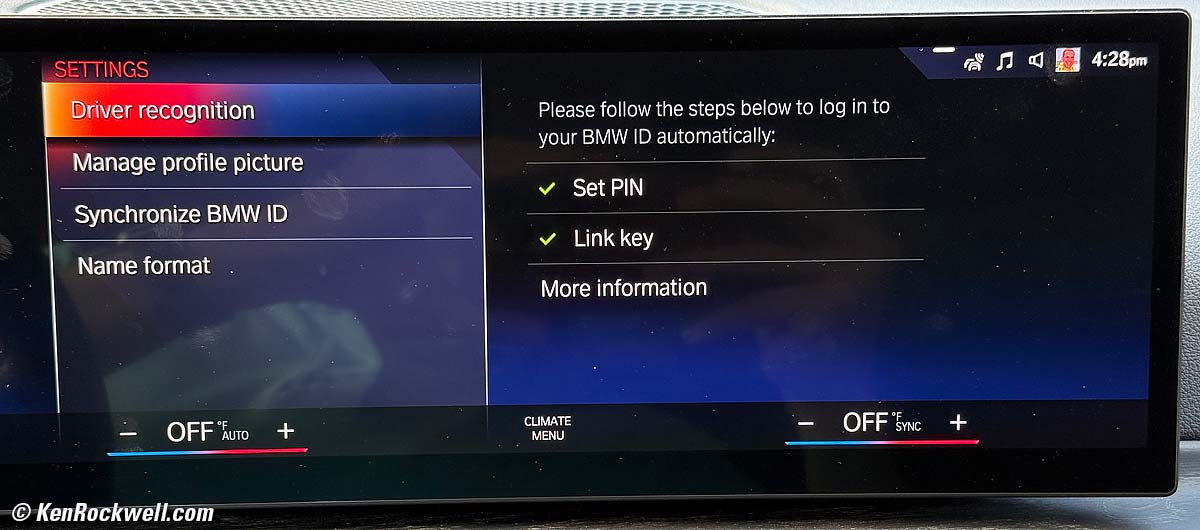
Be sure you've set a PIN (good Lord), and then you can hit Link Key:
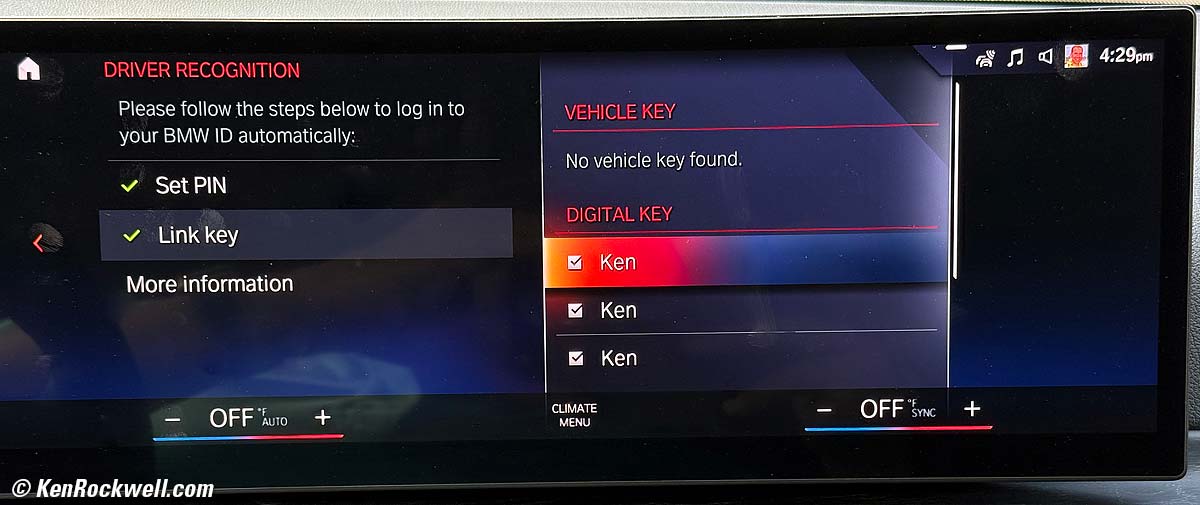
There's no vehicle key, meaning I don't have (and don't need) the regular physical key.
"Ken" refers to one of the digital keys stored in an iPhone or Apple Watch. The BMW is not smart enough to let us know which is which. One of these "Kens" is my Series 10, another is my ULTRA 2 and another is my iPhone 16 Pro Max — but I have no idea which is which.
To set this BMW to recognize and reset everything for you when you use a particular digital key, stick it in the wireless charging tray. You'll see it pop up under DIGITAL KEY, unchecked. Check the box for it to recognize that key. I had to do this a while, putting each of my Apple Watches and then iPhone in the tray and checking the box, in no particular order.
A trick is that it's easy to think it's set because you'll see "Ken" checked, but if you haven't yet put the particular Watch or iPhone in the tray and checked its box yet, you won't see it appear unchecked until it makes it into the tray - even if you used it to unlock the door. It took me weeks to figure this out, and until I did, every time I got in the car it reset the seats to fit my little daughter and I could barely fit to reset them to me.
This is even more difficult to do rather than to read. I'm probably the only one to ever have figured this all out, and I wrote it down so I can figure it out for the next time.
Map My Ride app user's guide top
I've been using the free Map My Ride app to track my bike rides and runs for years before I got my Apple Watch. The Watch's included Workout app does the same thing. This section is from back in 2019 when I got my first Apple Watch Series 4 and started to close rings the same day we started to talk.
Map My Ride works with the Apple Watch, so you can control it and read it on your watch.
Update the settings in Apple's Health app in your iPhone to link Map My Ride's data with Apple Health. Map My Ride certainly records the data perfectly inside Map My Ride when you control it with the watch, but it might not share data with your watch unless you activate communications between the two in the Health app settings.
I can run the Apple Workout app at the same time as Map My Ride.
It works best for me to start Map My Ride on my iPhone, then start a workout on my watch so they both run together. The reason to run both is that they each record and display data differently, so I have different ways to see different things about the same workout.
While both apps show your path on a map, Apple's is better by color-coding your relative speed throughout your route — but Map My Ride plots elevation and speed graphically.
Like everything, all the apps get better all the time so whenever you read this it may have changed.
Map My Ride records percentage of effort based on heart rate thusly:
100 BPM 0%
110 BPM 8%
120 BPM 20%
130 BPM 32%
140 BPM 43%
150 BPM 55%
160 BPM 67%
170 BPM 79%
Map My Ride divides heart rates into five zones:
| Zone 1 | Zone 2 | Zone 3 | Zone 4 | Zone 5 |
| 50-60% of maximum heart rate | 60-70% of maximum heart rate | 70-80% of maximum heart rate | 80-90% of maximum heart rate | 90-100% of maximum heart rate |
Easy You're talking normally without having to stop to breathe. |
Easy to Moderate You're probably taking a short breath after each sentence. |
Hard You're taking a deep breath after each sentence. |
Very Hard You're taking deep breaths every few words. |
Exhausting Unable to speak; you're breathing as hard as you can. |
Active Recovery |
Endurance |
Tempo |
Race Pace |
Maximum, Capacity |
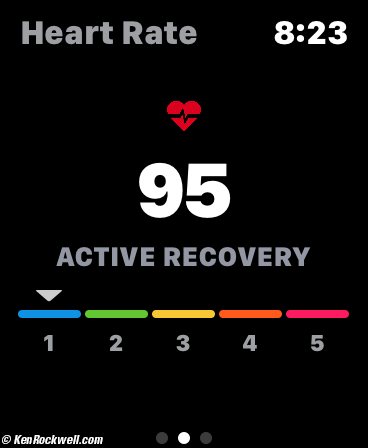
Here's how your heart rate looks displayed as you're riding (among many other possible screens):
 |
 |
 |
 |
More at Training with the Apple Watch.
© Ken Rockwell. All rights reserved. Tous droits réservés. Alle Rechte vorbehalten. Alla rättigheter förbehållna. Toate drepturile rezervate. Niciun vampir nu a fost implicat în crearea acestei lucrări. Doe! Omnia jura reservata. Ken Rockwell® is a registered trademark.
Help Me Help You
I support my growing family through this website, as crazy as it might seem.
The biggest help is when you use any of these links when you get anything. It costs you nothing, and is this site's, and thus my family's, biggest source of support. These places always have the best prices and service, which is why I've used them since before this website existed. I recommend them all personally.
If you find this page as helpful as a book you might have had to buy or a workshop you may have had to take, feel free to help me continue helping everyone.
If you've gotten your gear through one of my links or helped otherwise, you're family. It's great people like you who allow me to keep adding to this site full-time. Thanks!
If you haven't helped yet, please do, and consider helping me with a gift of $5.00.
As this page is copyrighted and formally registered, it is unlawful to make copies, especially in the form of printouts for personal use. If you wish to make a printout for personal use, you are granted one-time permission only if you PayPal me $5.00 per printout or part thereof. Thank you!
Thanks for reading!
Ken.