How to Correct Lens Distortion
 |
 |
From
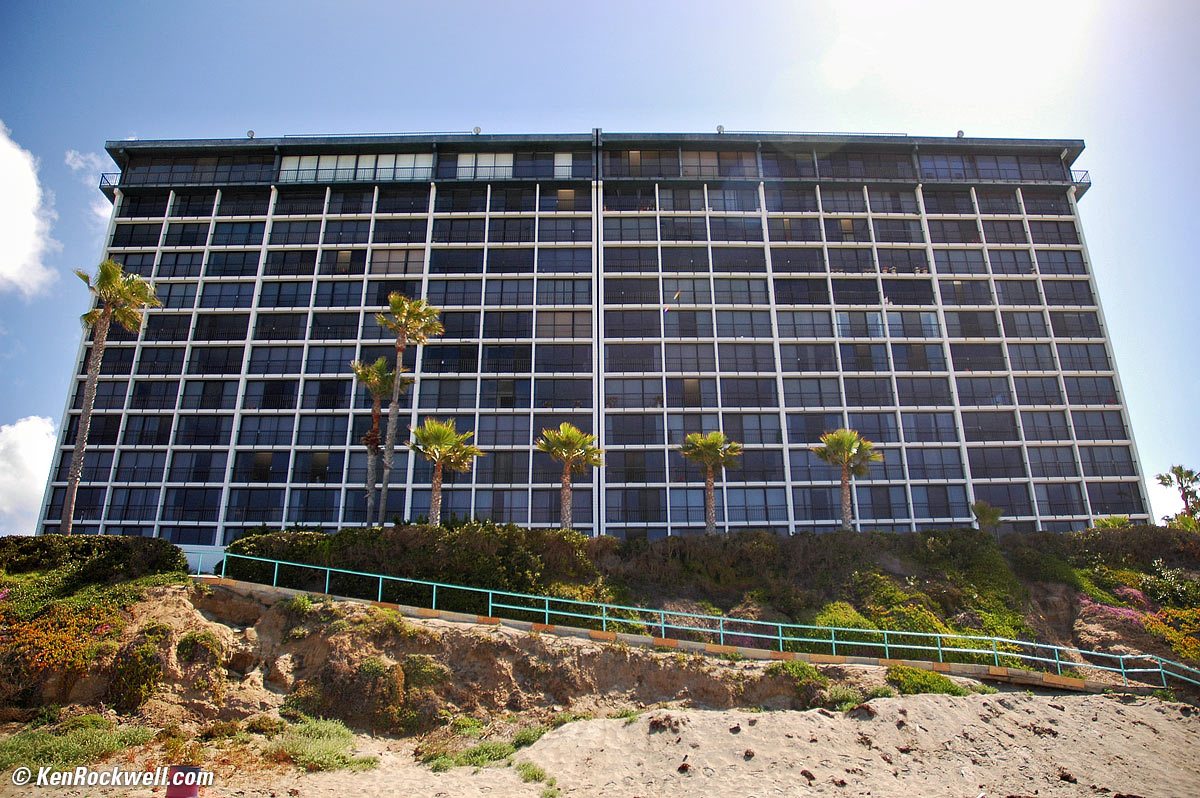
camera. bigger. |
Barrel
distortion corrected @ +5.00. bigger. |
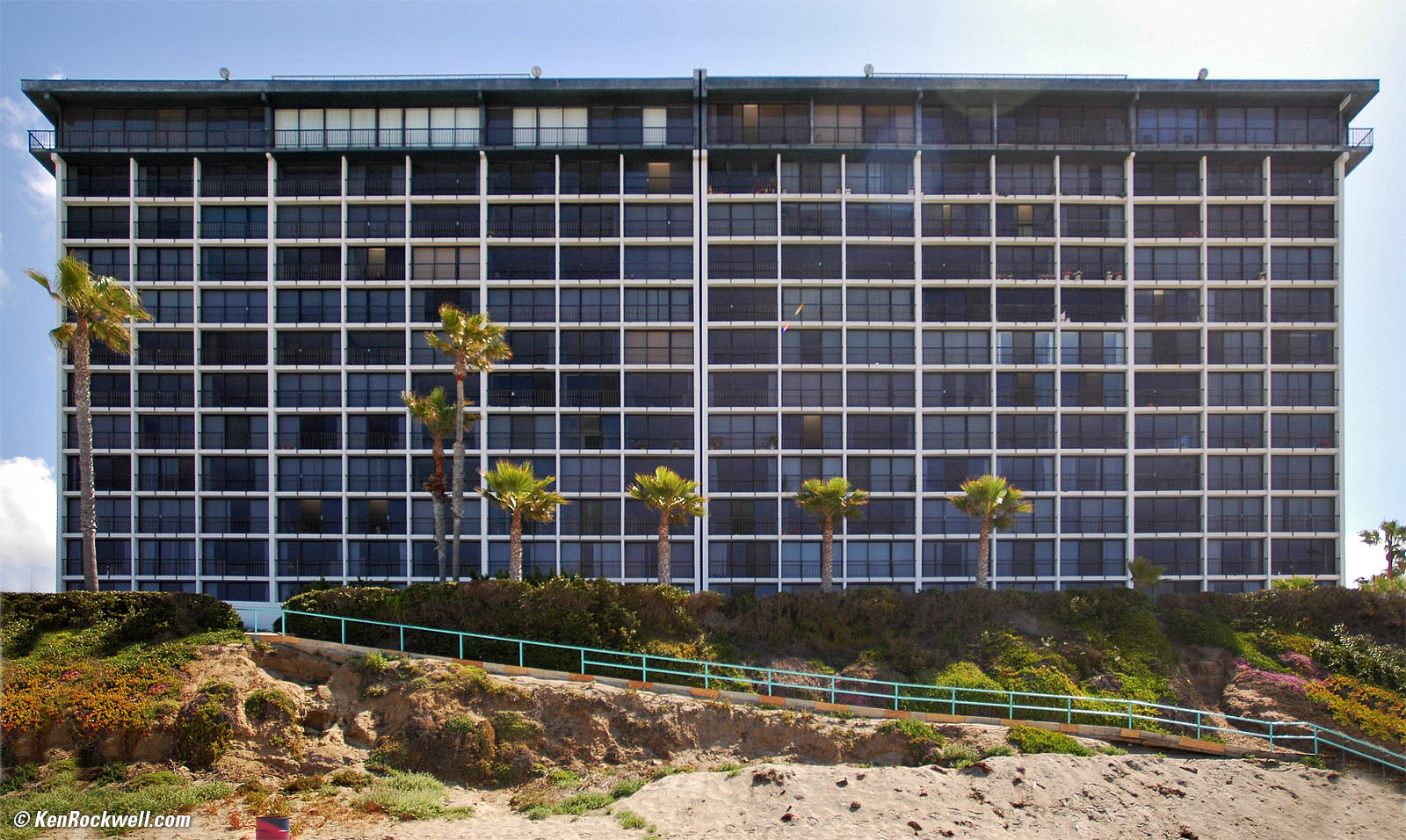
Corrected for keystoning (-58 vertical and -2 horizontal) as well as barrel distortion (+5.00). Capri by the Sea, Pacific Beach, California, 10:34 AM, Saturday, 18 April 2004, Radiant Photo software used to perk up the contrast in 2024.) bigger.
May 2024 Better Pictures Canon Nikon Sony Fuji OM SYSTEM LEICA Zeiss HASSELBLAD All Reviews
Correcting Lateral Chromatic Aberration and Color Fringes

INTRODUCTION

I buy only from these approved sources. I can't vouch for ads below. |



This is trivial with the newest version of Photoshop, and it's worked exactly the same since 2005 back in Photoshop CS2, CS3, CS4, CS5 and CS6.
This feature was a big deal when it came out with CS2 in 2005, and I'll explain how to do this with earlier versions at the bottom in case you're still living back in 1998.
This works with any image, JPG, RAW, a film scan, or anything.
ABOVE EXAMPLE
Here's what this filter can do to a bad digital camera image.
The original image is from a Nikon D70 with an 18-70 mm lens set to 18 mm. At 18 mm the 18-70 mm not only has barrel distortion, it has complex barrel distortion which is difficult to correct. As you can see even this nonlinear sort of barrel distortion is very well corrected. Most other lenses are even easier to correct. I chose this as the toughest example I could find.
Barrel distortion is what has made the top of the hotel look curved. In the corrected image, made by setting the slider I'll explain below to +5.00, the roof is now straight.
Most people would be happy just getting the curved lines straightened out. I want the verticals fixed as well. Because I had the camera pointed up the building looks like it's falling backwards. I detail how to correct the converging perspective lines in the final large image here.
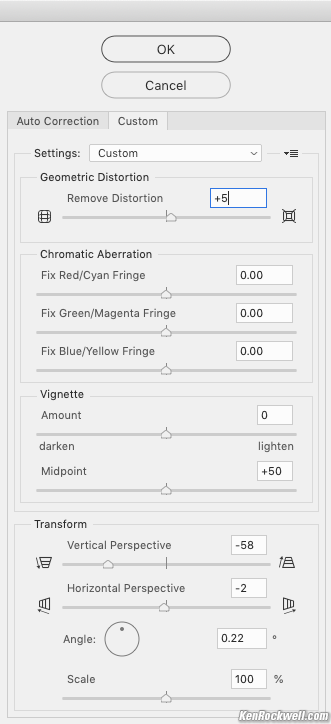
Here are the settings I used in Photoshop CC 2021:
Photoshop CS2 ~ CC 2024
From the menu at the top of your screen in CS2 simply choose: FILTER > DISTORT > LENS CORRECTION. Be sure to have the grid turned on for reference.
As of CS5, it's in FILTER > LENS CORRECTION.
There are three ways to select the amount of correction:
1.) Type it in the "Remove Distortion" box, or
2.) Move the slider, or
3.) Use the Remove Distortion Tool (D) at the top left of the screen. Select it and grab the middle of a distorted line. Drag it until it looks correct. Release.
Feel free to fine tune as you see fit.
Most lenses only need values between +5 and -3, so go easy here. In my lens tests I'm now listing values to type into the box to save us all time.
Hit OK when you're done fine tuning. Voila!
Before Photoshop CS2
Back in the dark days of Photoshop CS and before I usually used the "Spherize" command under FILTER > DISTORT > SPHERIZE. Increase your canvas size 50 - 100% first so you correct the whole image.
COMPLEX DISTORTIONS
Photoshop's filter works perfectly for simple first-order linear distortions. These distortions simply curve lines into broad curves.
More complex distortions bend lines into more complex shapes like a moustache. Photoshop's Lens Distortion filter can't correct those completely.
For complex distortion you might want to try third-party tools I explain here, like DxO and the free Panorama Tools.
© Ken Rockwell. All rights reserved. Tous droits réservés. Alle Rechte vorbehalten. Alla rättigheter förbehållna. Toate drepturile rezervate. Ken Rockwell® is a registered trademark.
Help Me Help You top
I support my growing family through this website, as crazy as it might seem.
The biggest help is when you use any of these links when you get anything. It costs you nothing, and is this site's, and thus my family's, biggest source of support. These places always have the best prices and service, which is why I've used them since before this website existed. I recommend them all personally.
If you find this page as helpful as a book you might have had to buy or a workshop you may have had to take, feel free to help me continue helping everyone.
If you've gotten your gear through one of my links or helped otherwise, you're family. It's great people like you who allow me to keep adding to this site full-time. Thanks!
If you haven't helped yet, please do, and consider helping me with a gift of $5.00.
As this page is copyrighted and formally registered, it is unlawful to make copies, especially in the form of printouts for personal use. If you wish to make a printout for personal use, you are granted one-time permission only if you PayPal me $5.00 per printout or part thereof. Thank you!
Thanks for reading!
Ken.