TourBox Elite Plus
Programmable Knobs & Buttons for Mac, PC & iPad (2025 ~ today)
Intro New Good Bad Missing User's Guide
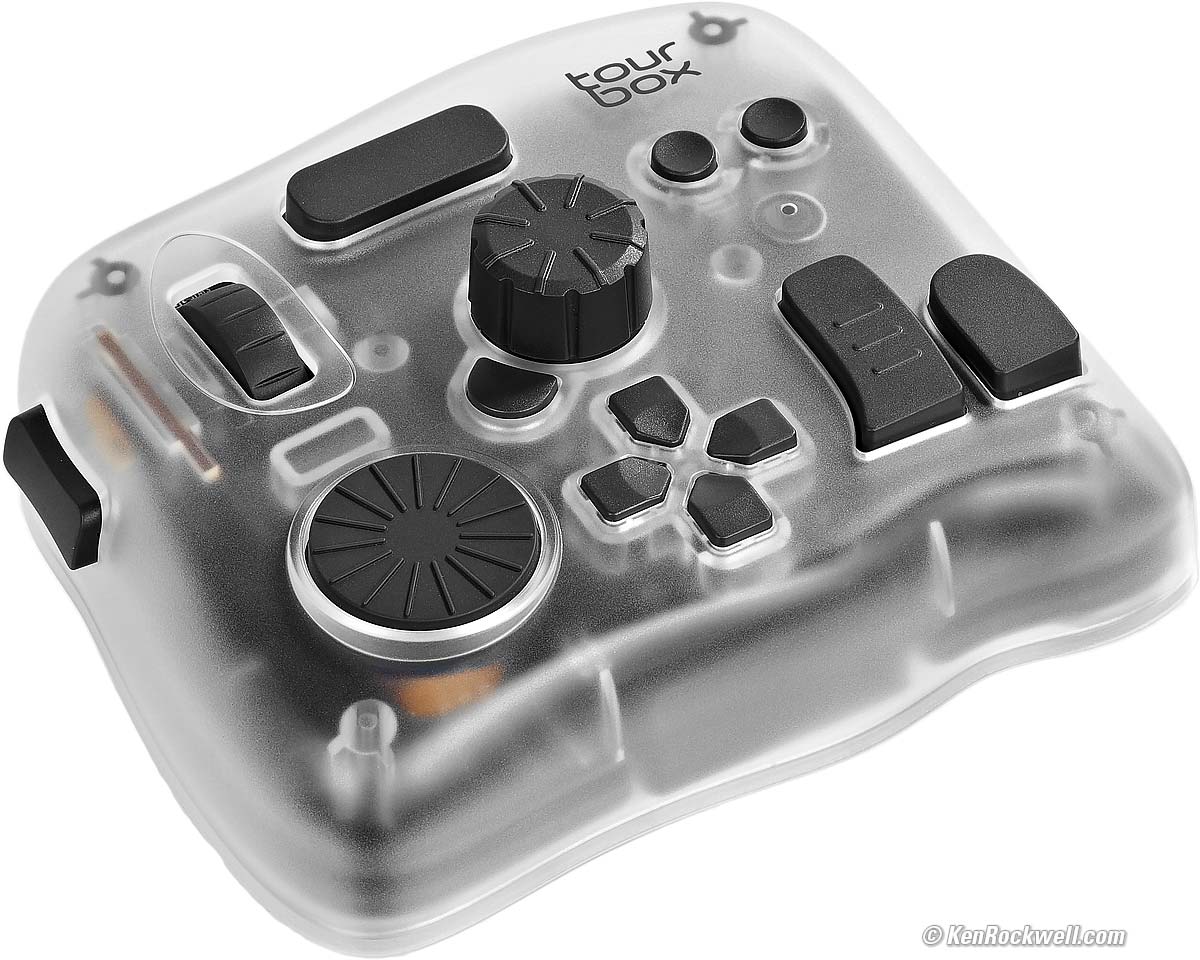
TourBox Elite Plus (USB-C power & connection or Bluetooth with 2-AA power; $297). bigger. I'd get mine at Amazon, at B&H or at eBay (How to Win at eBay). It comes in several different versions. This is the fanciest one, the TourBox Elite Plus.
This all-content, junk-free website's biggest source of support is when you use those or any of these links to approved sources when you get anything, regardless of the country in which you live. Thanks for helping me help you! Ken.
May 2026 Better Pictures Apple Canon Nikon Sony Fuji OM SYSTEM LEICA Zeiss HASSELBLAD All Reviews
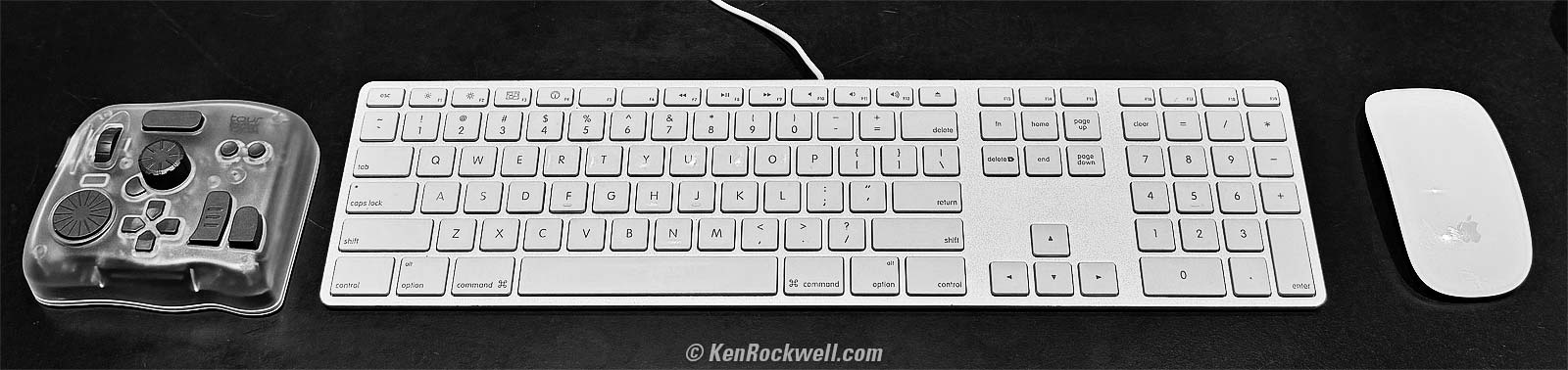
TourBox Elite Plus, Apple Keyboard and Magic Mouse. bigger.

Introduction top
Intro New Good Bad Missing User's Guide
I'd get mine at Amazon, at B&H or at eBay (How to Win at eBay). It comes in several different versions. This is the fanciest one, the TourBox Elite Plus.

I buy only from these approved sources. I can't vouch for ads below. |



This weird looking thing is one of the most amazing computer time-savers I've ever used. It adds a fourth dimension of control and speed to everything I do on a computer. The app is so simple and well written that it makes this a complete dream.
This crazy-looking thing adds a bazillion programmable knobs and dials and buttons that let me work much faster in every app on my Mac. It also works with iPad, Android and PC. It lets me work faster and get much more done in less time with far fewer keystrokes. It replaces multifinger two-hand contortions (like CTL+SHIFT+TAB to swap tabs in Safari) with just one tap or a click of a dial.
It lets me use a knob to glide along timelines in video editing or scroll lists in Mail and Finder, have three separate, dedicated knobs for image zoom (with dedicated buttons for 100% and fit-to-screen), brush size and hardness in Photoshop, and do everything that used to take multiple fingers and two hands (like uploading a page SHIFT+CMD+U here in Dreamweaver as I write this) with just a single dedicated click. I even have one button programmed to SAVE AS (SHIFT+CMD+S) and then go to the end of the file name and add "-EDITED" to the file name as I save edited versions in Photoshop — all with one tap.
I just sorted through 4,000 photos in Photo Mechanic, and my TourBox made it much faster using its knobs to move through images rather than clicking my arrow keys 4,000 times. My left hand spun two knobs (one for fast and one for slow running through the images) while my right hand ran my mouse, which is much faster than having to move my right hand between my mouse and the arrow keys.
I program other dedicated buttons let me select my subject (OPT+CMD+W; like I can remember that?) or play a particular complex Action, like the one that resizes images to 1,200 pixels, sharpens them just how I like it, select exactly the font and dropshadows and strokes and transparencies I like to use to add ©KenRockwell.com on my images — all with just one tap in Photoshop. When you work on your Mac all day as I do, this saves me boatloads of time and I get much more done.
I'm not proud; I program single keys to cut, copy and paste so I don't have to use two-finger CMD+X, CMD+C and CMD+V gyrations all day!
You know how I'm a crusader for dedicated controls, and this is Heaven!
While it's sold mostly for people who work in Photoshop, video editing and graphics all day, it's trivially easy to program to work with every and any app, like Mail, Finder, Photo Mechanic and Web Browsers.
This system works like an immensely flexible and programmable external keyboard and mouse which can have every knob and button programmed to do pretty much anything you could do the hard way, now with one click. Each direction of each of the three knobs is programed separately. While most of us will program a knob to be opposite things like zoom-in and zoom-out, it's just as easy to program each direction to do something totally different.
It’s not just about the nutty controller seen above; it’s even more about the brilliant companion TourBox Controller app that recognizes in what app I’m working and magically recalls (or lets me program settings) particular to that app:
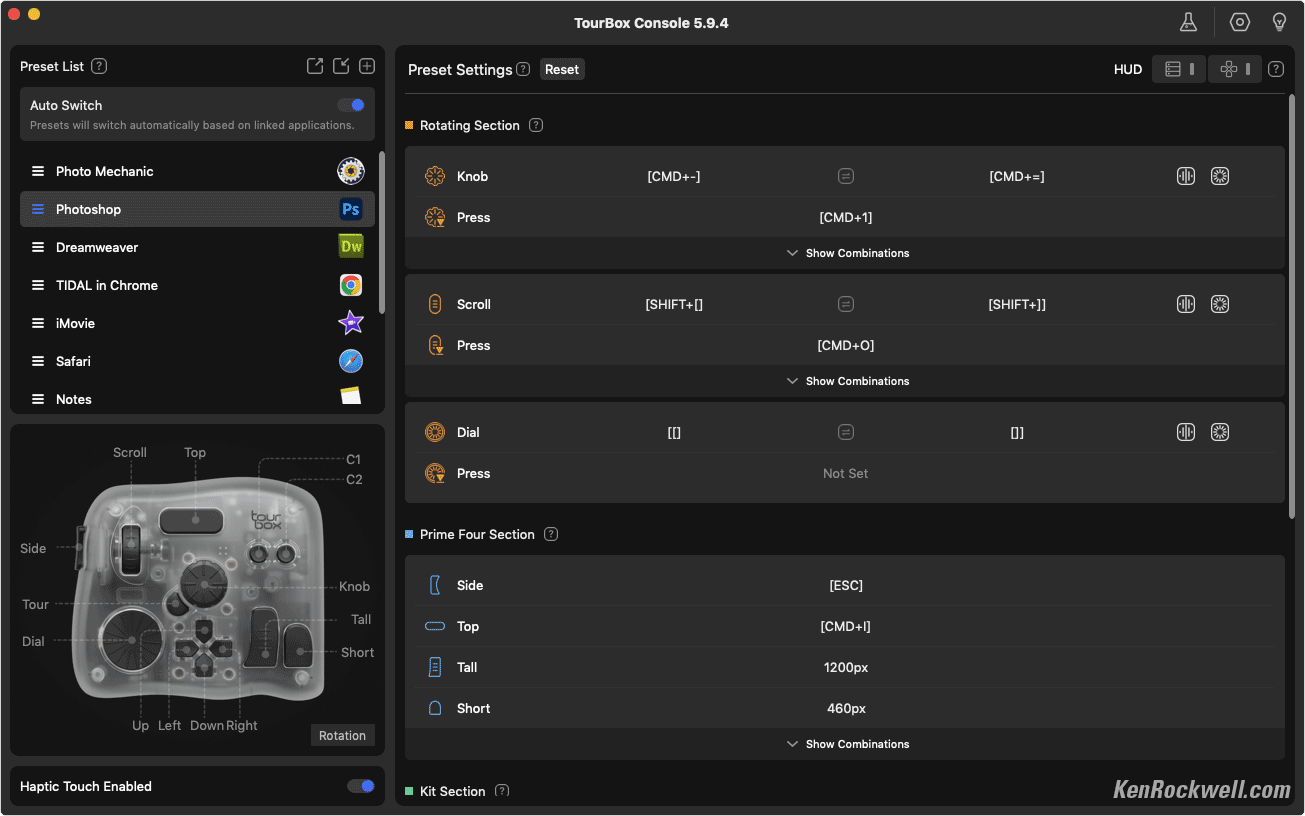
Some of the TourBox Console App (Mac). Note how it's selected Photoshop, in which I was working when I grabbed this screen. bigger.
While cameras have many buttons that can be programmed, this included TourBox Console app lets me program any of its buttons and dials to do anything. Unlike cameras which offer only a small set of potential options for only some of a camera's few buttons, this app lets me program every one of its 11 dedicated buttons, every direction of all of its three dials as well as three more center-clicks in these dials, to do anything any combination of keyboard commands would do.
I'm pretty good at programing macros (combinations of things that happen when you make a click) and Photoshop Actions to do all the complex things I do pretty quickly with just a few clicks and keystrokes, while this thing lets me do each with just one click!
It's astonishing how it lets every possible key or dial (or any combination of keys and dials) be programmed to any combination of keyboard keystrokes or mouse actions.
It has numerous options for how fast a dial responds or if it has clicks or not (or how strong), and if these actions repeat or not, or when they take affect (key up or down or...). Yes, you can program entirely different things to different combinations of controls on this box, so holding a button while spinning a knob can do something completely different than just the button or knob alone.
It's super easy to get up and running and absolutely brilliant! I very quickly had it up and programed before I realized what had happened. The whole thing is completely intuitive.
Some people worry about having preloaded presets in the app for certain software like DaVinci Resolve and Final Cut Pro (which it does) — but I don't. I've never been a fan of presets; instead, I simply program all the buttons as I want them as I use each program, which makes it much more intuitive.
We all use each app differently so using provided presets are unlikely to be ideal for anyone. I suggest everyone program it as we use each program, including Mail and Finder and music players and it’s AWESOME! Don't be concerned if TourBox has no preset for any particular program.
It comes in various versions; I got the fanciest one and use all of these controls. More basic models have fewer controls or lack Bluetooth.
Price, 19 May 2026
$297 at Amazon, at B&H or at eBay (How to Win at eBay).
It was $295 in October 2025 and $282 in April 2026.
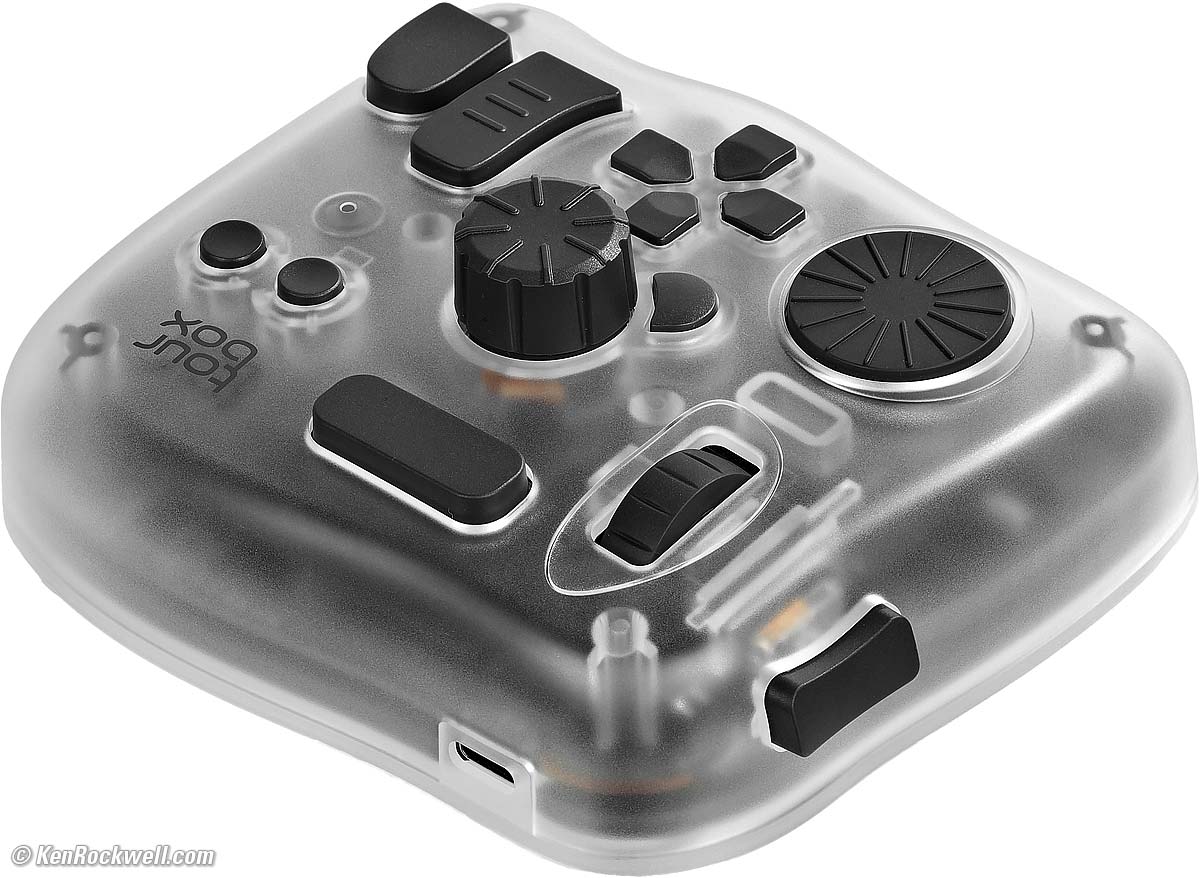
Top view showing USB-C Port, TourBox Elite Plus. bigger.
New since older models intro top
Intro New Good Bad Missing User's Guide
I'd get mine at Amazon, at B&H or at eBay (How to Win at eBay). It comes in several different versions. This is the fanciest one, the TourBox Elite Plus.
 Adds iPad compatibility.
Adds Bluetooth.
Good intro top
Intro New Good Bad Missing User's Guide
I'd get mine at Amazon, at B&H or at eBay (How to Win at eBay). It comes in several different versions. This is the fanciest one, the TourBox Elite Plus.
 Extremely easy to set up and use.
Automatically reconfigures itself each time you swap between apps, so you can have completely different functions set for each app.
Extremely flexible.
Feels well made.
Sturdy & heavy little box stays stuck to your desk.
Bad intro top
Intro New Good Bad Missing User's Guide
I'd get mine at Amazon, at B&H or at eBay (How to Win at eBay). It comes in several different versions. This is the fanciest one, the TourBox Elite Plus.
 Could make us forget the keyboard commands we take for granted (like CMD+C to copy) to use any of these programs we ever lost the device or had to work on another machine, much as most of us can't remember our friend's actual phone numbers since they were programmed into our phones back in 2019.
Missing intro top
Intro New Good Bad Missing User's Guide
I'd get mine at Amazon, at B&H or at eBay (How to Win at eBay). It comes in several different versions. This is the fanciest one, the TourBox Elite Plus.
 Bluetooth only works with battery power. Bluetooth won't work while powered via USB-C.
No battery charging; we have to pull our AA cells to recharge or replace them every time they run down. This is like Apple's wireless keyboards and mice from a decade ago. I'll let you know when I run mine down; I expect at least a month between recharges.
No battery level indicator.
No macro library; if you program a complex macro for use with one button in one app, you have to program it again for other buttons or the same button used for other apps.
While I have macros that enter text strings, I had to program those macros with a separate action for each letter or keystroke. Not to worry, very few things have any need for the same text string entry each time I hit a button, and if you do, it's easy to do even if it seems tedious.
User's Guide top
Intro New Good Bad Missing User's Guide
I'd get mine at Amazon, at B&H or at eBay (How to Win at eBay). It comes in several different versions. This is the fanciest one, the TourBox Elite Plus.
Power & Connection
If plugged into USB-C, it works as a wired controller, with power and communication via USB-C. It will not connect with Bluetooth with USB-C power. It can't charge or replace the battery with USB-C power.
For a Bluetooth wireless connection, use two AA cells and no USB-C connection.
I use rechargeable AAs, specifically eneloop, or use throw-away AA cells. I hear they ought to last for months and it comes included with a pair of alkaline AAs to get you started.
As of 19 January 2026, my first set of 15-year old 2,000 mAh eneloop cells that I installed on 03 October 2025 finally needed to be recharged. That's 3½ months, which is superb, considering I use it for hours every single day.
On 21 April 2026, my cells tested about 50% on my ZTS MBT-1, or still half full after three months.
On 19 May 2026 it stopped working. My eneloop cells tested 0% and 5% on my ZTS MBT-1 and I had to recharge them. Not bad: four months of continuous usage!
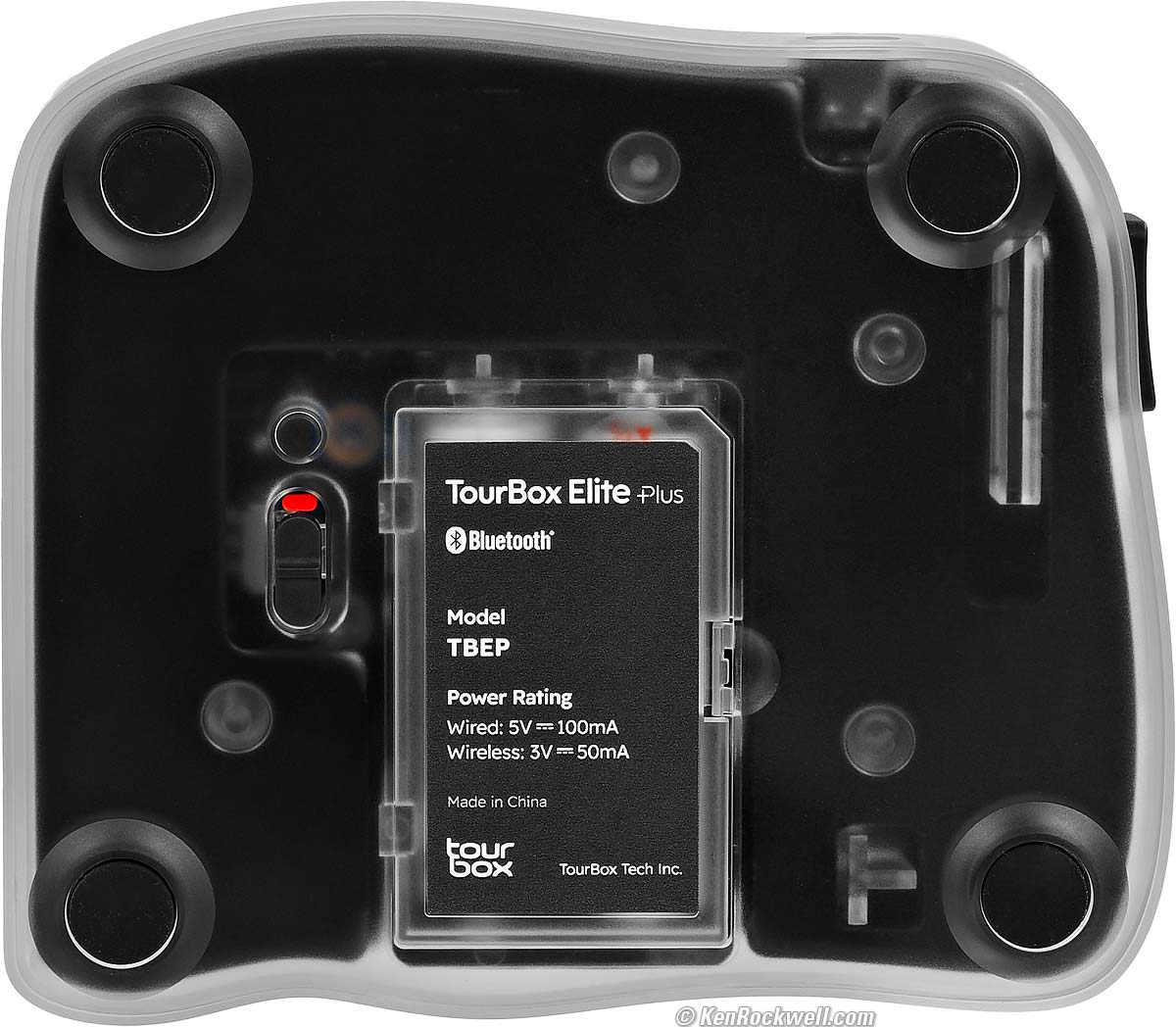
Bottom showing door for two AA cells. bigger.
Installation
It only works with the TourBox Console app, so download it for your computer or find it in the App Store for iPad.
Pop open the app and connect it via Bluetooth or USB-C.
You're done installation, easy!
Programming
Start with the canned presets if you like, but I prefer to program buttons as I naturally grab for whatever control I wish did this or that as I'm working. This makes it intuitive so you won't need a cheat sheet.
TourBox Console App (Mac). Note how it's selected Photoshop, in which I was working when I grabbed this screen. bigger.
The app is easy to use. Just touch a control and it will highlight for you to set it!
Create a Preset for each app you use as you use it by hitting the [+] button on the top right of the Presets section. Assign that preset to the program to which it applies by clicking the yellow NOT ASSIGNED label to its right and pointing to the appropriate app. The menu (three lines) icon lets you rename, reorder and delete these.
Program the first button you think of hitting instinctively as you work in each app. Don't overthink it; just do it and it will always make sense. If not, just keep reprogramming things until it works like second nature.
As you continue to work in each app, update control preferences as you go and eventually operation becomes second nature. I find it’s more productive to program each button or dial to whatever I intuitively want each to do as I use each program like Mail or Photoshop and etc.
Hint: It auto-selects the app you were using as you swap to the TourBox app so you're setting the preset related to that program. Be careful to make sure that you're adjusting the appropriate preset when you're starting out because you may be swapping among a lot of apps and accidentally change a preset for the wrong app!
Look for keyboard shortcuts inside every app to do what would usually needs drop-down menus and mouse clicks. You may want to search for these online if you don't see them listed in your menu drop-downs.
Program it separately for every app you use, and it automatically swaps what it does as you swap apps — as long as you leave the AUTO SWITCH option activated at the top left.
By default it overlays some guides over your screen to tell you how you've programmed certain keys. I don't use these; I deactivate them by disabling the HUD and 4-way control overlay options at the top right.
Each control can be set to act when you press it (the default), or when you let it up, or repeat the command as long as it's pressed, or send one command when you press it and another when you release it!
Rotary Controls
For a rotary control, assign the alternate + and - options to each direction. To reverse them, just hit the icon between them in the controller app.
Each rotary control is programmed as a function for each click of rotation in either direction as a separate function. Normally these are set to up/down, louder/softer or left/right etc., but just as well can be set to two completely unrelated things. Like America, we have complete freedom.
Rotary controls have options for clicks (strong, soft or off), and for how quickly they respond (slow, medium or fast).
For dials, the icon in-between the two directions reverses their functions.
Mouse Emulation and Other Combinations of Controls
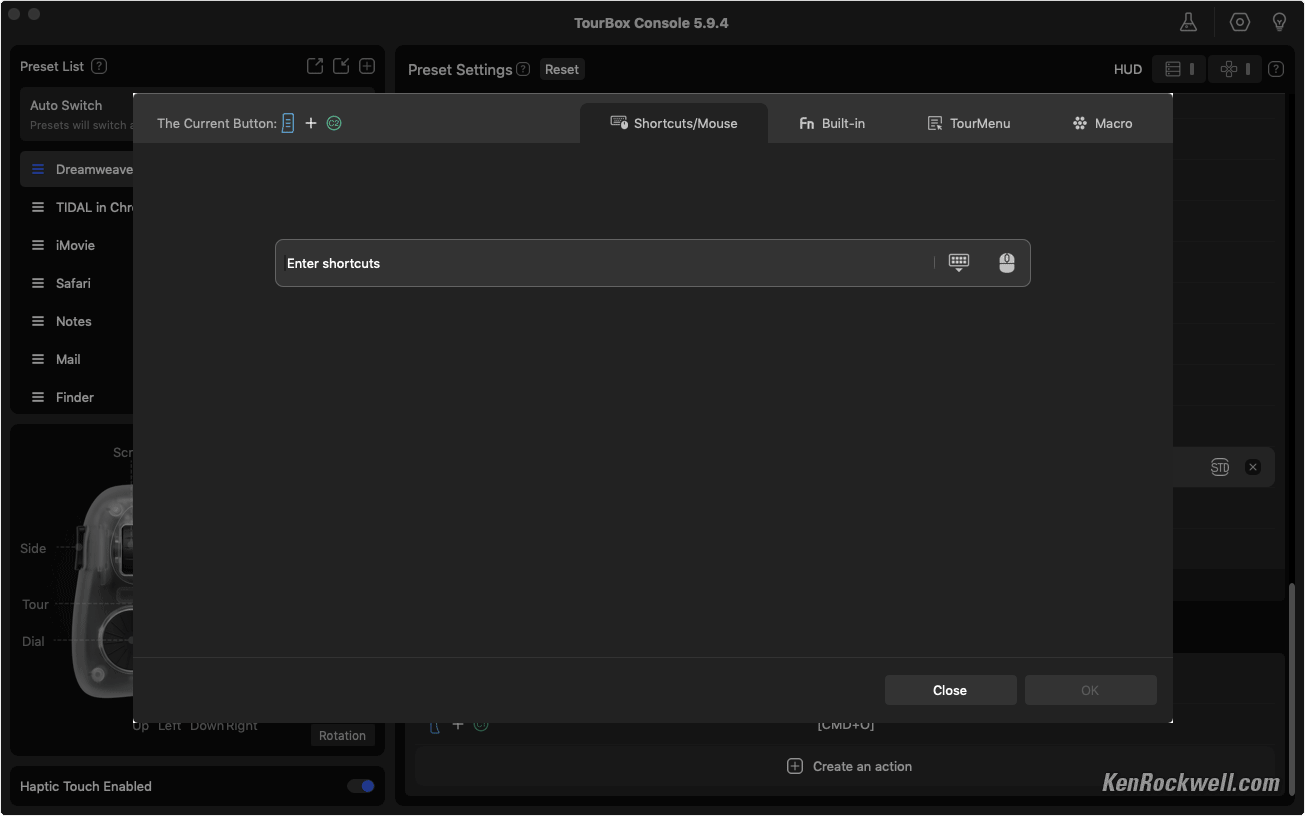
Individual Shortcut Entry (Mac). bigger.
To make a button or dial do what a mouse does, click the mouse icon seen on the right (above).
To program other key and dial combinations that don't appear as combinations in the usual run of controls (like setting what happens when you hold the little key while turning the center knob), set these in the Custom Section at the bottom of the button settings in TourBox Console (you'll have to scroll down) and click [+] Create an action:
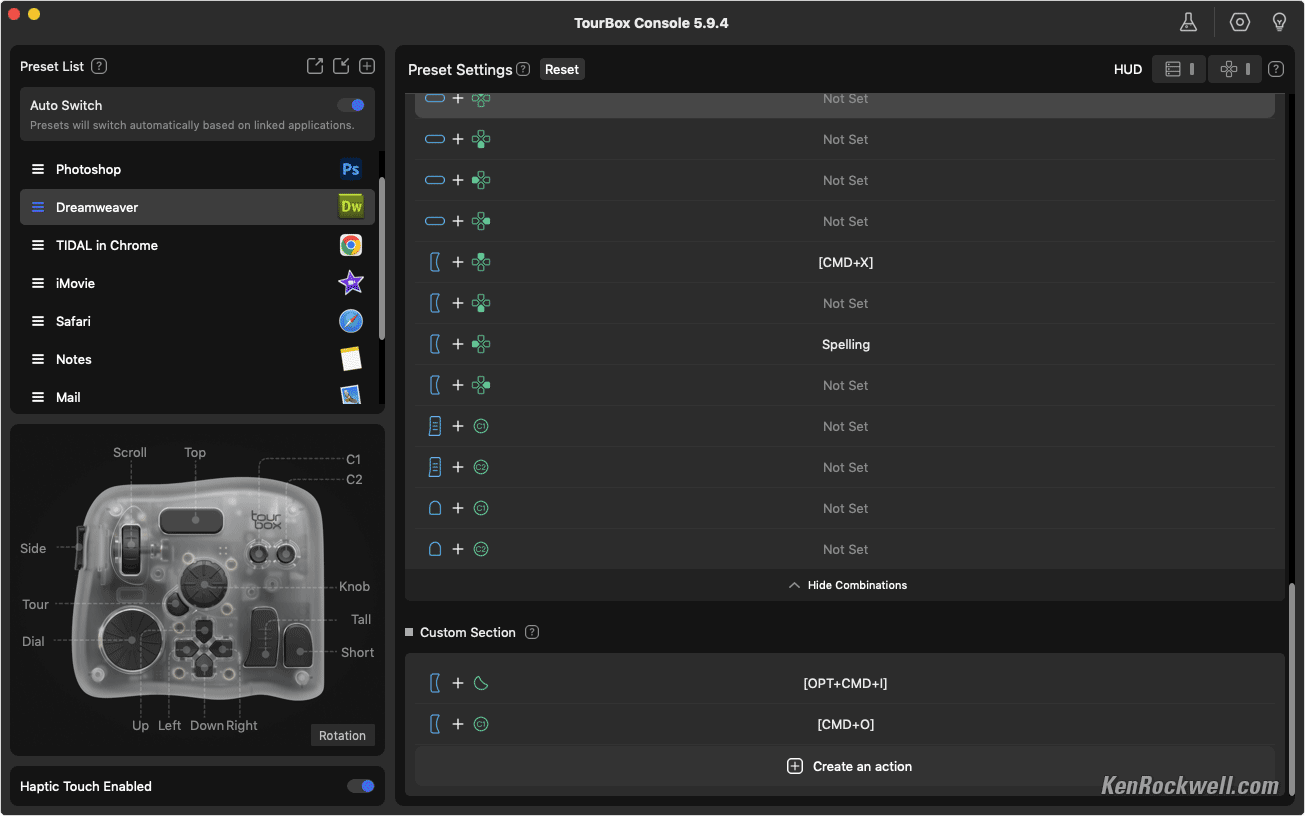
TourBox Console App (Mac). bigger.
Macros
To program a button to play a macro (a series of programmed clicks or other actions), click the Macro option towards the top right in the screen you get when you click to program any particular control:
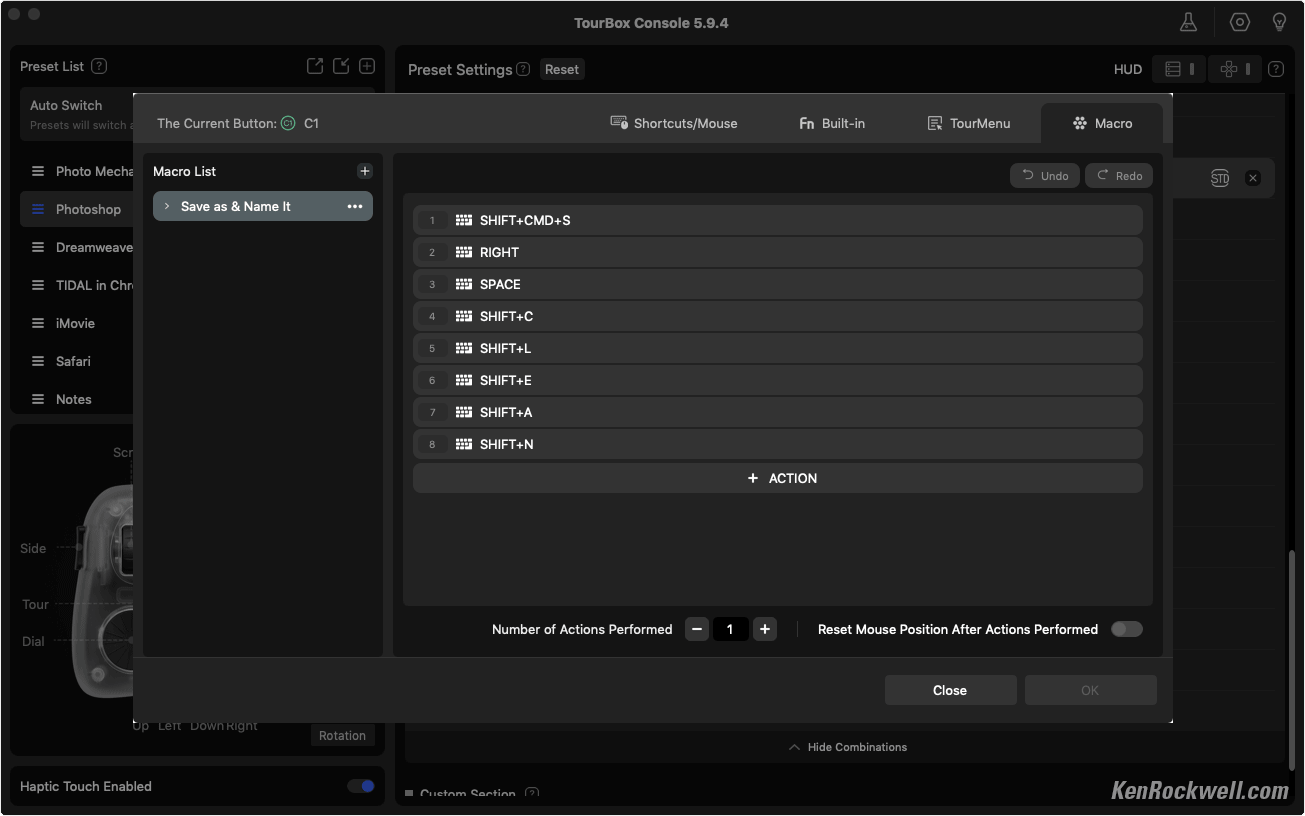
Macros (Click top left MACROS Tab, Mac). bigger.
Click + ACTION to add each step.
This macro for Photoshop saves my edits as a new file with "CLEAN" added at the end of the file name. I added each letter as a new Keyboard action (option at the center bottom) for each letter.
This was the hard way to add text which I did the first day I had my TourBox.
The next day I noticed the Text option after clicking the + ACTION option to let me just add text the easy way:
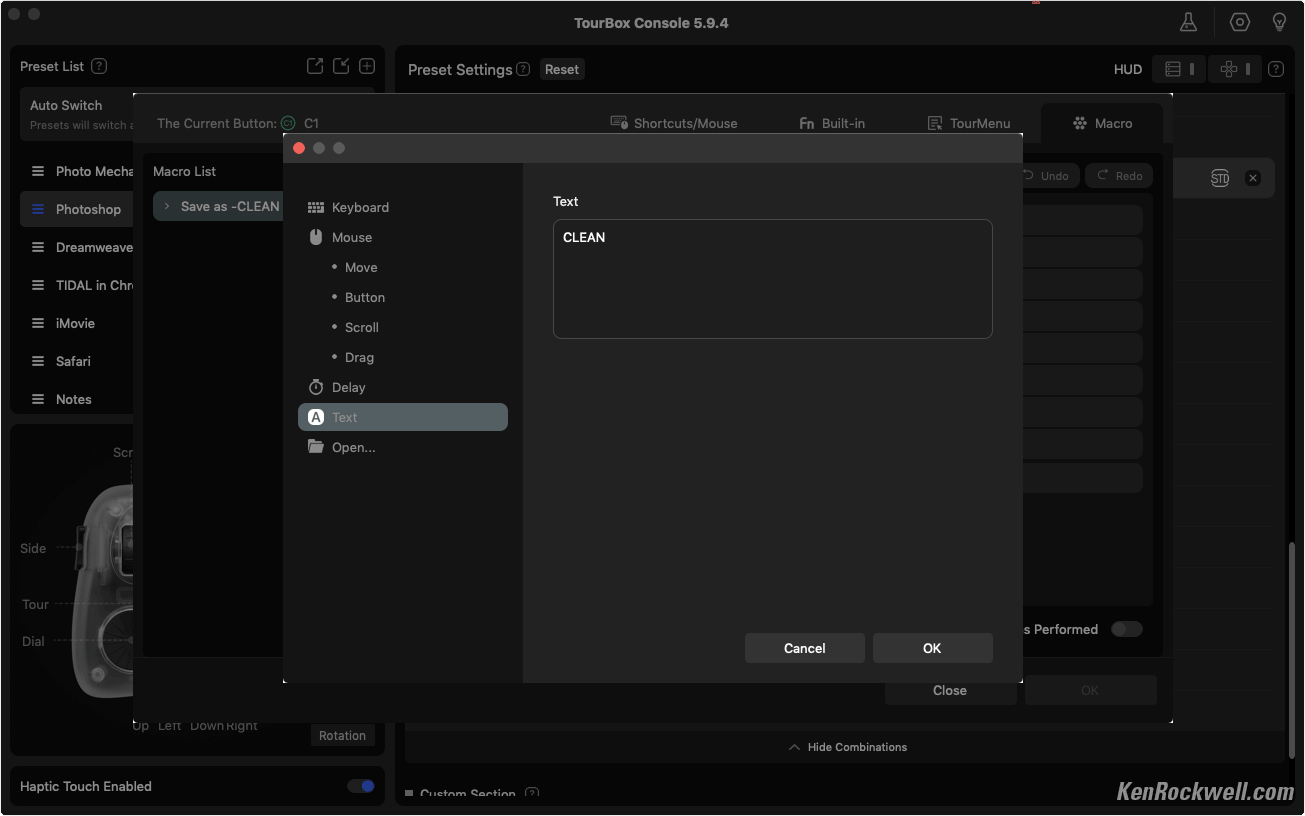
Direct Text Option in Macros (seen after clicking +ACTION). bigger.
The great news is this is all super intuitive; just play with the program, keep looking around and you're good.
Program any Photoshop Function to a TourBox Key
What if the the function you want to program into your TourBox has no keyboard shortcut? Easy: assign a keyboard shortcut to anything in Photoshop at:
Photoshop > Edit > Keyboard shortcuts, and once a keyboard shortcut is assigned to a Photoshop function, assign that keyboard shortcut to any control you like on your TourBox. Easy!
Photoshop Actions
Actions are ways to program Photoshop to run sets of commands with one click. Every photo you see on this website comes from the action I wrote 20 years ago that resizes the image to 1,200 pixels, sharpens it to taste and adds "© KenRockwell.com" in exactly the font I want with exactly the dropshadows and strokes I defined decades ago.
Once programed, it's not really just one click. You have to mouse over to and select which action to run in the Actions palette:
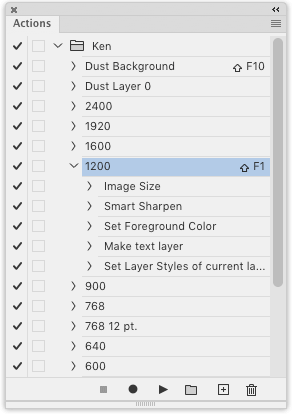
An Actions Palette.
and then find and click the play button at the center bottom. When you do as much Photoshop work as I do, this is quite lot of mousing around which we now can accomplish with a single click on the TourBox.
It’s easy to program TourBox buttons to run any particular Action in Photoshop, but few people know the steps involved. It’s amazing to have my complex actions just go with one tap.
To program Actions in Photoshop, go to Photoshop > Windows (or use OPT+F9) to turn on the Actions Palette as seen above.
In this palette you can create and record actions. Hit the menu bars icon on the top right, select New Action and have at it.
Once you have some actions programmed in Photoshop, you need to assign keyboard shortcuts to them so you can run them from single clicks on the TourBox. Do this by double-clicking to the right of any action, which calls up this window:
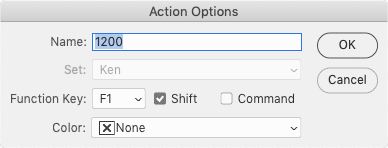
Action Options.
Select an Fn key in this window to run this Action. Hint: Most of us already have the "good" Fn keys assigned, so use nutty Fn keys like F19, or better, use combinations adding the SHIFT and/or COMMAND keys.
Once set, these assigned Fn keys also appear in the Actions Palette and you can program keys or dials of the TourBox to these Fn keys and combinations.
It sounds complex, and when you knock this out, I save hours and hours not having to resize and process ever intimate detail of my images manually.
iPad
I only use my iPad for consuming rather than creating content.
It's trivially easy to program the TourBox Elite Plus' three dials control brightness, volume and track advance and reverse.
I don't use it with an external keyboard. To add more functions, look up external keyboard shortcuts for iOS apps like mail and music and etc. Once you have these external keyboard commands, program the TourBox to use those external shortcuts and make amazing things happen with just the TourBox.
See also Apple's iPad external keyboard shortcuts.
I'd get mine at Amazon, at B&H or at eBay (How to Win at eBay). It comes in several different versions. This is the fanciest one, the TourBox Elite Plus.
© Ken Rockwell. All rights reserved. Tous droits réservés. Alle Rechte vorbehalten. Alla rättigheter förbehållna. Toate drepturile rezervate. Niciun vampir nu a fost implicat în crearea acestei lucrări. Omnia jura reservata. Ken Rockwell® is a registered trademark.
Help Me Help You top
I support my growing family through this website, as crazy as it might seem.
The biggest help is when you use any of these links when you get anything. It costs you nothing, and is this site's, and thus my family's, biggest source of support. These places always have the best prices and service, which is why I've used them since before this website existed. I recommend them all personally.
If you find this page as helpful as a book you might have had to buy or a workshop you may have had to take, feel free to help me continue helping everyone.
If you've gotten your gear through one of my links or helped otherwise, you're family. It's great people like you who allow me to keep adding to this site full-time. Thanks!
If you haven't helped yet, please do, and consider helping me with a gift of $5.00.
As this page is copyrighted and formally registered, it is unlawful to make copies, especially in the form of printouts for personal use. If you wish to make a printout for personal use, you are granted one-time permission only if you PayPal me $5.00 per printout or part thereof. Thank you!
Thanks for reading!
Ken.