Nikon Z50 II User's Guide
<— back to Nikon Z50 II Review
Introduction Charging Power Conservation
EVF/LCD Selections Level & Histogram Displays
Lenses VR On/Off Autofocus AF Tracking
Rear-Button Focus Shooting Bracketing
15 & 30 FPS Shutter Modes Silent Mode
Metering Square & 16:9 Crop Modes
Flash Studio Strobes & Flash-Only Shots
Self-Timer Time Exposures Movies
U1, U2 & U3 My Personal Setup Files Playback
Nikon's own Z50 II User's Manual
Z9 Z8 Z7 II Z6 III Z6 II Z5 II Zƒ Z7 Z6 Z5
DX (APS-C): Zƒc Z50 II Z50 Z30
Z System Z Lenses All Nikon Lenses Flash
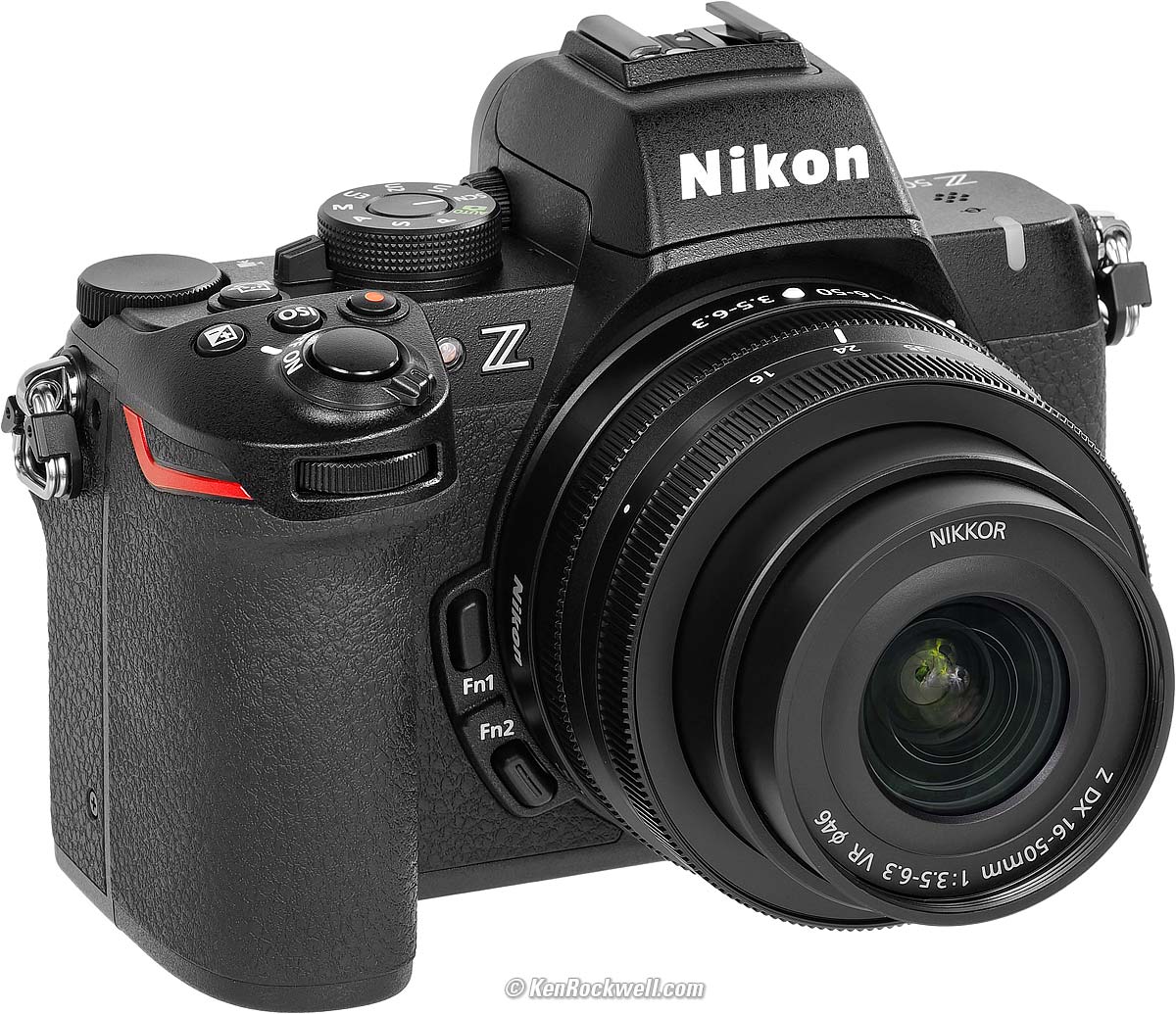
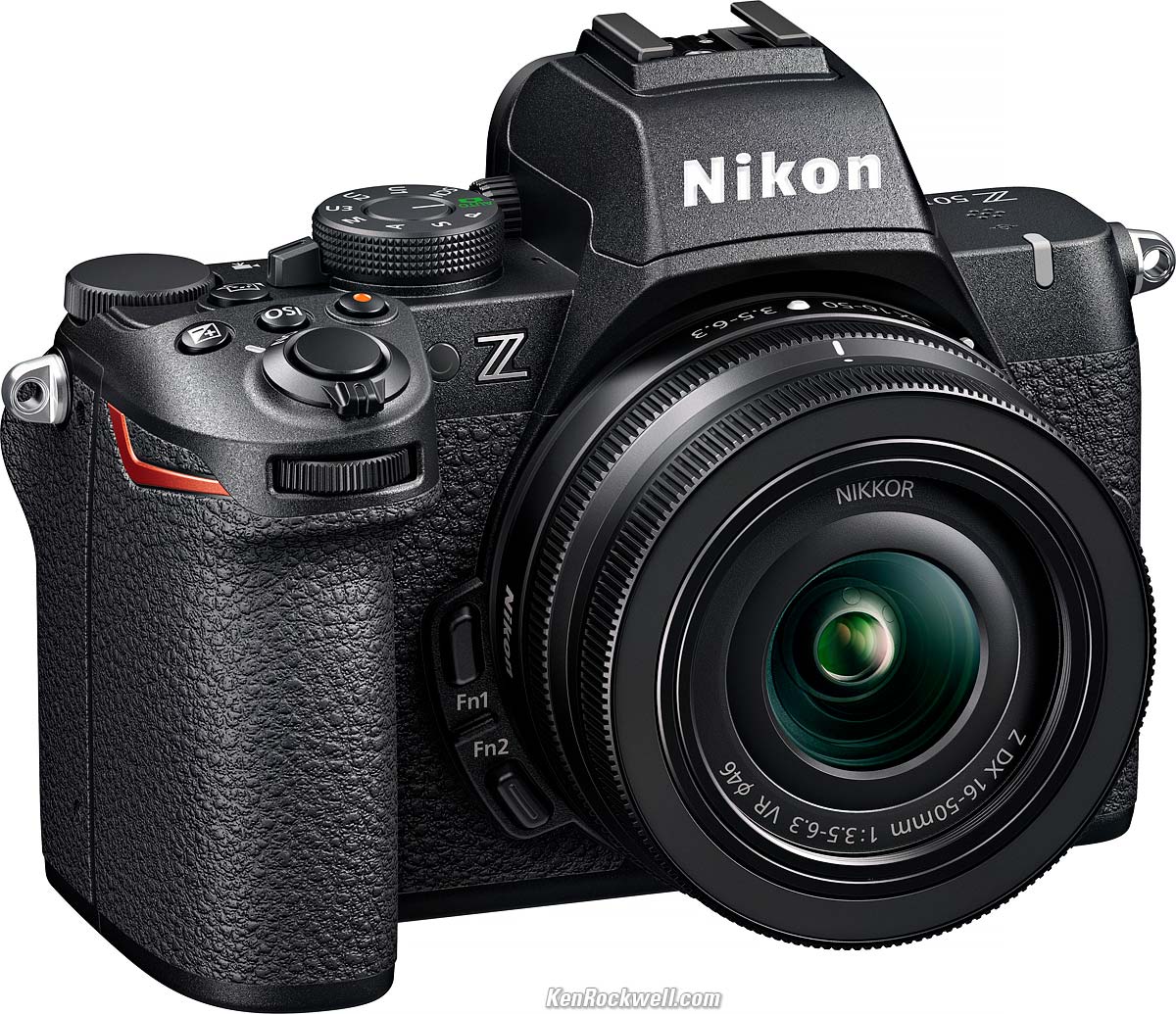
Nikon Z50 II (19.4 oz./550g with battery and card, one SD card slot, $907) and the superb Nikon Z 16-50mm DX VR. bigger. I ordered mine as a kit with the Z 16-50mm VR DX at B&H:
$907, Z50 II body-only at B&H, at Adorama and at Crutchfield.
$1,047, Z50 II kit with excellent 16-50mm lens as shown above at B&H, at Adorama and at Crutchfield.
$1,297, Z50 II system with both the 16-50mm and 50-250mm lenses at B&H, at Adorama and at Crutchfield.
Get it used if you know How to Win at eBay.
This 100% all-content, junk-free website's biggest source of support is when you use those or any of these links to my personally approved sources I've used myself for way over 100 combined years when you get anything, regardless of the country in which you live. Nikon does not seal its boxes in any way, so never buy at retail or any other source not on my personally approved list since you'll have no way of knowing if you're missing accessories, getting a defective, damaged, returned, gray-market, store demo or used camera — and all of my personally approved sources allow for 100% cash-back returns for at least 30 days if you don't love your new camera. I've used many of these stores since the 1970s because I can try it in my own hands and return it if I don't love it, and because they ship from secure remote warehouses where no one gets to touch your new camera before you do. Buy only from the approved sources I've used myself for decades for the best prices, service, return policies and selection.
January 2025 Nikon Mirrorless Mirrorless Lenses All Nikon Lenses Nikon Flash All Reviews

Introduction index top

I buy only from these approved sources. I can't vouch for ads below. |



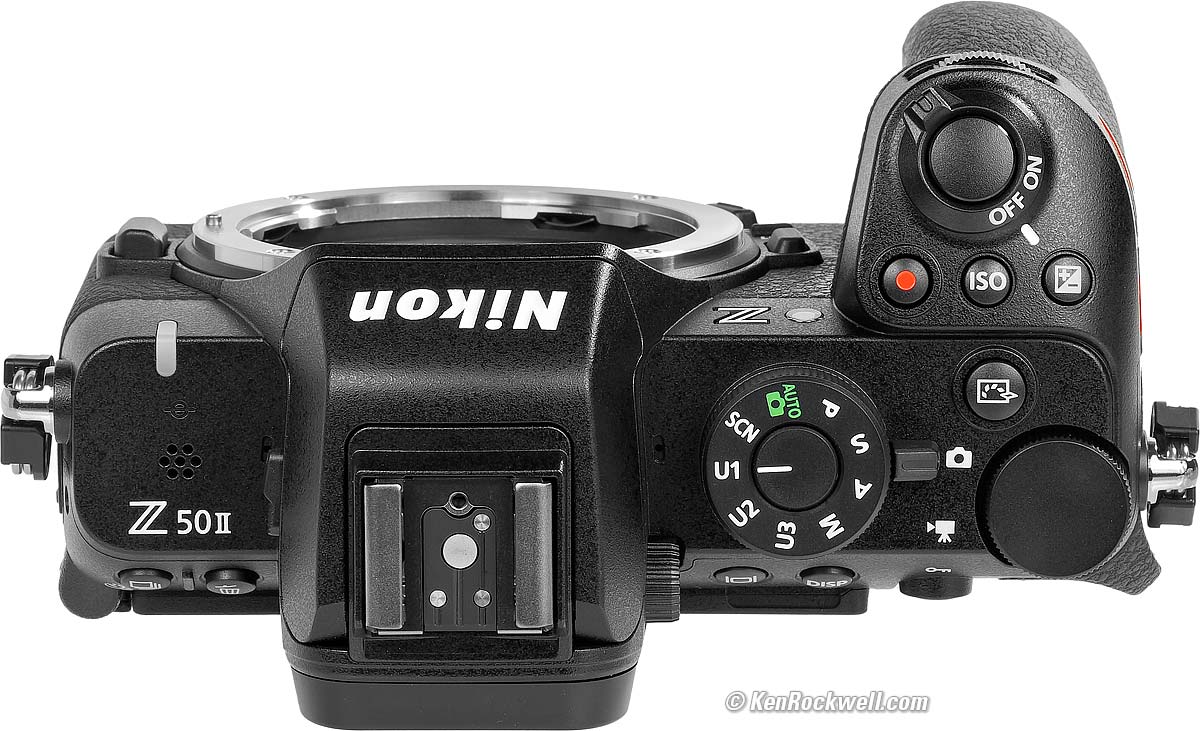
Here are tricks and secrets I use with my Nikon Z50 II.
This will help you get the best out of the Z50 II's features and operate the camera, but this has nothing to do with making great pictures. See How to Take Great Pictures to learn that.
Most of these settings can be made many ways; the menu system is usually the easiest to describe here, and often you can assign Custom Controls to make these settings more quickly.
This is as of firmware C 1.00 / LF 1.01; menu locations can move around over time.
This all-content, junk-free website's biggest source of support is when you use any of these links to approved sources when you get anything, regardless of the country in which you live. Thanks for helping me help you! Ken.
If you find this page as helpful as a book you might have had to buy or a workshop you may have had to take, feel free to help me continue helping everyone.
As this page is copyrighted and formally registered, it is unlawful to make copies, especially in the form of printouts (printed copies) for personal use. If you wish to make a printout for personal use, you are granted one-time permission only if you PayPal me $5.00 per printout or part thereof. Thanks for helping me help you and keeping this all out here, free to read when you need it! Ken.
Battery Charging index top
Plug the Z50 II into any USB-C source with any generic USB-C to USB-C cable and leave it turned OFF. It won't charge with the power switch turned ON until it falls to sleep in a minute or so. It only charges from USB-C sources; it won't charge from a traditional rectangular USB-A socket with a USB-A to USB-C cable.
You should see a tiny orange CHARGE LED above the USB socket, which goes out when done. Be sure to wait several seconds when plugged in; it doesn't start charging immediately.
Nikon rates a full charge in an hour and 40 minutes via USB-C.
You can use the optional external MH-32 Battery Charger, but I'd only bother if I had two batteries to charge at once: one in-camera via USB and one in the external charger:
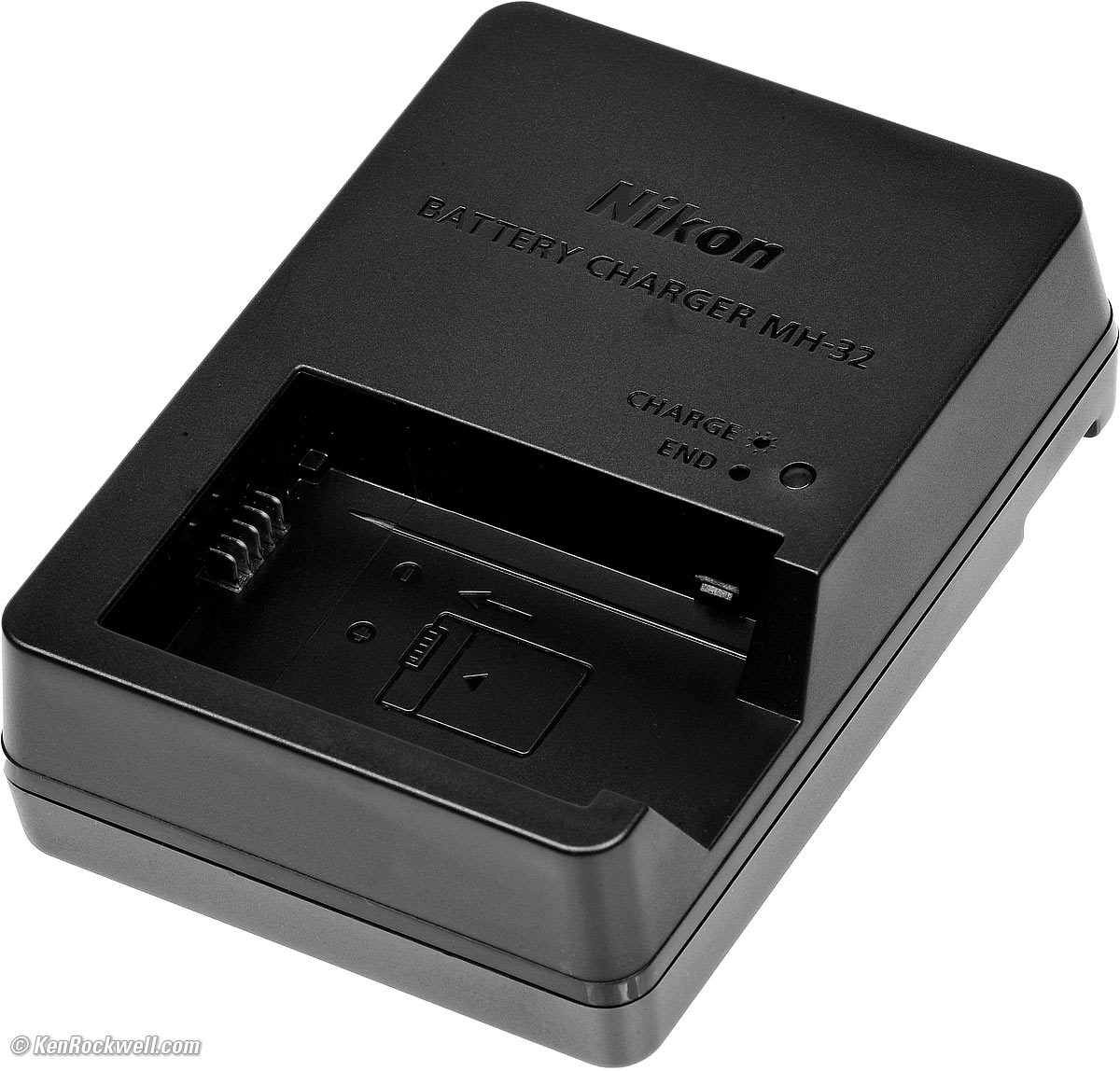
Optional Nikon MH-32 Charger. bigger.
Nikon rates this charger for a full charge in 2.5 hours.
Power Conservation index top
Nikon is tops here: you can leave your Nikon Z50 II ON and it's always ready to shoot with a second's notice.
It goes to sleep and wakes automatically. Of course it does take a second to wake up so you need to remember to tap the shutter as you're bringing the camera to your eye, and otherwise it sleeps properly as you carry it around all day shooting.
EVF/LCD Monitor Control Button index top
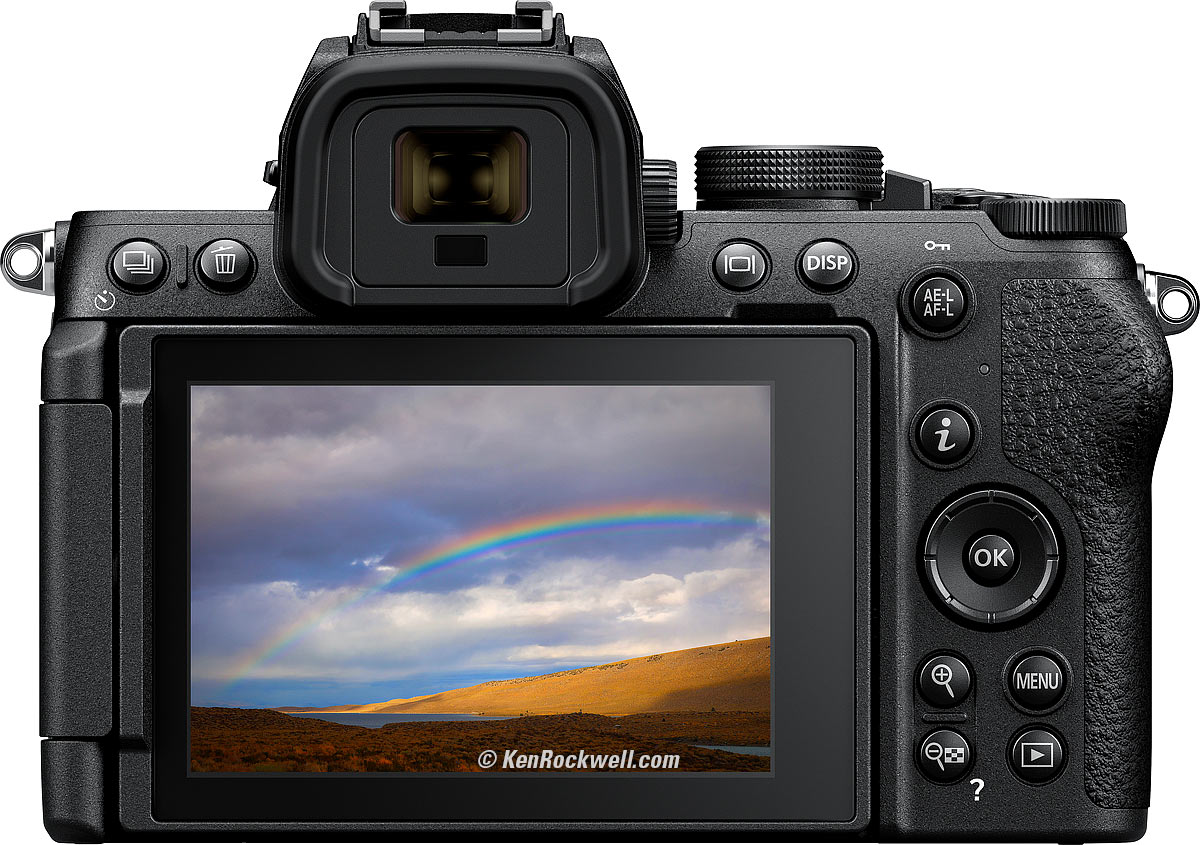
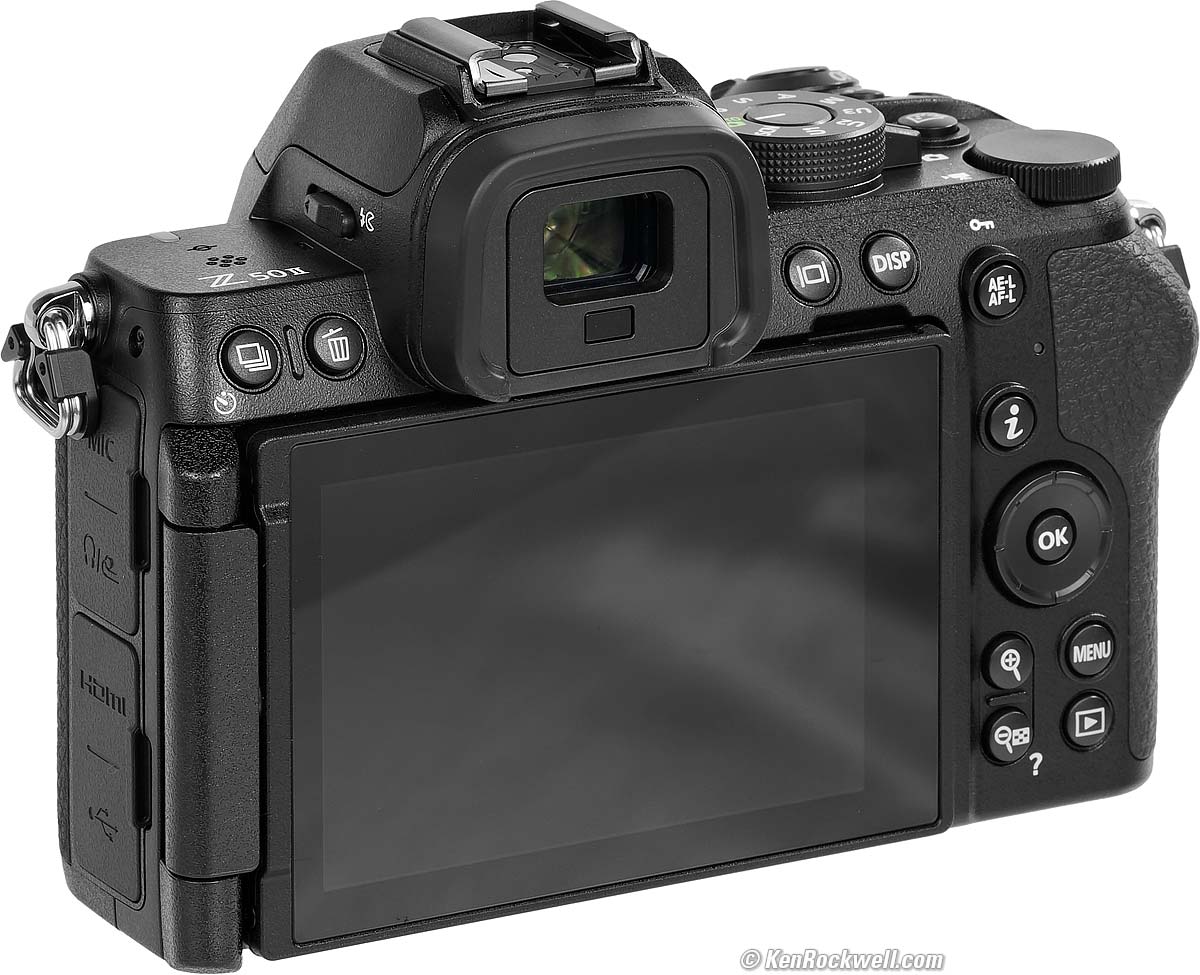
The Nikon Z50 II has automatic EVF/LCD switching, so what does the little "|▢|" button on the right side of the finder do? It lets you control when or if the rear LCD lights.
By default, the "Automatic display switch" setting magically turns-on the finder or the rear LCD depending on whether or not your eye is on the finder. Leave it set here.
Press the "|▢|" button once and it turns off the rear LCD, even if you hit PLAY or MENU! You will think your camera is broken, since set like this the finder only activates with your eye on it and the LCD is always off even if you hit PLAY or MENU. Use this setting if you're a deployed sniper or otherwise don't want the rear LCD turning on and giving away your position.
Press the "|▢|" button again and "Monitor only" mode deactivates the finder. Only the rear LCD works no matter what you do.
Press the "|▢|" button a third time and, whew, you're back to the normal "Automatic display switch" setting. I'd like to deactivate or reprogram this button to do something else, but tough, it never gets hit by accident over on the left — but remember it's there in case your LCD or finder ever don't work.
Level & Histogram Options index top
Hit DISP to the right of the finder to see the 3D level or histogram displays as you shoot.
Shooting Grid Displays index top
It takes quite a lot of clicking to set grid lines to overlay the shooting display.
You can set this differently for the finder and for the rear LCD.
You have five different "screen" settings, SCREEN 1/2/3/4/5, which mean you have up to five different displays you can program as to what's in them. You can cycle through these different displays with the DISP key.
First select what kind of grid you want at:
MENU > CUSTOM SETTINGS MENU (✎ pencil icon) > d Shooting/display > d16 Grid type,
and then enable that selected grid where you want it at:
MENU > CUSTOM SETTINGS MENU (✎ pencil icon) > d Shooting/display > d19 Custom monitor shooting display or d20 Custom viewfinder shooting display, depending on which you want to program > select which of the five display options you're wanting to set (SCREEN 1/2/3/4/5) > click right to program the selected SCREEN > click down to the sixth option > check the box next to the grid icon > OK.
Whew! That's a lot of clicks, but it works.
Programing Fn Buttons index top
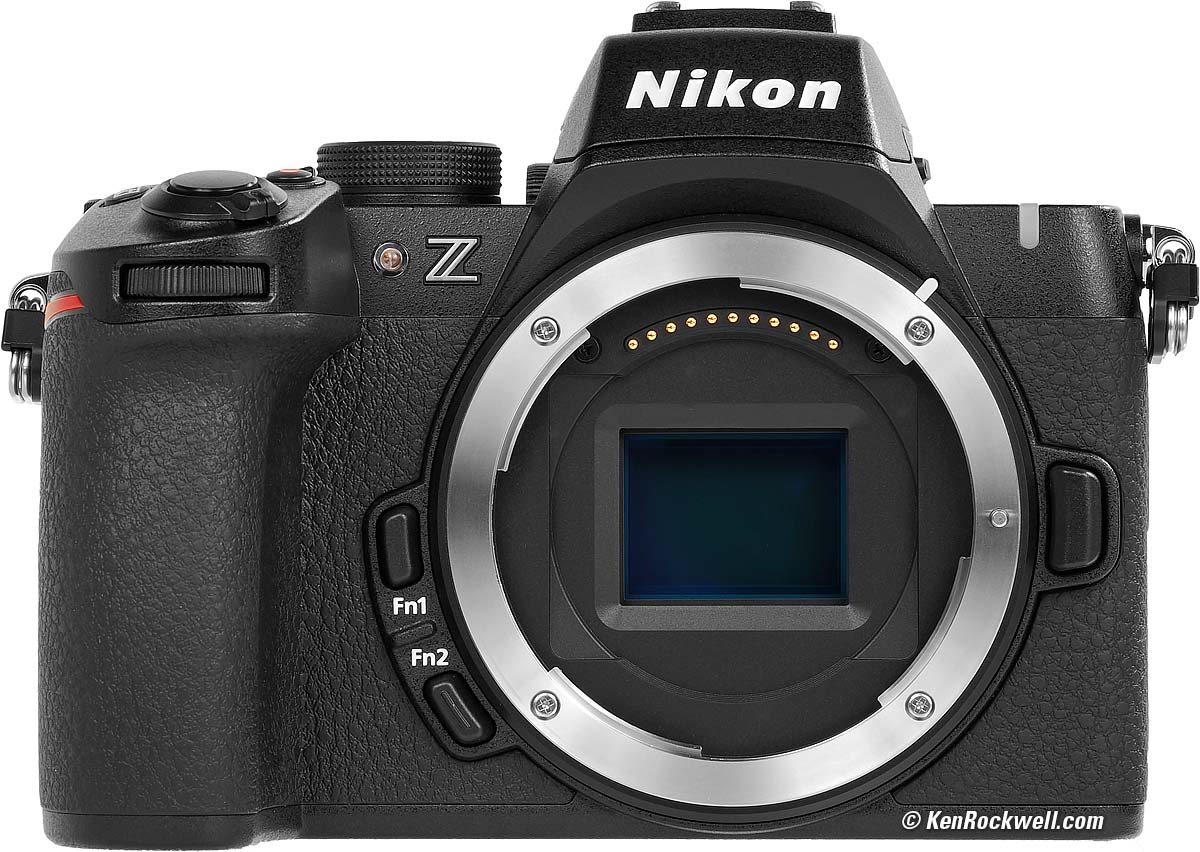
Fn1 and Fn2 Buttons. bigger.
We can program what the Fn1, Fn2 and other buttons do.
Assign these at MENU > CUSTOM SETTINGS MENU (✎ pencil icon) > f Controls > f2 Custom controls (shooting).
I set my Fn1 button to Depth-of-Field Preview and my Fn2 button to Focus mode/AF-area mode, and you may do whatever you like.
Lenses index top
Nikon offers kits with perfect lenses, the Nikon Z 16-50mm DX VR and Nikon Z 50-250mm DX VR which could be all you need for just about anything. This camera and the collapsible Z 16-50mm DX VR make a superior ultralight, compact combo that can shoot just about anything in any light.
Personally I prefer using just the Z 18-140mm VR DX instead of the excellent DX 16-50 VR and DX 50-250mm VR combo. I don't miss the 140-250mm range, and love not having to swap lenses to get from wide to tele. When you have to swap between the DX 16-50 VR and DX 50-250mm VR to get from wide to tele you miss a lot of pictures, while with the Z 18-140mm VR DX a flick of the wrist and you're done.
The Nikon Z 16-50mm DX VR and Nikon Z 50-250mm DX VR are excellent lenses at a low price. The 16-50mm is a tiny collapsible lens that makes this camera sing. The 50-250 is small but not tiny, and both lenses have ultra-sharp optics. The Z 18-140mm VR DX replaces both of these lenses for greater convenience, but costs more.
I would not recommend the FTZ adapter; other lenses you might already own might work, but the FTZ alone weighs more than the 16-50mm, and no adapted lens will work as well on the Nikon Z50 II as the Z 16-50mm, Z 18-140mm VR DX or Z 50-250mm do.
Manual-focus F, AI , AI'd, AI-s and adapted rangefinder lenses works poorly on the FTZ with no automatic diaphragm control, poor exposure control, poor finder brightness control and no EXIF or in-finder aperture data — and you have to open-and-close the diaphragm manually for precise focus for each shot!
The Fringer EF-NZ Adapter adapts Canon EF lenses with often better results on my Nikon Z cameras than Nikon's own lenses give on the crappy FTZ adapter! It also works with other brands of lenses in Canon EF mount, adapting them to Nikon Z, but again it's so big and heavy it eliminates the magic of this little camera.
Turning VR On and Off index top
Z lenses no longer have VR switches, BOO!
Instead, set this in the Z50 II at MENU > PHOTO SHOOTING MENU (📷 camera icon) > Vibration reduction > ON or OFF.
Autofocus index top
Luckily the Nikon Z50 II comes with the autofocus options preset to where you want them for the fastest and easiest shooting: AF-A and Auto AF-Area Select.
I set my Fn2 button to let me set the AF system. There are two settings, which control things in different dimensions:
AF Mode
Once set, hold Fn2 and turn the dial to select among these AF Mode settings. You'll probably see these indications in yellow along the top center left of your finder or rear LCD:
AF-A: Autofocus, Automatic control. Use this mode. In AF-A the Nikon Z50 II figures out the best of the next two modes to use depending on what your subject is doing:
AF-S: Autofocus Single. AF-S means that the Nikon Z50 II focuses once, and then locks the AF system. Use this for shooting things that don't move. This lets you focus and then recompose without having to twiddle anything. If your subject is holding still, the AF-A mode should also do this exactly the same.
AF-C: Autofocus Continuously. In AF-C the Nikon Z50 II is always autofocusing, tracking whatever moves in and out. Use this for sports or action or wiggly kids. The AF-A mode also should do this magically if your subject is moving around.
MF: Manual Focus. The Nikon Z50 II is so smart that even in an autofocus mode just turning a manual focus ring will shift the Nikon Z50 II magically to manual focus and hold your setting. Set it to MF mode if you want to be sure nothing changes once you've focussed.
AF Area Modes
These are the various ways in which the numerous autofocus areas (zones) are used, and how.
You'll probably see these icons in yellow along the top center left of your finder or rear LCD.
Selecting AF Area Modes
Once set, hold Fn2 and turn the front dial to select among these modes. You'll probably see these icons in yellow along the top center left of your finder or rear LCD:
[▆]: ALL AREA AF selects AF areas automatically. I use this; it lets the Nikon Z50 II figure out where to focus all by itself. Only if it can't figure it out by itself do I select:
[3D]: Uses a single area, which stays fixed in AF-S or moves all over the frame tracking the subject in AF-C. Use the big round rear selector to move the selection.
[□]: SINGLE uses only one fixed AF area. I don't use this because [3D] also locks the AF Area in AF-S mode.
Limit AF Area Modes
I only use ALL AREA or 3D AF Area modes. I disable the rest of the modes to make selecting the ones I do use much faster. To do this, set:
MENU > CUSTOM SETTINGS MENU (✎ pencil icon) > a Autofocus > a8 Limit AF-area mode selection > uncheck everything except the modes you really will use > press MENU again to save the settings.
Autofocus Tracking index top
To enable AF to track a subject in and out and up and down and left and right, set AF-C and All-Area AF [▆] as shown above, then tap the rear OK button.
You'll see a sea of green boxes all over your subject wherever it goes.
If it's not selecting the correct boxes, select [3D], put the sensor over the subject, and it will now track it all over.
HINT: instead of moving the AF point manually in [3D] mode, point the camera so that the box is over your subject. Then hold the shutter button halfway to start and keep autofocus running while you recompose the image. The box will now move around the frame to stay on top of your subject and keep it in focus as it moves in and out, up and down and left and right. You can take pictures, or take your finger off the shutter and start again; the system keeps tracking your subject.
Rear-Button Autofocus index top
If you want to press a rear button to activate autofocus instead of it autofocusing whenever you half-press the shutter button, first deactivate the shutter button from autofocusing:
MENU > CUSTOM SETTINGS MENU (✎ pencil icon) > a Autofocus > a6 AF activation > AF-ON only > OK.
Now assign the autofocus function to the button of your choosing. Most people would use the top right rear AE-L/AF-L button, but hey, it's your camera:
MENU > CUSTOM SETTINGS MENU (✎ pencil icon) > f Controls > f2 Custom controls (shooting) > (select a button) > OK > choose AF-ON > OK.
I don't use this, but some people do.
Shooting index top
I leave everything set to automatic, which gets me the sharpest pictures the fastest. The key is I set my camera very carefully in advance to have it make all my settings exactly as I would do manually, and then know what to force to manual if and only if I need to.
I don't use the AUTO position of the top dial because it locks-out many of the advanced settings I use. I set P on the top dial ("Program" or "Pro" exposure mode which selects aperture and shutter speed automatically) and leave everything else in auto: Autofocus, Automatic AF Area selection [▆], Auto ISO, Auto White Balance, Auto minimum shutter speed in Auto ISO, etc. I do this because I've taken the time to program my camera to set all these as I would do manually so I can concentrate on my picture and not my camera while I'm shooting. My camera can make all the ISO and exposure and focus adjustments faster than I can, once I've programmed the camera to do this itself.
I take a setting off auto only if it's not doing what I want it to do.
I never set a manual ISO. The only time I use manual ISO is in my studio under controlled lighting, or when I'm on a tripod when I'll set it to ISO 100.
Set your camera the way I do and you'll always get the sharpest pictures. 99% of the time when people ask me to diagnose their soft pictures it's because they set their camera manually — and set it wrong. Amateurs too often use too high an ISO, too high a shutter speed and too small a lens aperture, any of which lead to softer pictures:
1.) ISO 100 is sharpest. As in all modern cameras, each higher ISO gets softer due to noise reduction.
2.) Apertures smaller than f/8 dull the image due to diffraction unless you really need more depth-of-field; and you won't need that much depth of field if you set up your shot properly. Don't use f/16 or f/22 unless you really need it.
3.) Higher shutter speeds require you use a higher ISO, which makes the image softer. 1/500 to 1/1,000 stops sports and easily freezes fast-moving water. 1/125 stops people in anything other than sports. Don't use 1/2,000 or higher unless you really, really need to or have enough light to be shooting at ISO 100 — or need it to shoot at very large apertures at ISO 100 in daylight. 1/2,000 stops anything I shoot.
Shoot with the all-auto settings I use and the Nikon Z50 II does all this all by itself with no need to change any settings from shot to shot. The Nikon Z50 II will shoot at the optimum ISO and shutter speed and aperture under every condition from daylight to moonlight when set this way. Easy! More at U1, U2 and U3.
HINT: Cameras can take a second to turn on or wake from sleep, which can seem like a long time if you don't tap the shutter until you have already brought your camera to your eye. I make a point of tapping the shutter to wake my Nikon Z50 II as I pick it up before I bring it to my eye and thus it's always ready to go.
Bracketing index top
There is no BKT button for setting exposure bracketing.
Better, they offer your choice of many things, like Exposure, White Balance or Adaptive Dynamic Range bracketing.
Set this at MENU > PHOTO SHOOTING MENU (📷 camera icon) > Auto bracketing > and choose which kind of bracketing you want.
If you do this a lot, program one of your function buttons to this feature.
Auto White Balance index top
There are four Auto White Balance modes: AUTO0, AUTO1, AUTO2 and AUTO ☀(Natural Light Auto). I agree that having to select among four AWB settings isn't exactly automatic, but sorry, I didn't design this.
They all look the same in daylight and under most conditions. They vary in what they do under tungsten or fluorescent light or with sunsets, green or yellow subjects.
Set this with the 𝒊 button, or at MENU > PHOTO SHOOTING MENU (📷 camera icon) > White balance. Use the rear dial to select AUTO (1, 2 or 3 ) or AUTO ☀, with AUTO ☀ being Natural Light Auto. Use the front dial to select among 1, 2, or 3.
For normal use under any and every sort of light if you don't want to fiddle with these, use the default AUTO1 setting which gives the best results most of the time.
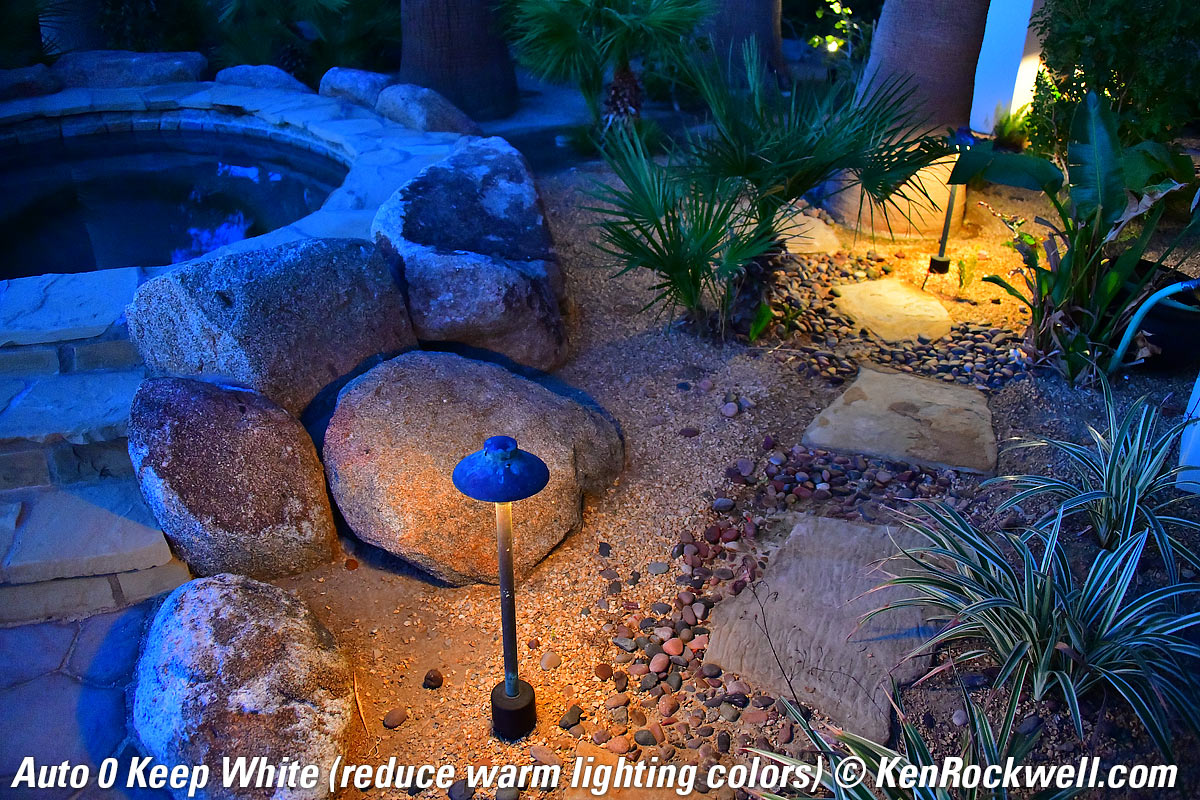
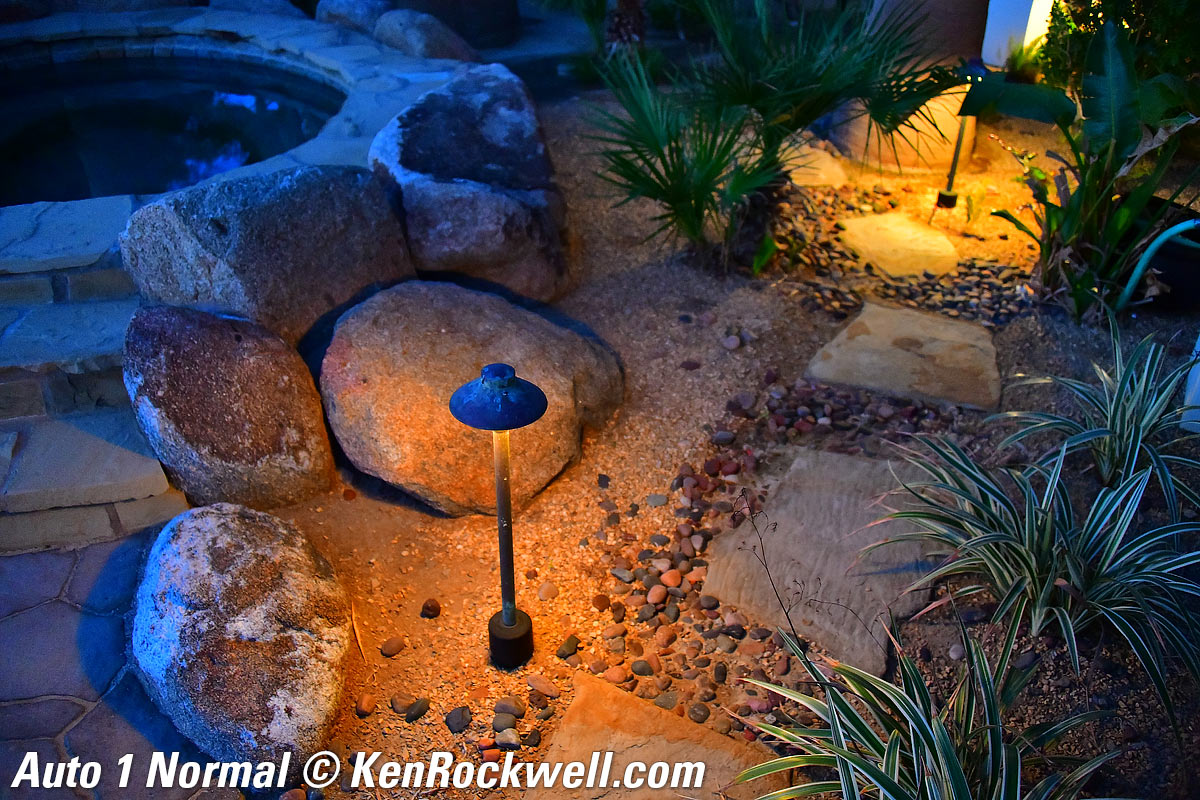
The AUTO0, AUTO1 and AUTO2 settings vary only in how warm they will let warm tungsten indoor lights look. They differ in how low they allow the camera's Kelvin color temperature compensation to drop to compensate for tungsten light.
All of the AUTO0, AUTO1 and AUTO2 settings let the camera vary all over the green/magenta axis as needed.
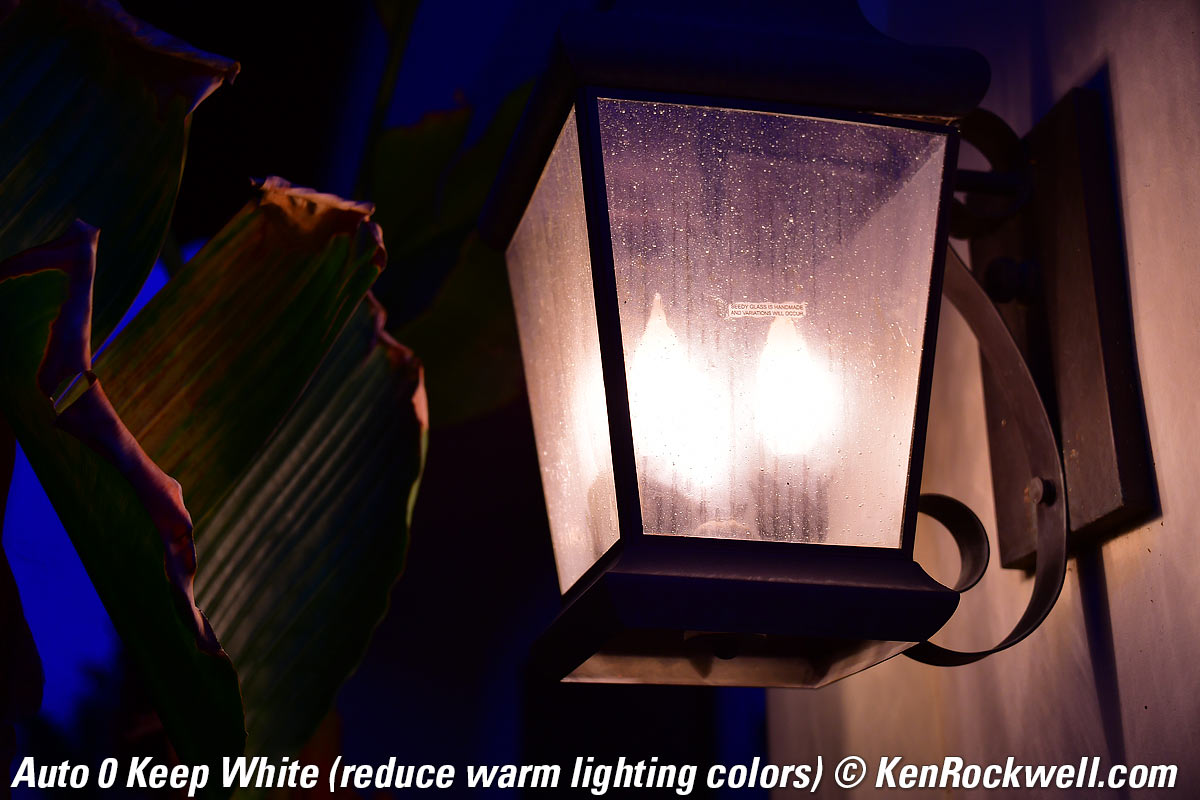
AUTO0 (Keep White) lets the camera correct from a maximum of about 7,500 K down to about 1,500 K, so even very dim indoor lights will look relatively white.
AUTO1 (Normal) lets the camera correct from a maximum of about 7,500 K down to about 2,700 K. This keeps things looking about normal; bright indoor lights look natural, while dimmed tungsten will look warmer.
AUTO2 (Keep Warm) lets the camera correct from a maximum of about 7,500 K down to about 4,000 K. This will make warm indoor light look very warm and cozy (more orange).
Which of these three you prefer depends on how warm you want indoor shots to look. Most people prefer the default AUTO1 setting.
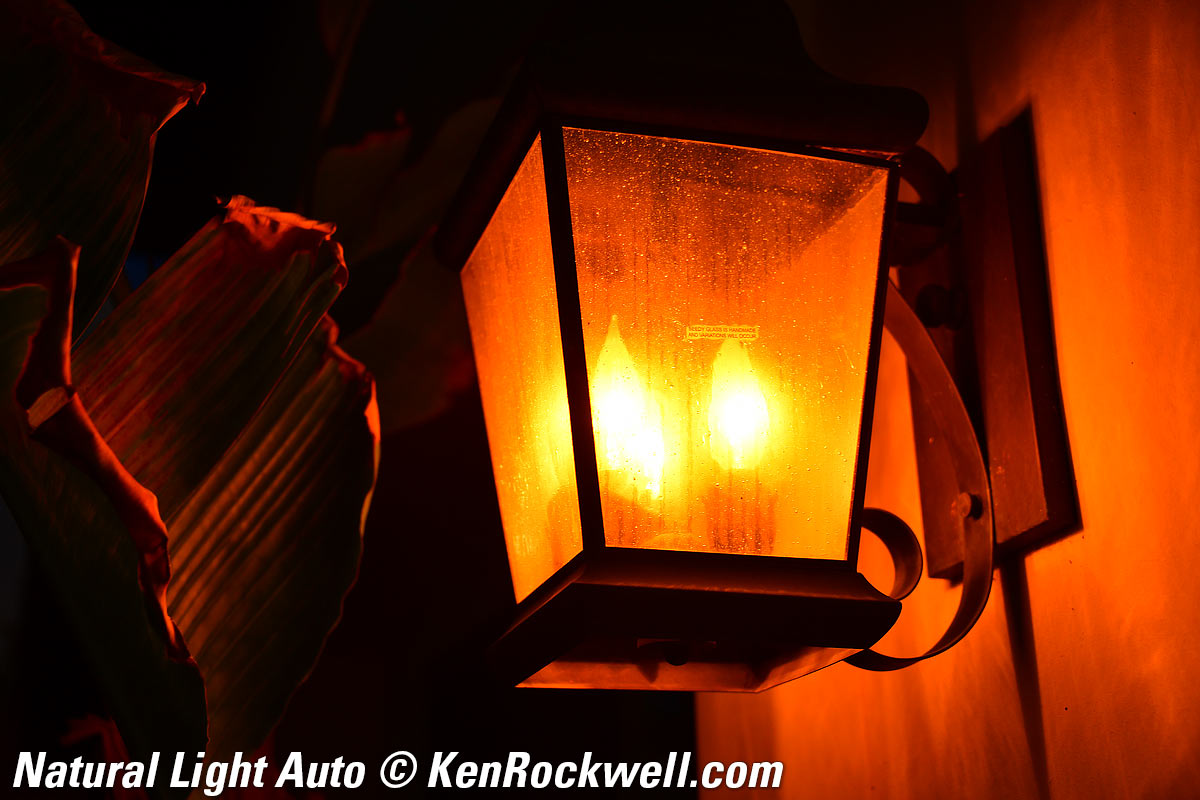
The AUTO ☀(Natural Light Auto) setting is specifically for shooting under natural light, which means light from the sun either directly, under clouds or shade, or indoors as lit from a window without other lights. The AUTO ☀(Natural Light Auto) setting can look better (warmer) in shade or indoors lit by window light, and also prevents the camera from confusing green subjects or plants in shade with fluorescent light so these shots stay green instead of turning too purple. It also prevents shots with pale yellows or oranges from being presumed to be under tungsten and made to look too blue. It allows the camera to correct from about 10,000 K to 5,000 K on the amber/blue axis, and doesn't let it vary much on the green/magenta axis.
Use regular AUTO1 most of the time, especially under artificial light, and use AUTO ☀(Natural Light Auto) under natural light. (Invention disclosure, Friday, 20 October 2017, 2:15PM PDT: Ideally there should be an Auto Auto White Balance setting that figures out which Auto WB setting to use all by itself. A white balance system also should look for flickering light, and if it sees it, presume that it's artificial light and set itself accordingly — but if not flickering, know that it could be any kind of lighting.)
Dimmed Tungsten
Click any to enlarge:
|
|
 |
 |
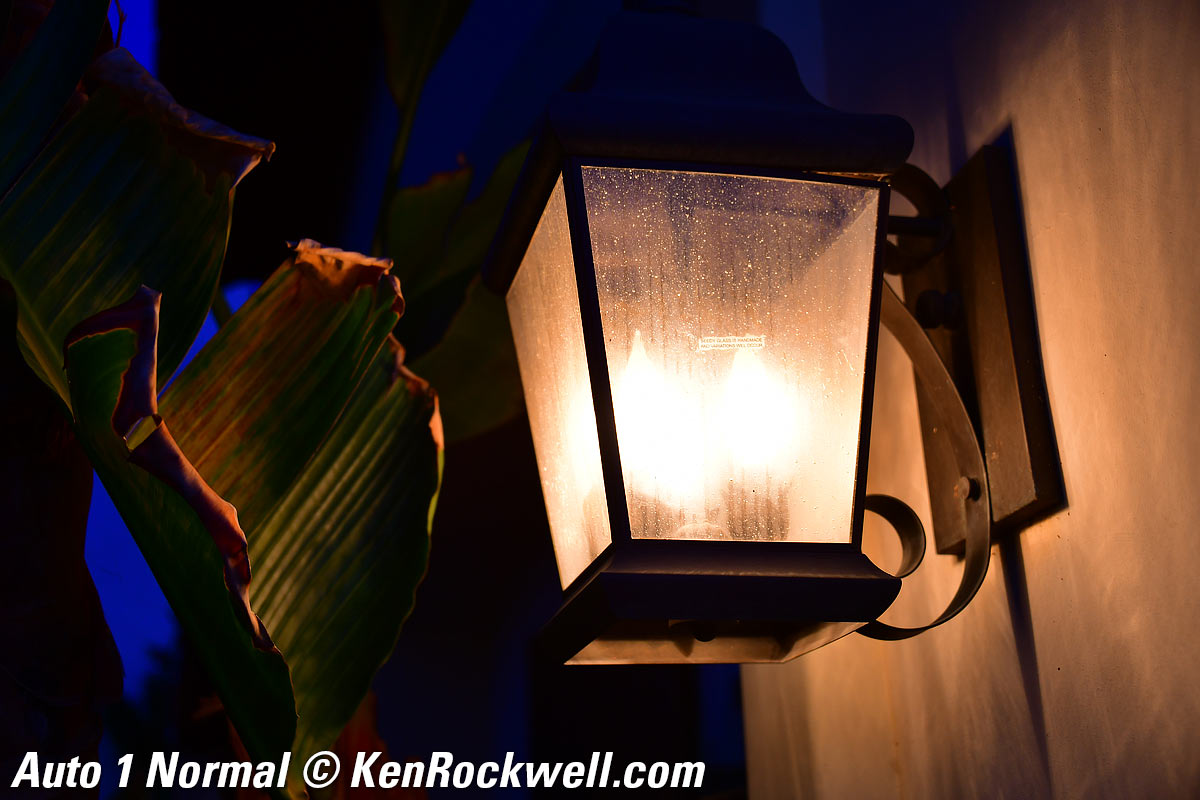
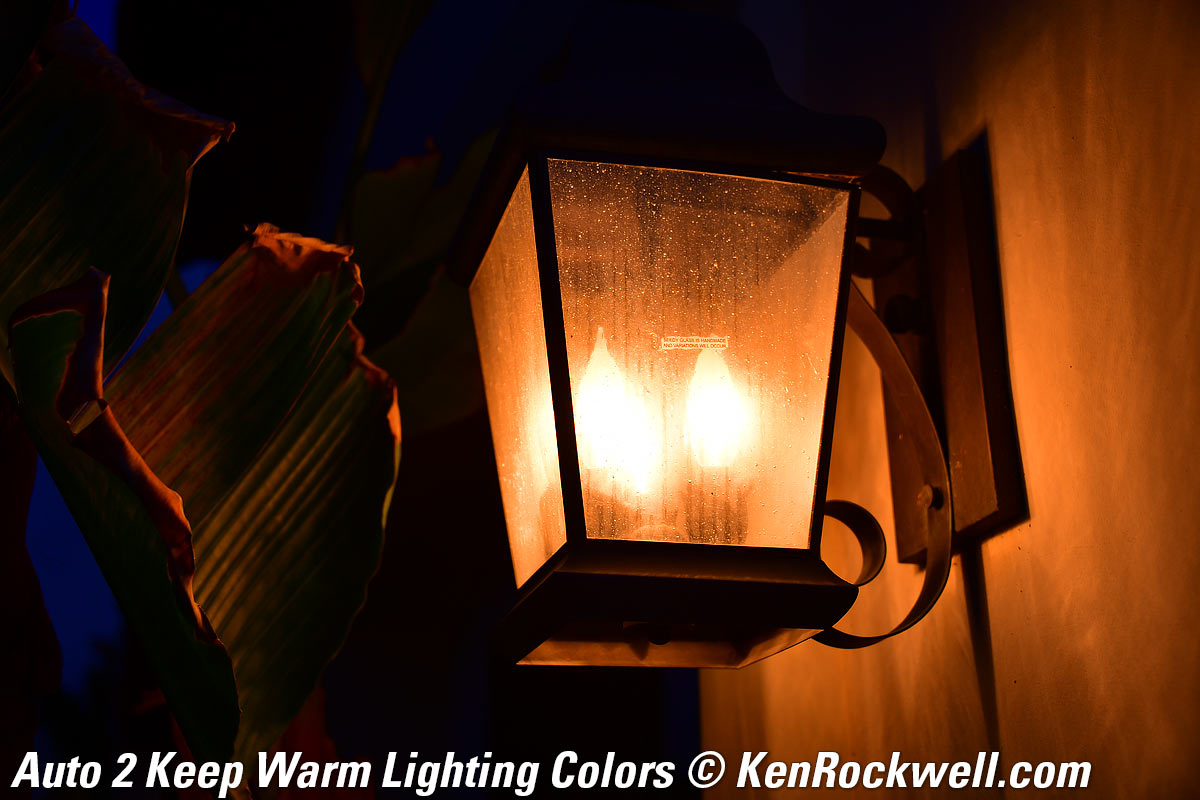
This was not a regular tungsten light; it was a tungsten light deeply dimmed so it was about 1,500 K or less— and AUTO0 (Keep White) did exactly that!
AUTO ☀(Natural Light Auto) is expecting light from the sun, so it doesn't correct for tungsten at all and it stays very orange. Not shown here is that for sunsets, AUTO ☀(Natural Light Auto) keeps sunsets and warm afternoon light looking like sunsets and afternoon light, leaving everything in its warm brilliance as it should be.
20W 12V halogen Malibu lights at dusk
|
|
 |
 |
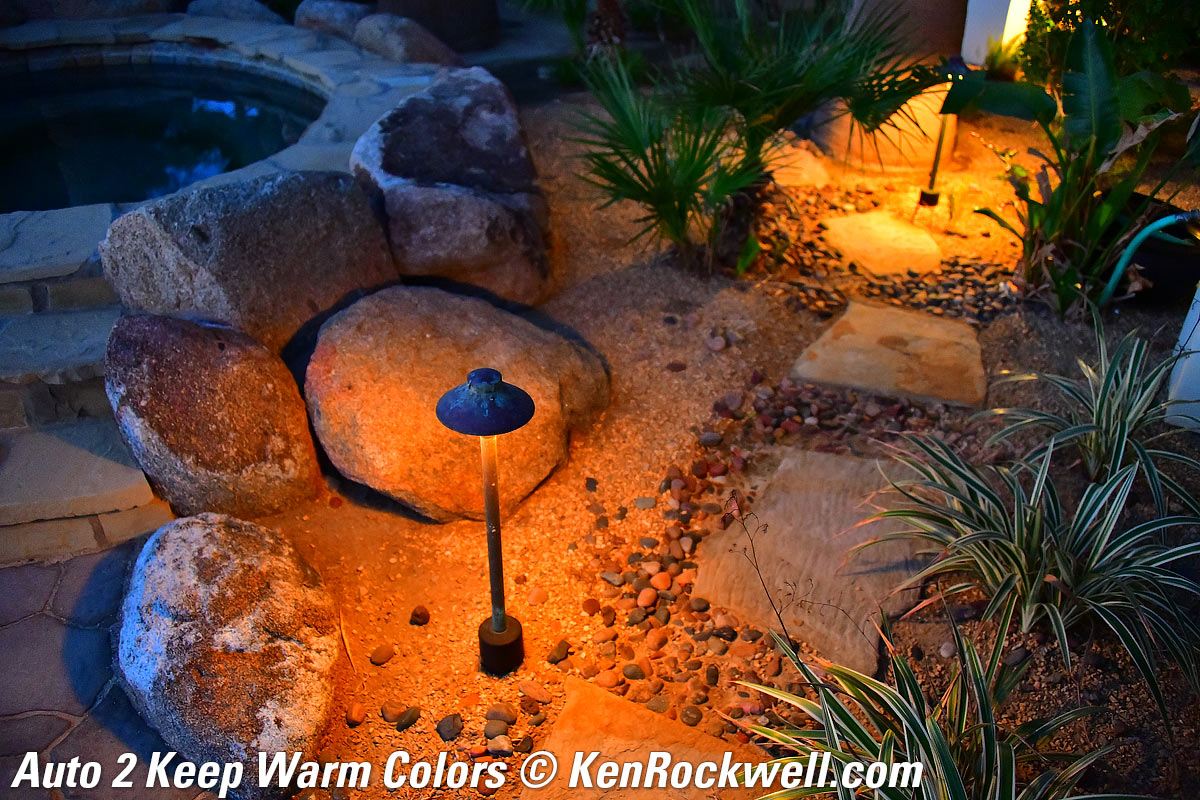
Click any to enlarge.
It's similar here, but notice how AUTO ☀(Natural Light Auto) didn't make the twilight turn blue on the sandstone to the left; it left it neutral as it looked at the time.
Green Agave in Shade
|
|
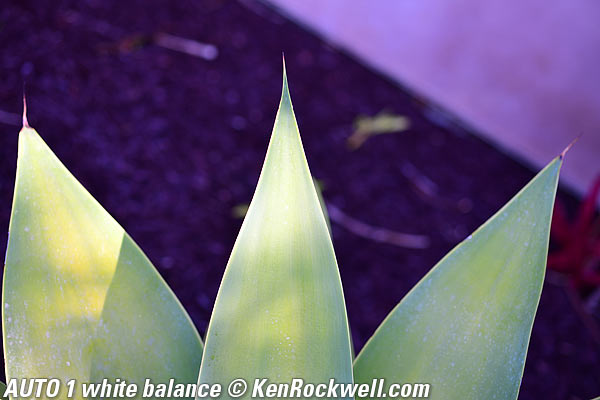
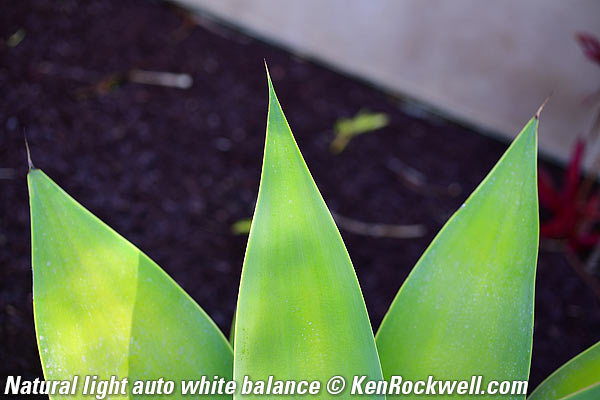
Click either to enlarge.
This is why Nikon added AUTO ☀(Natural Light Auto): green plants in shade are often confused with fluorescent lights, and the usual AWB will try to remove what it thinks is too much green, making greens duller and everything else too magenta (purple). When you set it to AUTO ☀(Natural Light Auto), it knows there isn't any fluorescent light, and lets the leaves look green as they should.
Warm White Fluorescent
|
|
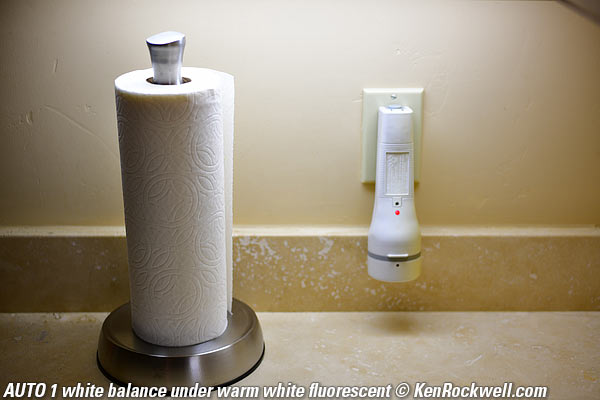
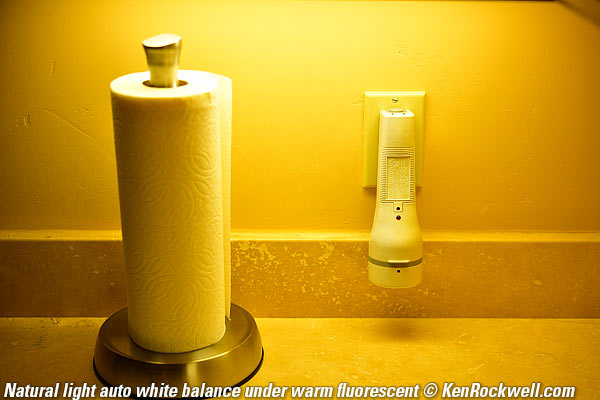
Click either to enlarge.
AUTO1 expertly renders the subject naturally, while the AUTO ☀(Natural Light Auto) setting is powerless to try to correct the fluorescent light.
Sharpening Settings index top
Sharpening is set at Picture Controls, at MENU > PHOTO SHOOTING MENU (📷 camera icon) > Set Picture Control > (select your choice of picture control) and click right.
Now you'll see four choices:
Quick sharp: I don't touch this; this is a one-stop way to adjust all of the settings below with one control.
Sharpening: I usually peg this at +9.
Mid-range sharpening: Leave this at its default of +2.
"Mid-range" means an unsharp mask with a very large radius. In English, it means it's sharpening coarse details, not the usual fine details we expect.
If you set it too high it increases overall contrast in nasty ways that put dark shadows under people's eyes, puts white halos around things and make things look generally cruddy. For instance:
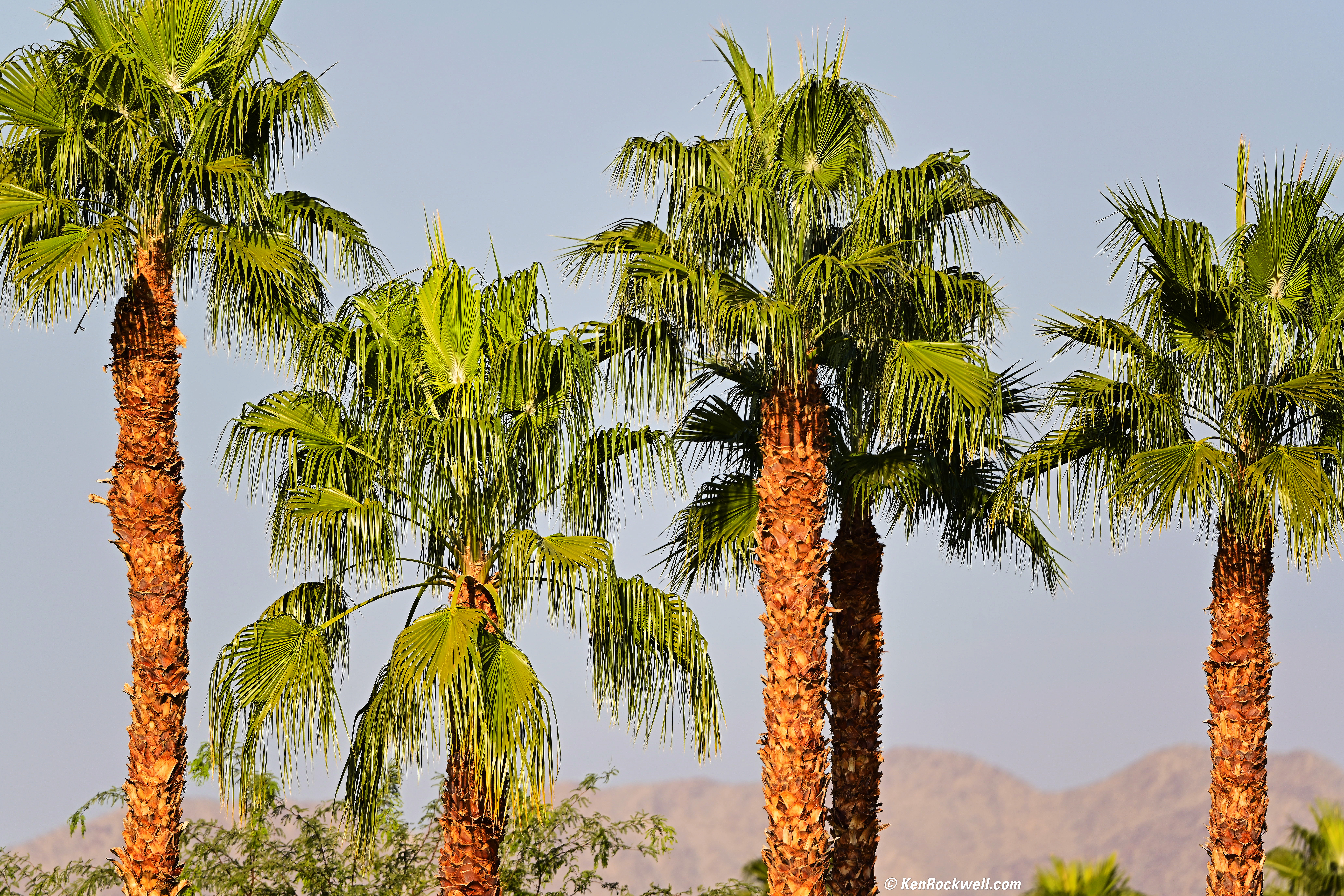
Desert Palms, 9:27 AM, 18 November 2018. Nikon Z7 w/FTZ, (Nikon Z50 II does the same thing) Nikon 500mm f/5.6 E PF, f/5.6 at 1/400 hand-held. bigger, full resolution or camera-original © JPG file.
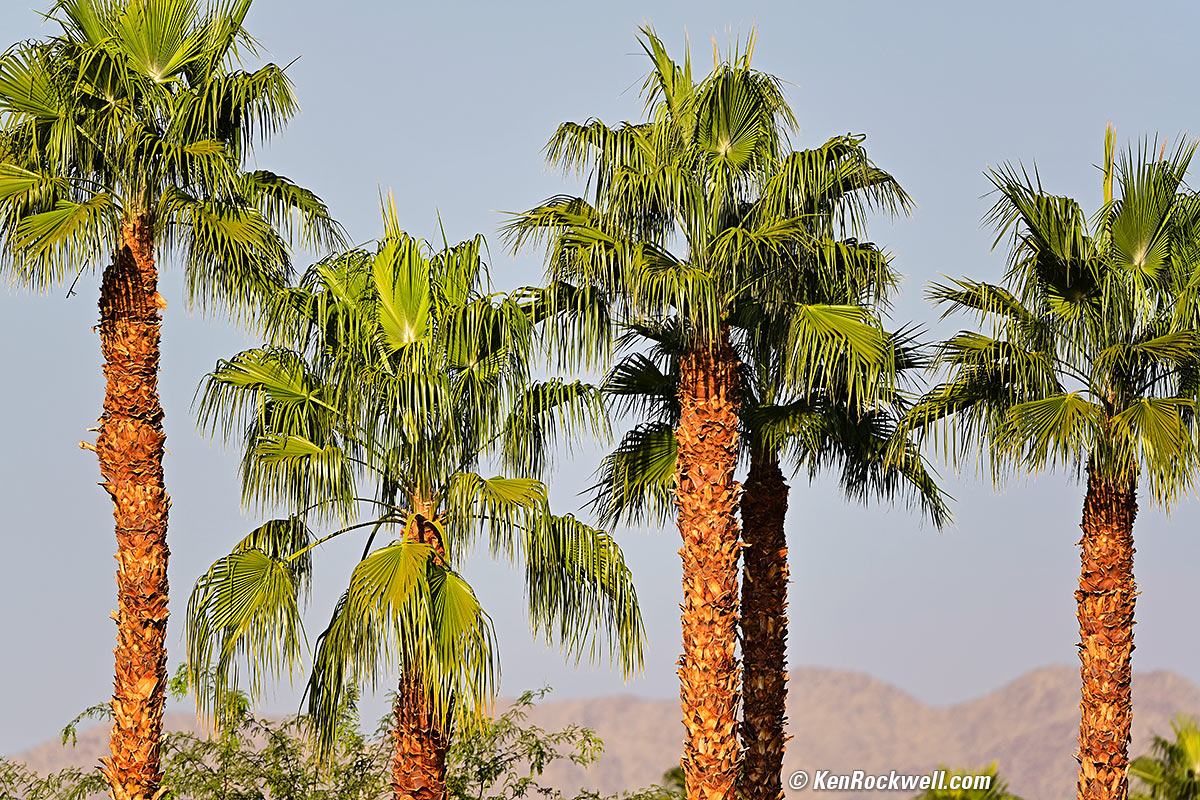
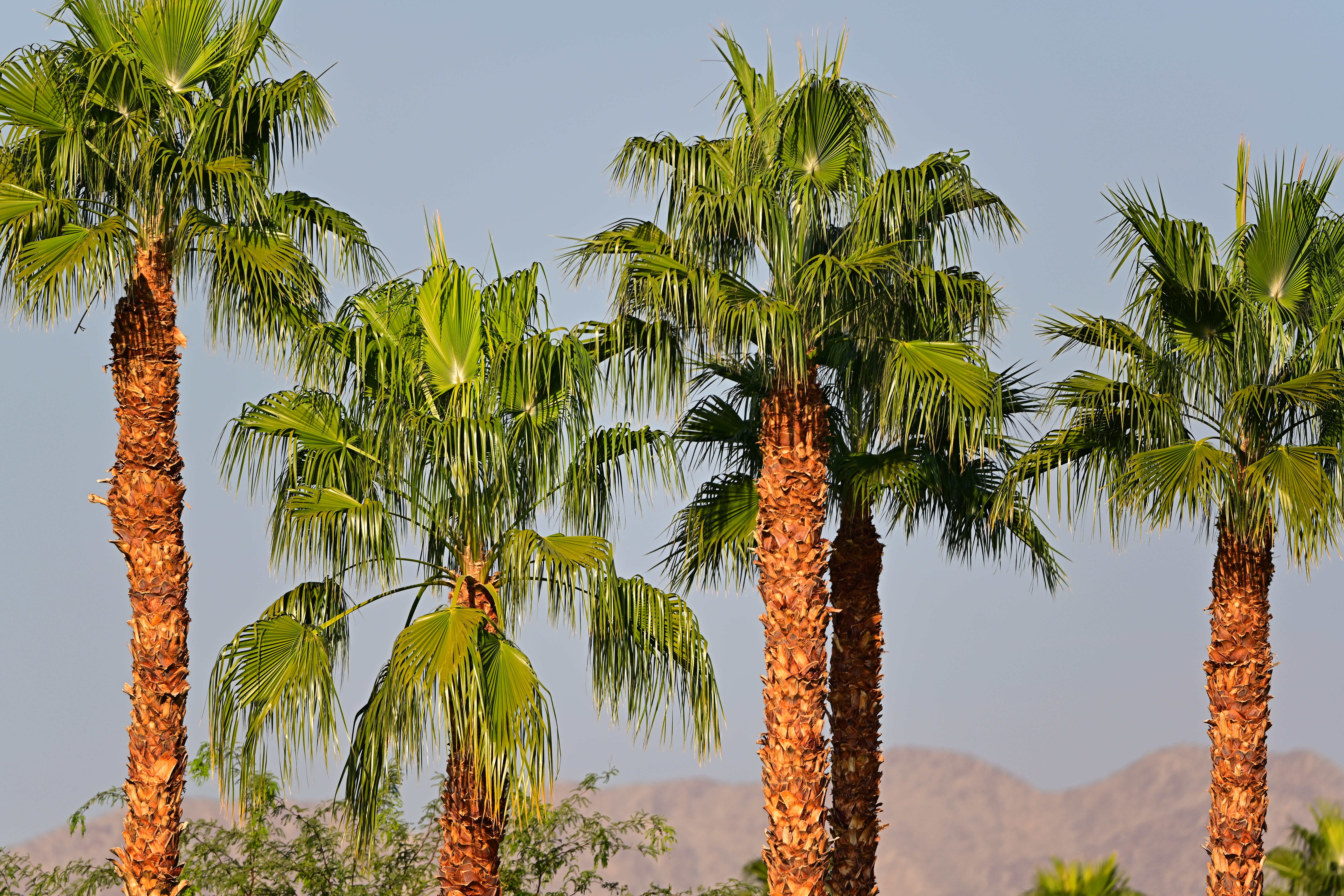
This shot looks ugly as I had the Z7's midrange sharpening set to +5, which is way too much because it overemphasizes some contrasts in nasty ways.
Experiment with this one, but go easy on it until you master it.
I leave midrange sharpening at its default of +2.
Clarity: I leave this at its default of +1.
Automatically Optimized Dynamic Range index top
Like most Nikons, the Z50 II can be set to optimize its dynamic range for every shot. Nikon calls this very important feature "Active D-Lighting," which is why no one knows what it is. It magically optimizes actual exposure and the sensor's light sensitivity to do a great job of optimizing highlights and shadows for each and every shot.
Oddly this very important mode is OFF by default. I turn it ON and never turn it off. Do this at
MENU > PHOTO SHOOTING MENU (📷 camera icon) > Active D-Lighting > and I set mine to AUTO.
Done. I never turn this off.
Getting 15 FPS and 30 FPS index top
Thank goodness all of these modes described below work with full autofocus and auto exposure. The gotchas are that some of these modes restrict file formats and other things.
Oddly while AF and AE track great in any of the continuous shutter modes, Auto White Balance locks and does not adjust as you may track from one sort of lighting to another. It resets with each burst.
Unrestricted
The Z50 II shoots at up to 11 FPS in Continuous High Extended (set with the Advance Mode button to the far left of the rear eyepiece) with the mechanical shutter, or at up to 15 FPS with the silent electronic shutter. It may only run at about 11 FPS in the silent electronic shutter mode when set to raw, but at least in silent electronic shutter mode you have access to all the camera's settings.
I don't see much purpose to the C15 FPS mode below, as we can get 15 FPS in silent electronic shutter mode with fewer restrictions.
C15 and C30 Modes
The advantage to the C15 and C30 modes are that they reallocate the camera's internal resources to increase the shooting buffer to 300 frames, which can be helpful at 30 FPS with cards that aren't super fast, however in exchange for the larger buffer these settings only store JPG LARGE NORMAL files. You can't shoot raw or any other image size or JPG compression level or format.
All the autofocus settings work; focus tracks great at these frame rates.
You can shoot in any of the P, S, A or M exposure modes.
It works oddly in various exposure modes, for instance, P mode seems only to shoot at f/4 or f/8.
You can't use Program Shift; instead use other exposure modes to select any particular aperture or shutter speed.
ISOs are unrestricted, use any you like, however in AUTO ISO the minimum shutter speed settings are ignored and instead are set to 1/60. Auto ISO minimum shutter settings like 1/500 are ignored Use the Shutter-preferred or Manual exposure modes to select a particular shutter speed.
The EXIF shot counter increments correctly for each shot.
Picture Control settings work as always.
You can't use flash (can't use it in the silent electronic shutter mode either) .
You can't use exposure bracketing.
You can't make multiple exposures on the same frame; get a room and take it up on your own computer to stack frames.
You can't do HDR overlays.
You can't use the interval timer.
You can't do time-lapse video.
You can't do focus shift.
C15 (15 FPS) |
C30 (30 FPS) |
|
Sensor Area Used |
DX (16 × 24mm) |
DX (16 × 24mm) |
Slowest Shutter Speed |
1/60 |
1/60 |
Hardware Buffer Depth1 |
300 shots1 |
300 shots1 |
Measured Burst Depth with an ordinary SanDisk 200 MB/s UHS‑I card2 |
Seems unlimited, at least 1,000 shots (at least a minute)2 |
about 600 shots (20 seconds)2 |
Measured Burst Depth with a Sony G 64GB 300MB/s UHS-II card2 |
Seems unlimited2 |
Seems unlimited2 |
Image Size |
5,568 × 3,712 |
5,568 × 3,712 |
File Size |
6½ MB |
6½ MB |
1.) This is the size of the camera's internal hardware buffer used to store images until they are written to your card. We get a much deeper burst depth depending on how fast it can write from this buffer to your card. At 15 FPS it can write about as fast as it shoots, so the depth is limited only by filing up the card. While this is only 59 frames in the usual shooting modes, in C15 and C30 the camera reallocates resources to give a larger buffer.
2.) Actual burst depth is a race between how fast the card can record versus how fast the camera spits out data. With a hot card like the UHS-II Sony it's unlimited, while with a merely good card like my SanDisk 200 MB/s UHS-I cards it eventually fills the camera's internal 300-frame buffer after about 600 shots at 30 FPS.
Cards & Files index 15 & 30 FPS top
A lot of images are created in these modes.
The Z50 II packs only 5,000 shots in each folder. You won't see it while shooting, but it creates a new folder after each image 4,999 and each image 9,999.
Sadly it only has four digits for file numbers, so on any typical action shoot you will have to deal with duplicate file numbers stored in different folders!
While you can combine the files from two of these folders with images 0001 to 9,999 in the same folder on your computer, you can't combine all of them into one folder if you've shot more than 10,000 images. Thus you now have to have a few folders to hold all the shots from one event, and even if you save only 1% of them, you still have the potential for a duplicate file names.
If Nikon was paying attention they'd use five or six digits in the file names rather than three fixed letters, an underscore and four digits — or just make the file names longer, but nooooo, we're stuck back in American computer conventions from the 1980s with these people. Nikon isn't Apple.
Shutter Modes index top
To select what kind of shutter is used, go to:
MENU > CUSTOM SETTINGS MENU (✎ pencil icon) > d Shooting/display > d6 Shutter type.
The options are:
AUTO: Uses either mechanical or electronic front-curtain depending on conditions. This is the default; it selects front-curtain electronic at slow speeds to reduce camera shake, otherwise sticks with mechanical.
MECHAINCAL: The usual shutter. Oddly it only works with some lenses, otherwise, like with the Z 16-50mm VR DX, it's grayed-out.
ELECTRONIC FRONT-CURTAIN: This means the shutter opens mostly silently, and makes a mechanical click when it closes. This is great for eliminating camera shake on a tripod, and lets you know when your exposure is done. The fastest speed with this setting is 1/2,000.
Paradoxically there is no ELECTRONIC option here; it's hidden at Silent Mode!!! What is it with these people?
Silent Electronic Shutter Mode index top
Silent Mode selects the electronic shutter, turns off the flash and silences most of the beeps. Oddly it's the only way to select the electronic shutter other than selecting the 15 FPS or 30 FPS modes; you can't set the electronic shutter directly at the Shutter Mode menu option!
Set this at the last item at MENU > SETUP MENU 🔧 (wrench icon)> Silent mode > ON.
Like most cameras, you can't use flash, flicker reduction or HDR while in silent mode, and like all cameras other than the Sony A9 you can expect some occasional weird effects under flickering light or with objects moving across the frame due to the rolling shutter.
Silent mode works at all frame rates and exposure times from 1/4,000 down to 15 minutes in TIME exposures.
Light Metering index top
Leave it set to MATRIX.
Press the rear 𝒊 button, select the bottom row and then the third box from the left, and it should be at Matrix metering.
The Center-weighted and Spot modes are obsolete static modes from the 1970s. Nikon leaves them in to satiate old-tymers, and the only time I see people with exposure problems is when someone actually uses these old modes, but doesn't know and apply the Zone System which is required to use these properly, as we did in the 1970s.
The Highlight priority mode is an idea if you intend to twiddle with your images on a computer later; this mode prevents anything from overexposing, but can lead to overly dark images that need to be cleverly lightened with software like Perfectly Clear later for optimum results.
Matrix usually gets everything right, and if your images are too dark or light, press the top +/- (exposure compensation) button, click the rear dial left or right a click or two and you should be able to get perfect exposure.
Square & 16:9 Crop Modes index top
It's easy to set the Nikon Z50 II to shoot square photos, which I find very useful for people shots as I never miss anything while rotating my camera between vertical and horizontal. Square shots are also great for submission to photo editors as this lets them pick whatever crop fits their layout, increasing your chances of a sale.
16:9 mode isn't very useful unless you're shooting stills to edit into video.
You set these at MENU > PHOTO SHOOTING MENU (📷 camera icon) > Chose image area.
I find this mode so helpful I set my red REC button to let me select the crop mode (I use my iPhone for video, not this camera).
Flash index top
The Nikon Z50 II's built-in flash is probably all you need. I don't use it indoors or at night, but use it most of the time in harsh lighting outdoors and photographing people in direct sunlight for fill-flash.
The built-in flash cannot be used as a master flash or remote commander to control wireless remote flashes. For this you'll need to use another flash capable of that in the Z50 II's hot shoe.
Of course in manual mode the built-in flash can trigger other flash or studio strobes optically in their manual modes. It can fire them, but can't do anything else remotely.
I almost never use flash at night. If I do, I gel (filter) the flash with an orange (CTO) gel filter to match tungsten or green to match fluorescent lighting.
If you want more power or faster recycling for hard shooting, the Nikon SB-400 is the ultimate mirrorless flash. It works flawlessly with the Nikon Z50 II, even turning on and off with the Nikon Z50 II's power switch.
Even more than it was on DSLRs, it's tiny as you want on mirrorless, and it's powerful and recycles fast and the Nikon Z50 II balances it for fill perfectly.
The SB-400 was discontinued; no worry, you can get them on eBay cheap (see How to Win at eBay).
The SB-400 is much better for mirrorless than the newer, bigger, crummier and more expensive SB-300 and SB-500. The SB300 is bigger, junkier, lower powered and takes too long to recycle from it's pathetic AAA cells, and the SB500 is too darn big and costs more than twice as much for about the same performance as the tiny SB400.
Of course the Nikon Z50 II works with the larger and excellent SB-700 and SB-5000, just that they are bigger than the camera and you probably don't need all that power. The SB-400 has more than enough power and fits the camera's size better.
Studio Strobes & Flash-Only Exposures index top
In olden days we needed to change finder settings to get a finder that wasn't black when we shot with flash as our only source of illumination, for instance, with manual exposure at 1/200 at f/11 indoors at ISO 100. Good news is at the default setting of
MENU > CUSTOM SETTINGS MENU (✎ pencil icon) > d Shooting/display > d10 View mode (photo lv) > Show effects of settings only when flash is not used > OK
the finder will automatically optimize itself either for ambient light or for flash shooting.
If for some reason this isn't working well, we can force the finder to show a good image when we're using flash or strobes as the only source of illumination by setting:
MENU > CUSTOM SETTINGS MENU (✎ pencil icon) > d Shooting/display > d10 View mode (photo lv) > Adjust for ease of viewing > Auto > OK.
If you set this manually for use with flash or strobes, the default setting when you're done is:
MENU > CUSTOM SETTINGS MENU (✎ pencil icon) > d Shooting/display > d10 View mode (photo lv) > Show effects of settings only when flash is not used > OK.
Self Timer index top
Set this with the Advance Mode (bearded rectangle) button to the far left of the viewfinder eyepiece.
Rotate the rear dial to get to the self timer. Once there, the front dial sets the delay.
To take more than one shot each time (very handy for family portraits to get everyone smiling), set this at
MENU > CUSTOM SETTINGS MENU (✎ pencil icon) > c Timers/AE lock > c2 Self timer.
The Nikon Z50 II doesn't reset to Single advance mode after you turn off the power or it goes to sleep, it will always wake up in Self Timer until you set it back to something else.
Time Exposures index top
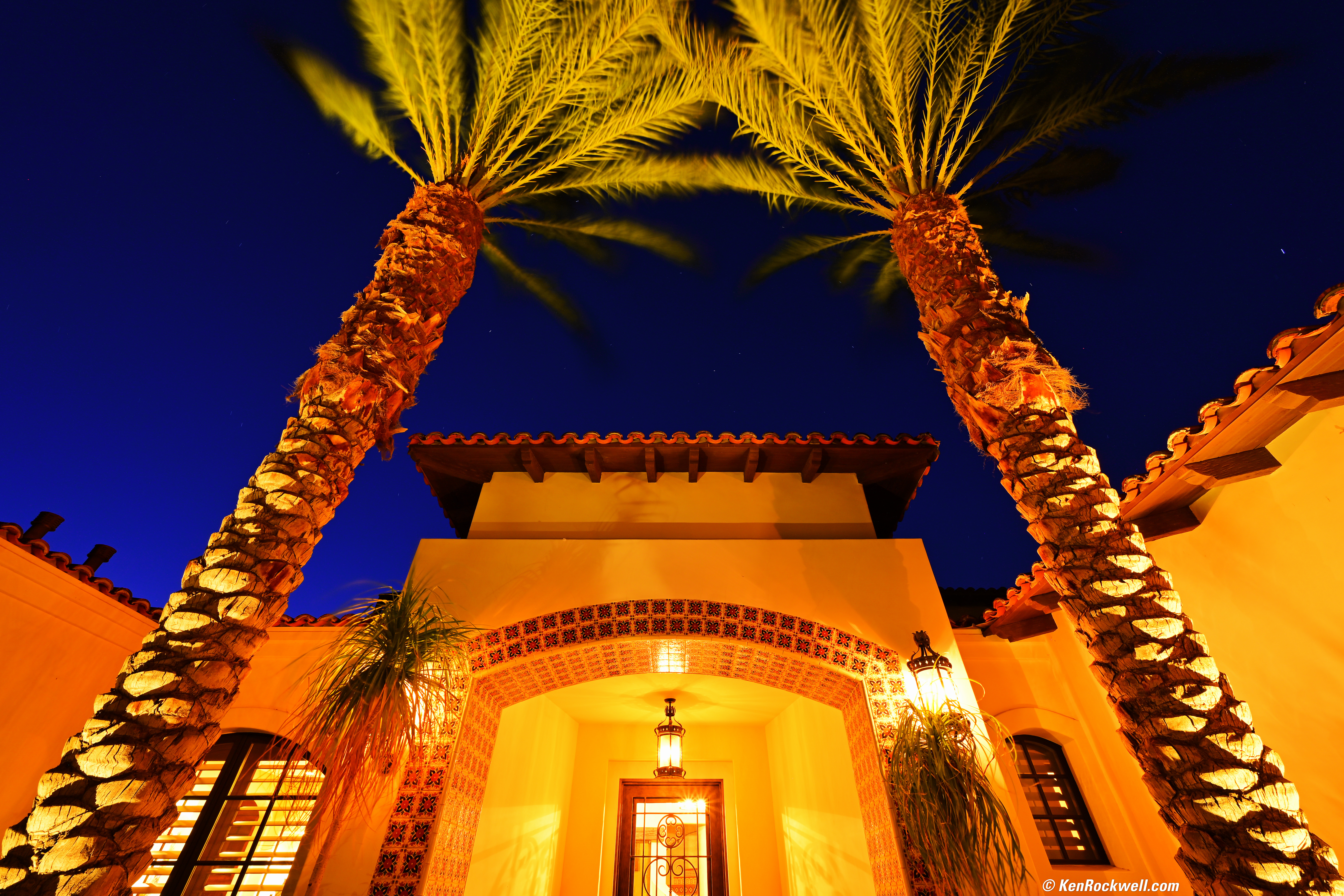
California Desert Home, 22 June 2019, 8:50-8:52 PM. Nikon Z7 (Nikon Z50 II does the same thing), Nikon 14-30mm at 14mm at f/11, 104 second time exposure, Perfectly Clear v3.7 "landscapes" mode. bigger, full-resolution or camera-original © file.
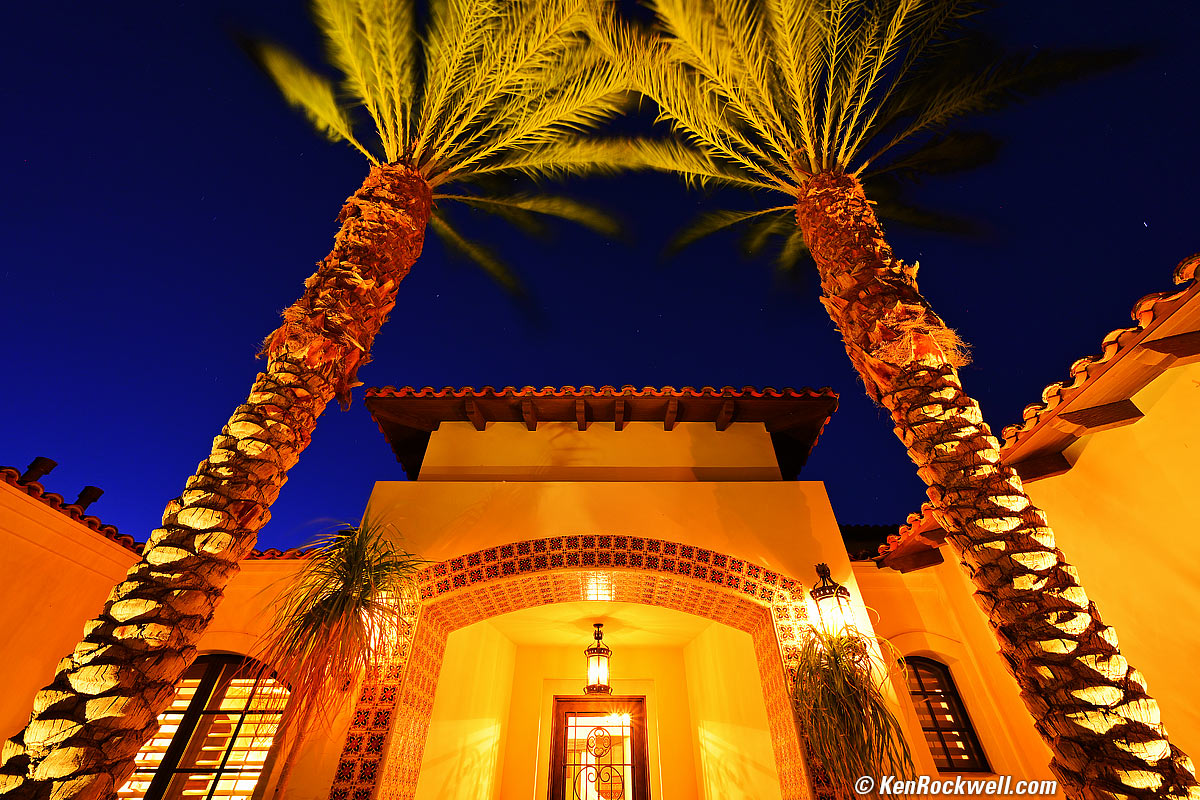
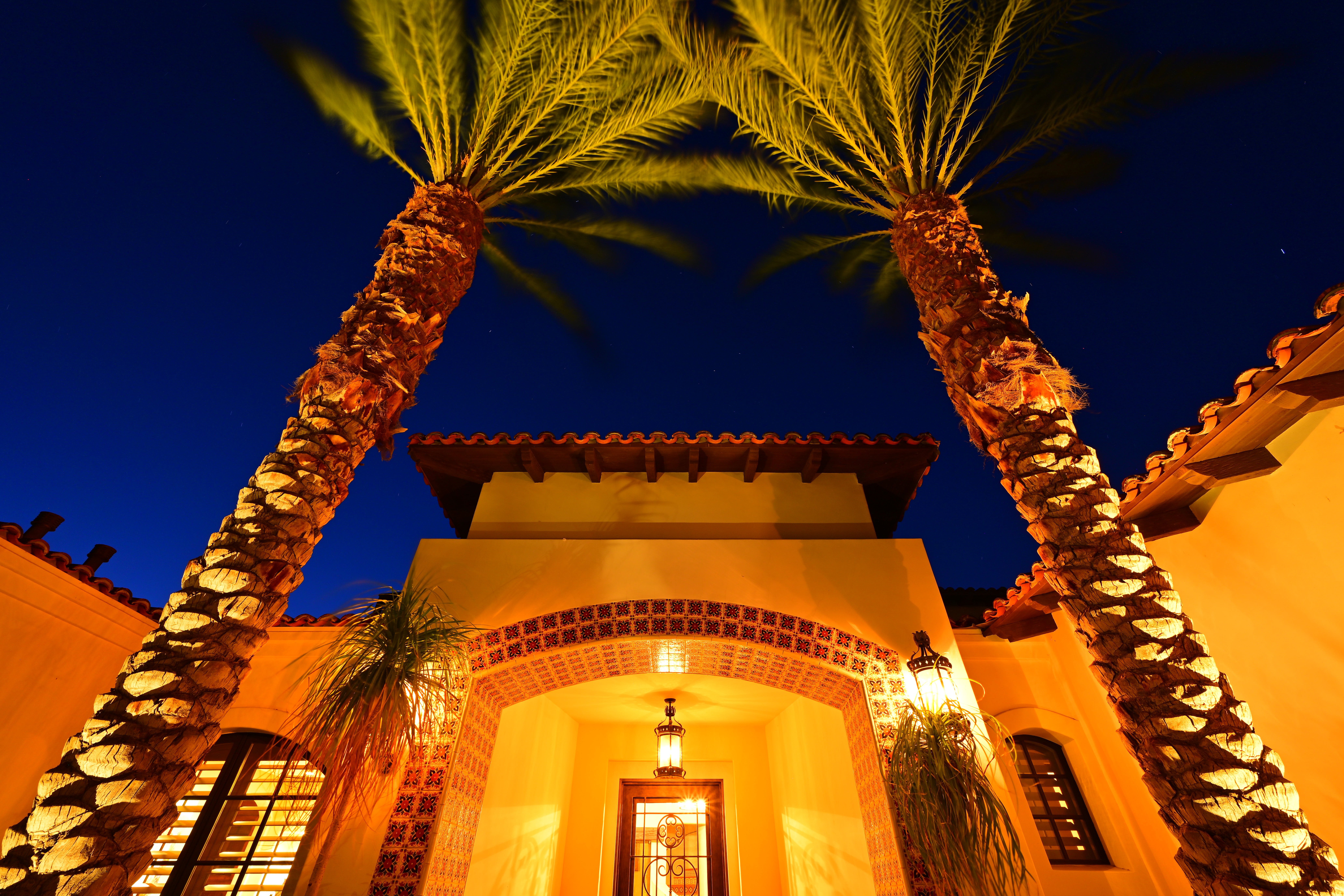
New in the Z50 II is that manual exposure times may be set all the way out to 15 minutes. To enable this, set
MENU > CUSTOM SETTINGS MENU (✎ pencil icon) > d Shooting/display > d7 Extended shutter speeds (M) > ON.
For longer than 15 minutes, set TIME in manual exposure mode (M setting on the top dial) by turning the rear dial all the way to the left, past BULB. Now press the shutter and it stays open until you press it again. Use the self-timer to start and put your hand or a hat over the lens to stop and you don't need a remote release. Easy!
There is no tally light; the Nikon Z50 II stays completely dark as it exposes.
Movies index top
To shoot movies, flip the top lever on the right of the mode dial to the movie position, then press the red button near the shutter to start and stop.
U1, U2 & U3 index top
These are settings on the top mode dial which we may program to recall our own choices of camera settings for different conditions. I use U1 for places and things, U2 for people and U3 for action. Yours will be for whatever you prefer to shoot.
You can update any of these modes by changing anything you like about them, then saving the result at MENU > SETUP MENU 🔧 (wrench icon) > Save user settings > Save to U1, U2 or U3 > Save Settings > OK.
If you change anything while in any of these modes, the Nikon Z50 II resets to however the U1, U2 or U3 preset was set when you turn the camera back on, or when you select away and then reset U1, U2 or U3 again. Shifted program resets to unshifted.
I've programmed my Nikon Z50 II U1 mode for nature, landscapes and all photos of things.
I set my U2 mode for people photos.
U1: Places & Things |
U2: People |
U3: Action |
|
| Picture Control | VIVID |
STANDARD |
STANDARD |
| Saturation | +3 |
+1 |
+1 |
| Sharpening | +9 |
+9 |
+9 |
| Mid-Level Sharpening | 2 (default) |
2 (default) |
2 (default) |
| Auto ISO Maximum ISO | 51,200 |
51,200 |
51,200 |
| Auto ISO Minimum shutter speed | AUTO (or AUTO SLOWER -2 with VR lenses) |
1/125 |
1/1,000 |
Picture Controls U1, U2 & U3 index top
I use VIVID for wild colors, and STANDARD for natural shots of people.
Set this at MENU > PHOTO SHOOTING MENU (📷 camera icon) > Set Picture Control.
I don't use Nikon's AUTO Picture control, which does its best to guess what you're shooting and set itself accordingly.
Everyone has different tastes for people photos, feel free to experiment with the PORTRAIT setting if you like.
Saturation U1, U2 & U3 index top
This is set as a tweak inside any of the main picture controls.
I set +3 for the most saturated colors of places and things.
I set +1 to get slightly more colorful shots of people in the STANDARD setting. People start looking bad with too much saturation; just as often I'll leave it at 0.
Sharpening U1, U2 & U3 index top
This is set as a tweak inside any of the main picture controls.
I prefer to set mine to the maximum, but leave "mid-level sharpening" at its default of +2.
Auto ISO Maximum ISO U1, U2 & U3 index top
This is the highest ISO speed to which the camera will set itself in Auto ISO.
ISO 51,200 looks fantastic, so if it needs it, I'd rather shoot at ISO 51,200 and have a sharp picture than a blurry one at ISO 12,800.
Auto ISO Minimum shutter speed U1, U2 & U3 index top
This is the slowest shutter speed to which the Nikon Z50 II will set itself before Auto ISO starts increasing ISO to ensure that it doesn't shoot at slower than this speed. It only shoots slower than this speed when it's shooting at the highest ISO just programmed above and the light gets even darker.
This is critical as this setting is what defines the ISO at which my Nikon Z50 II shoots, which then defines the aperture and shutter speed.
I rarely change aperture or shutter speed directly, and always change Auto ISO Minimum Shutter speed depending on my subject.
If my subject holds still, I set AUTO, which sets the minimum shutter speed to 1/focal length. If I have a VR lens I set it to Auto Slower -2 because I can hand-hold at even slower speeds. If snapping people, I set 1/125 as that keeps them sharp. If shooting sports, I set 1/1,000 as that keeps runners sharp.
Set this to taste to the slowest speed that still gets sharp images for whatever you're shooting.
My Own Personal Setup Files index top
HINT: Be sure to save your own settings first, in case you hate mine. Press MENU > SETUP (🔧 icon) > Save/Load menu settings (near the bottom of the menu, not the "Save user settings" option at the top) > Save menu settings and save the file to your computer from your card before you put my file on your card in its place.
If you'd like to set your Z50 II exactly as I set mine, simply download my personal NCSET015.BIN file (updated 20 December 2024) onto your computer and copy it to the top-level of a card (don't put it in the DCIM or any other folder). Click my personal NCSET015.BIN file in your browser and it will download to wherever your computer saves its downloads. On my Mac, it's called the Downloads folder.
My NCSET015.BIN file won't do anything on your computer and certainly won't do anything here in your browser; we're just using your computer to get the file from my website onto a card to put in your camera.
Put the card in your Z50 II, set your Z50 II to P, S, A or M mode on the top dial, press MENU > SETUP (🔧 icon) > Save/Load menu settings (near the bottom of the menu, not the "Save user settings" option at the top) > Load settings > OK. Your Z50 II will be a carbon-copy of mine, complete with my personal contact information programmed into the EXIF data of each of your files.
Be sure to set your own personal EXIF information in your camera if you choose to use my settings. Set these at MENU > SETUP (🔧 icon) > Image Comment and MENU > SETUP (🔧 icon) > Copyright Information, and be sure to set all of the IMAGE COMMENT, ARTIST and COPYRIGHT fields.
Remember, this only works if the camera is in P, S, A or M mode and only if the file isn't in any folder but is in the top-level directory of the card, the same place as the DCIM and NIKON folders.
Playback index top
The finder sets its brightness based on the light coming through the lens, so I point my Nikon Z50 II at the sky just before I hit PLAY to brighten the finder display.
See also Nikon's own Z50 II User's Manual.
Get Yours index top
I ordered mine as a kit with the Z 16-50mm VR DX at B&H:
$907, Z50 II body-only at B&H, at Adorama and at Crutchfield.
$1,047, Z50 II kit with excellent 16-50mm lens as shown above at B&H, at Adorama and at Crutchfield.
$1,297, Z50 II system with both the 16-50mm and 50-250mm lenses at B&H, at Adorama and at Crutchfield.
Get it used if you know How to Win at eBay.
This all-content, junk-free website's biggest source of support is when you use those or any of these links to approved sources when you get anything, regardless of the country in which you live. Nikon does not seal its boxes in any way, so never buy at retail or any other source not on my personally approved list since you'll have no way of knowing if you're missing accessories, getting a defective, damaged, returned, non-USA, store demo or used camera. I use the stores I do because they ship from secure remote warehouses where no one gets to touch your new camera before you do. Buy only from the approved sources I use myself for the best prices, service, return policies and selection.
Thanks for helping me help you!
Ken Rockwell.
© Ken Rockwell. All rights reserved. Tous droits réservés. Alle Rechte vorbehalten. Alla rättigheter förbehållna. Toate drepturile rezervate. Omnia jura reservata. Ken Rockwell® is a registered trademark.
Help Me Help You top
I support my growing family through this website, as crazy as it might seem.
The biggest help is when you use any of these links when you get anything. It costs you nothing, and is this site's, and thus my family's, biggest source of support. These places always have the best prices and service, which is why I've used them since before this website existed. I recommend them all personally.
If you find this page as helpful as a book you might have had to buy or a workshop you may have had to take, feel free to help me continue helping everyone.
If you've gotten your gear through one of my links or helped otherwise, you're family. It's great people like you who allow me to keep adding to this site full-time. Thanks!
If you haven't helped yet, please do, and consider helping me with a gift of $5.00.
As this page is copyrighted and formally registered, it is unlawful to make copies, especially in the form of printouts for personal use. If you wish to make a printout for personal use, you are granted one-time permission only if you PayPal me $5.00 per printout or part thereof. Thank you!
Thanks for reading!
Ken.