Canon EOS R6 III Pro Tips, Secrets & User's Guide
▼ Index of Sections ▼
back to EOS R6 III Review
R1 R3 R5 II R5 R5C R6 III R6 II R6 R R8 RP R7 R10 R50 R50V R100
Bodies Compared RF Lenses EF Lenses Flash
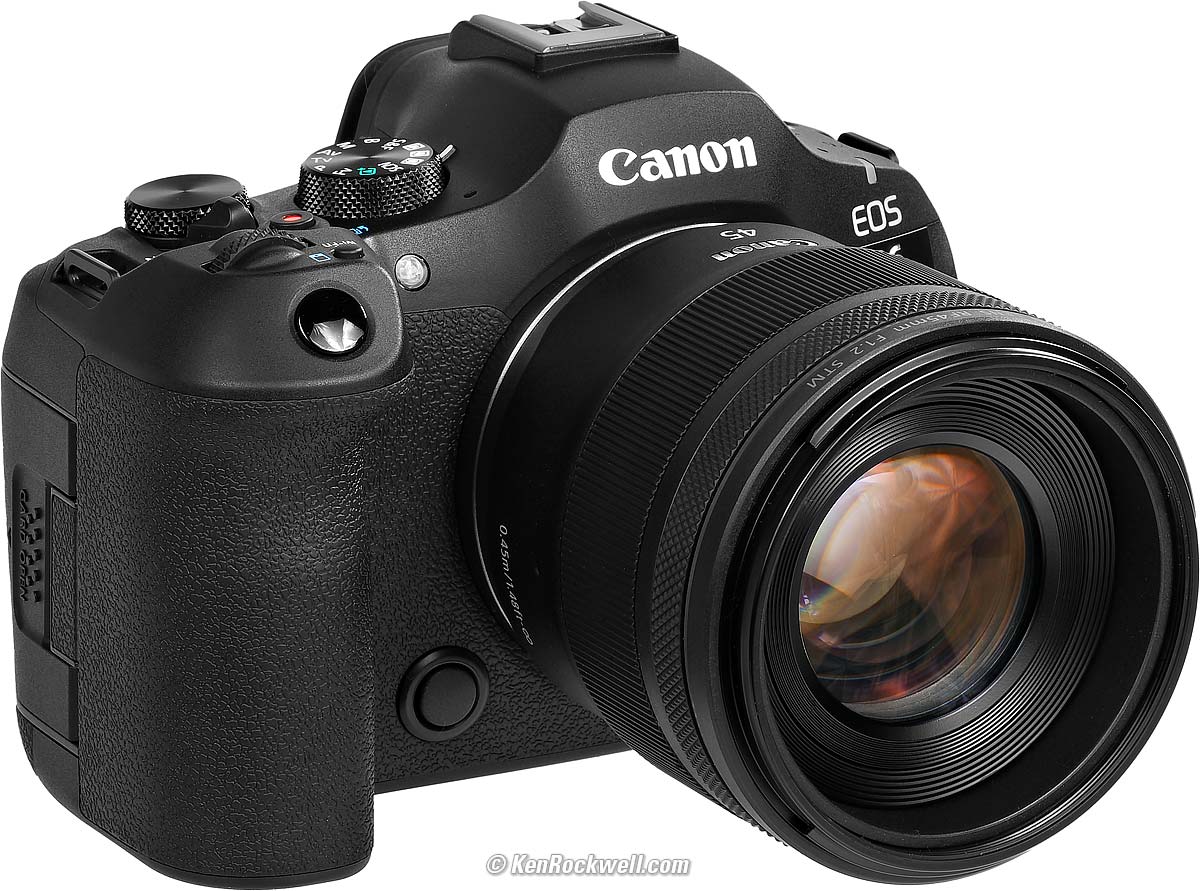
Canon EOS R6 Mk III (24.7 oz./699 g with battery and a CFexpress type B card, also has a second SD card slot, $2,799) and RF 45mm f/1.2 STM. bigger. I got my R6 III from B&H. I'd also get it at Adorama, at Crutchfield or at Amazon, or get it used if you know How to Win at eBay, or get it used at KEH:
R6 Mk III body-only: $2,799 at B&H, at Adorama, at Crutchfield and at Amazon.
R6 Mk III and RF 24-105mm IS STM: $3,149 at B&H, at Adorama, at Crutchfield and at Amazon.
R6 Mk III and RF 24-105mm f/4L IS: $4,049 at B&H, at Adorama, at Crutchfield and at Amazon.
R6 Mk III with stop-motion firmware: $2,899 at B&H, at Adorama and at Crutchfield.
This all-content, junk-free website's biggest source of support is when you use those or any of these links to my personally-approved sources when you get anything. Thanks for helping me help you! Ken.
If you find this free-to-read, super-high quality guide as helpful as a book you might have had to buy or a workshop you may have had to take, consider helping me write more of these with a gift of $5.00 — especially if you intend to make a printout of this copyrighted guide.
April 2026 Canon Reviews Mirrorless RF Lenses EF Lenses Flash All Reviews
Basics top
Add Your Copyright Information
Format Card Backup & 2nd Card Functions
Shutter Open or Closed at Power-Off?
Controls, Screens & Displays top
Customize Buttons, Controls, Rings & Dials
Customize the Finder & Rear LCD
Fast Video Finder Refresh Rates While Idle
Autofocus, Stacking & Manual Focus top
Autofocus Overview AF SERVO or ONE SHOT
Select AF Areas with the LCD while using the EVF!!!
Subject Detection Eye Detection
AF Tracking Focus Distance Display
Manual Focus Override Manual Focus Mode
Hand-Held Pan-Focus & Depth Compositing!!!
Shooting top
Exposure Compensation White Balance
Exposure Mode Dial Fv Exposure Mode
Picture Styles (Saturation, Sharpening & More!)
Shadow & Highlight Optimization
ISO Getting ISO 50 (L) & 104,800 (H)
Flash Stabilization Lens Corrections
Electronic Shutter & Silent Modes
Drive & Advance Modes Getting 40 FPS
HDR Modes File Formats HEIF Files
Playback top
Managing all These Settings top
Save/Load Settings To/From a Card
My Personal Settings Files for You to Download
Canon's Own Detailed EOS R6 III User's Manual
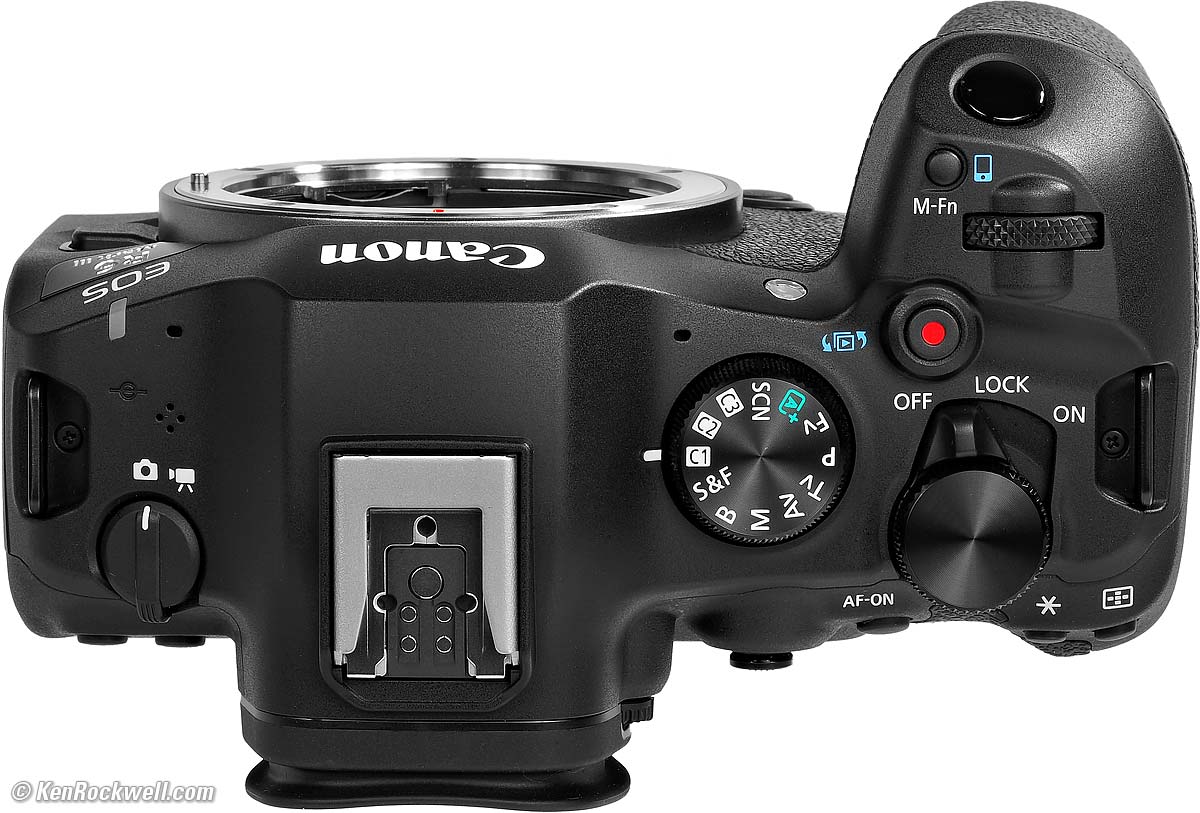
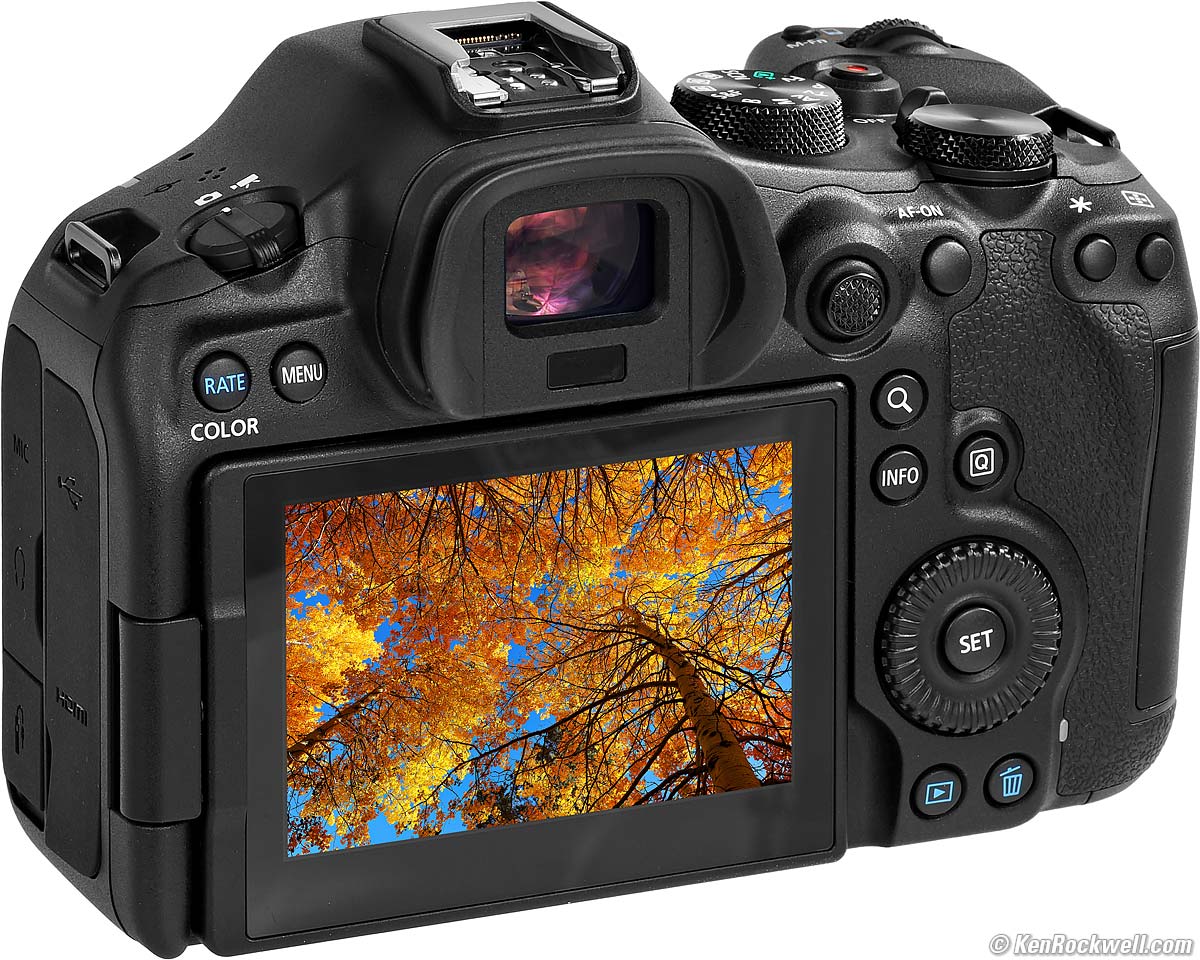
Canon EOS R6 Mark III. bigger.


I buy only from these approved sources. I can't vouch for ads below. |



Basics
Introduction R6 III review section index top of guide
This is my plain-English guide about how I use my Canon EOS R6 III. If you want more excruciating details, see also to Canon's own EOS R6 Mark III User's Guide.
This will make you an expert on the EOS R6 III's controls and menus. It also includes a lot of tips, tricks, and the settings I prefer to use.
To get great photos you still need to get yourself to the right place at the right time and point the camera in the right direction, which is a lot harder than mastering the settings of the R6 III. Right out of the box at default settings, the R6 III does a great job all by itself. Making a great photo involves timing, FARTing, knowing the critical basics of what makes a great photo and a whole lot more.
Please enjoy my articles on How to Make Great Photos if you haven't already. Cameras don't take pictures, people do. It's all about finding something cool, and then showing us exactly what's cool about it. This guide will help you become an expert at the R6 III, but most importantly you need to be able to see the picture in the first place.
I'm going to explain how and why to set a slew of different things. After all your effort to set these I'll show you how to save all these to a card, and then I'll give you a file you can load into your camera which will make all these settings for you.
If you find this free-to-read, super-high quality guide as helpful as a book you might have had to buy or a workshop you may have had to take, consider helping me write more of these with a gift of $5.00 — especially if you intend to make a printout of this copyrighted guide.
On with how to use your R6 III:
Power R6 III review section index top of guide
Batteries
|
|
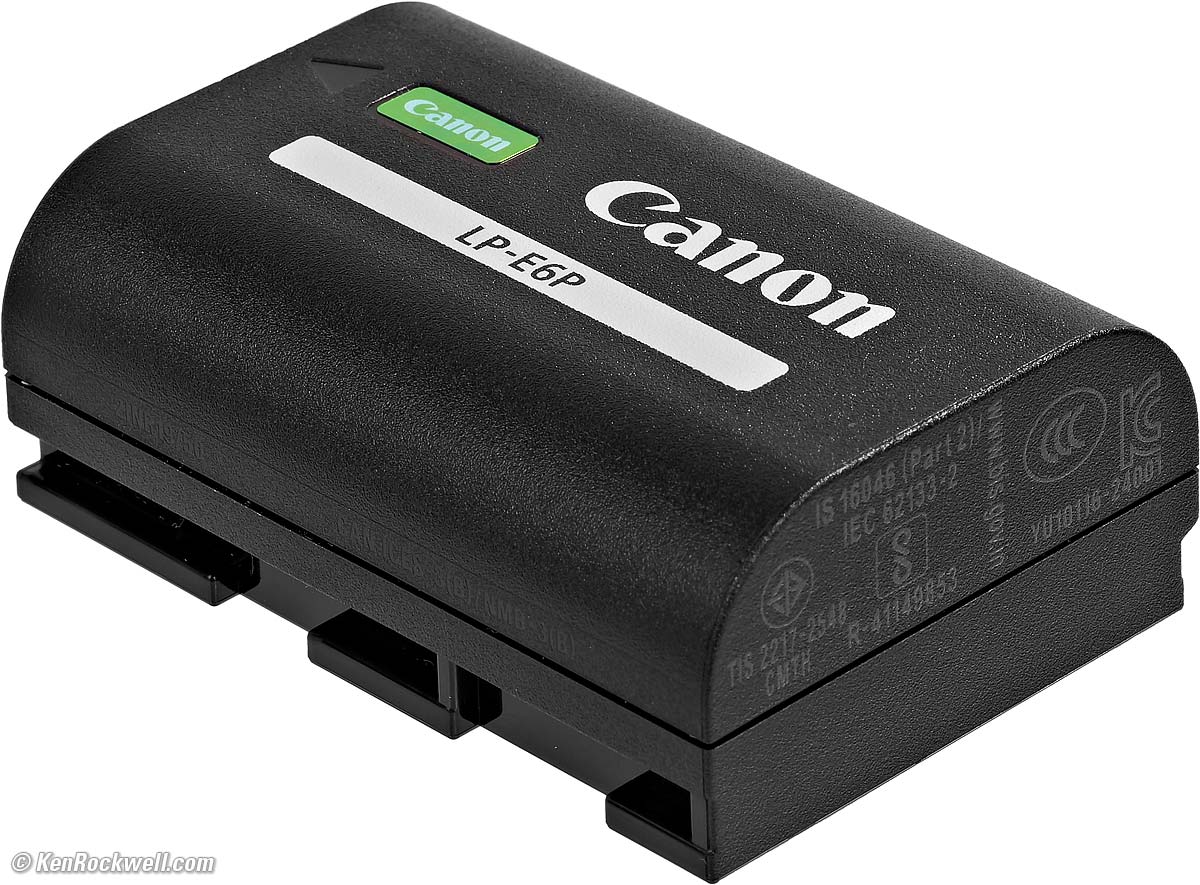
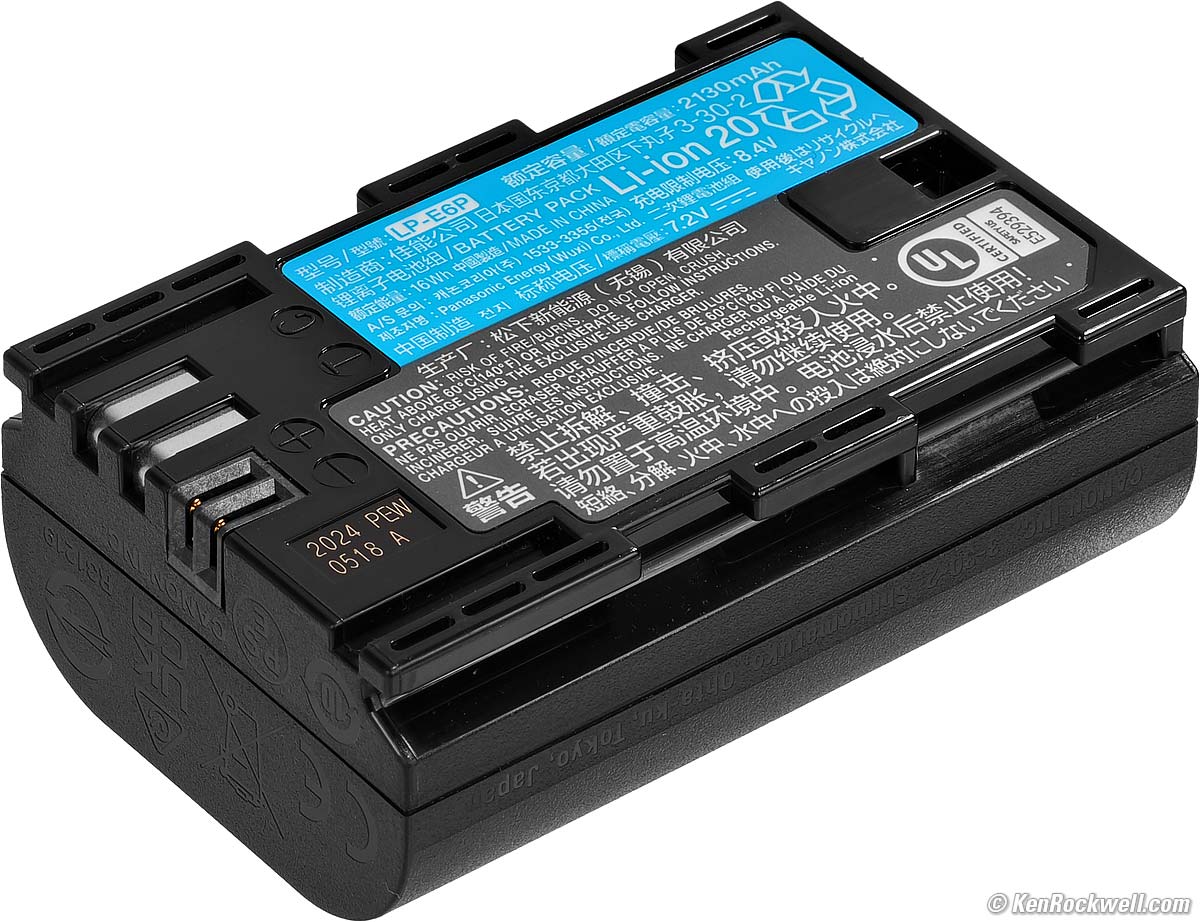
Comes with the newest LP-E6P Battery. Canon says it shoots with our older LP‑E6N and LP-E6NH, but won't work with the original LP-E6.
I tested it and it also works fine with the newest Watson LP-E6P batteries.
Older or third-party batteries may not work or may have some functions restricted. My older Watson LP-E6N and Watson LP-E6NH batteries don't work at all, reading ERROR 80.
I easily can shoot all day on a charge, so I don't bother with carrying a spare battery. I may carry a power bank because I can charge anything (camera, phone, AirPods, etc.) today from just one power bank.
Charging
It's easiest to charge the battery in-camera. You have to use a USB-C source for in-camera charging; a USB-A to USB-C cable won't work. I prefer to use any USB-C charger or a USB-C PD power bank or even a USB-C PD solar panel.
You have to keep the battery and card doors closed to charge in-camera, otherwise it stops.
It draws only 7 W while charging its 16 Wh battery, so any USB-C charger should charge as fast as any other, regardless of power rating. Charger power ratings are the maximum power they can provide; the R6 III regulates its power so it only draws what it needs.
When charging in-camera you'll see a solid green LED on the back. The LED blinks if there's a charging problem.
I don't bother with the included external charger; that's mostly for if you want to charge a second battery at the same time as you're charging another one in-camera.The external charger plugs in the wall with a flippy plug:
|
|
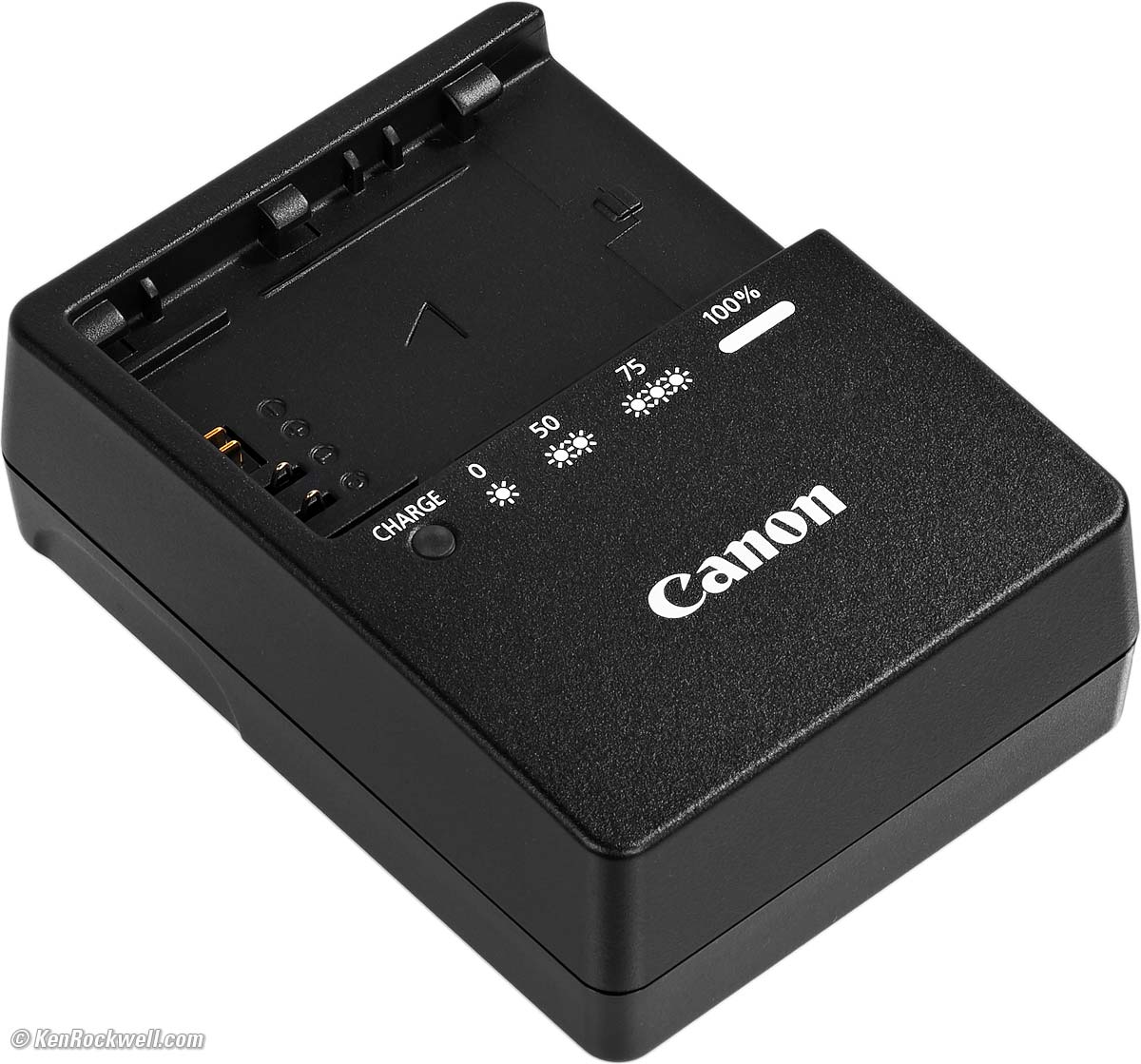
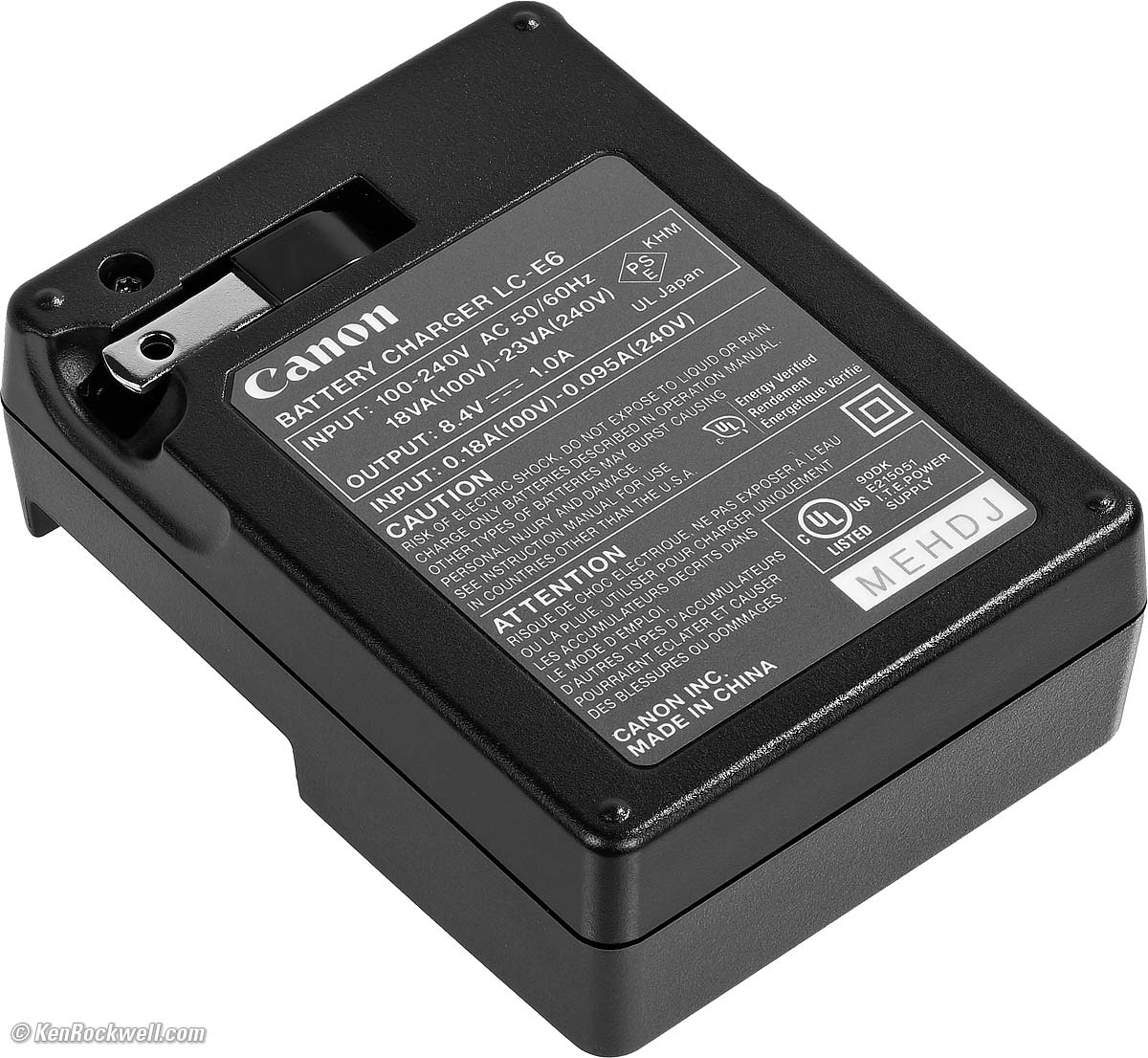
I also just got a tiny Watson Dual USB-C Canon LP-E6x Battery Charger, and it seems to work great. It runs from USB-C (with the included wall charger or a socket in your car, an output from your MacBook, a solar panel, power bank, etc.), has two slots that charge at the same time and it's tiny. While I prefer the dual-color blinking light visible from across the room on Canon's own charger while at home, this tiny Watson charger is great if you need one for travel.
I don't need any of these external chargers. I use one battery and charge it in the camera every night. You only need an external charger if you have more than one battery to charge at a time.
Set a Password — What? R6 III review section index top of guide
Canon's newest cameras as of late 2025, as well as updated firmware for every older camera, now requires we set a password to use our cameras, and requires we enter this new password every time we wake up our camera!
Nooo!
There's an easy way around this: you do have to set a password the first time (mine is 123456), and the next time you turn on your camera, enter the password then tap the DO NOT ASK ME AGAIN option, make sure that there is a check mark next to it, hit OK, and you'll never see it again.
You do have to be sure that the DO NOT ASK ME AGAIN box is checked and you do have to hit OK for this setting to take effect.
This foolishness is from European privacy paranoia; they're actually concerned that you might have someone's face stored in the Favorite Faces section of the autofocus system, and that some enterprising hacker would go to the trouble of stealing this "personal information" (facial parameters) from your camera instead just pulling those profile pictures from Facebook — the very name of which implies where people go to harvest facial recognition data along with their names, addresses and travel histories obviously lacking from the data in your camera.
This is only to protect the supposedly sensitive personal information stored in your camera; it does nothing to deter theft since you always can select the RESET CAMERA option on the same screen as the DO NOT ASK ME AGAIN option, which will reset the camera and start from scratch, erasing that precious facial data.
Arrrgh.
Menu System R6 III review section index top of guide
You can set menus with the touch screen, or use the thumb nubbin and dials. Tap the screen, push-in the nubbin or press SET to select things.
HINT: Pressing MENU on a sleeping camera simply wakes it. Just press twice, slowly, if the camera is off to get to MENU.
HINT: I program my rear AF-ON button to be another MENU button so I can hit MENU when shooting with just my right hand.
HINT: Turning the top rear dial moves quickly among the main colored menu sections, one per click: CAMERA, AF, [▶] PLAYBACK, <~> (network settings), WRENCH, CUSTOM CONTROLS, CUSTOM and MY MENU (★).
HINT: Pressing the [Q] button while in MENU jumps directly to the next color-coded main menu section (CAMERA, AF, [▶] PLAYBACK, <~> (network settings), WRENCH, CUSTOM CONTROLS, CUSTOM and MY MENU (★)).
HINT: Use the thumb nubbin or the top front dial to move between the pages inside each colored category, one page (not colored section) per click.
HINT: Use the thumb nubbin or the big rear dial to move up and down in each menu page.
HINT: Many of the menu options I describe below are not available in the [A+] AUTO mode as set on the exposure mode dial. Be sure to use any of mode other than [A+] AUTO, movie or SCN to have access to all the settings I describe.
My Menu R6 III review section index top of guide
I add these items to MY MENU (★). Of course your needs will be different:
Battery Info: Shows the battery percentage as well as the total number of shots so far on this charge.
ISO speed settings: This is where you can unlock ISO 50 (L) and 102,400 (H) and program the particulars of AUTO ISO.
Focus Bracketing: Lets me start hand-held sequences of focus-bracketed images which the camera will composite into complete pan-focus images!
IS (Image Stabilizer) Mode: This is where I can turn the camera's stabilizer ON or OFF with unstabilized lenses.
Lens aberration corrections: I leave these all ON, except I may turn Distortion Correction OFF if I'm not shooting buildings, straight lines, or shooting with a fixed, distortion-free lens like the RF 50mm f/1.2L.
Custom shooting mode (C1 - C3): I use this to save and modify the C1, C2 and C3 settings selected with the MODE dial.
Adding More My Menu Tabs
To add more pages (tabs) of My Menus, select the second page of MY MENU options and select Add My Menu Tab.
Once you add a new tab or page, it's easy to select them in My Menu so you can add lots of other My Menu options.
For instance,
Other items I might add are:
Shutter Mode: This is where I choose Electronic so I can get to 40 FPS or First-Curtain so I can use flash.
Screen brightness: This sets the rear LCD brightness. Setting the LCD to max works very well in direct sunlight; give it a try.
Add Your Copyright & Contact Information R6 III review section index top of guide
This one is easy to forget, so at first setup be sure to remember to enter your personal information so every photo you take will have your contact information in the EXIF data of every image file. A cool thing about this is when Google picks up these files in search results, they often publish my ©KenRockwell.com notice right in the search results.
I add my information at MENU > WRENCH page 8 > Copyright information > Enter author's name and > Enter copyright details.
I don't take this too seriously because everyplace your images go tends to read these fields differently. I add the same ©KenRockwell.com with my phone number and address in each of these places.
I've never found the © symbol in the camera's keyboard, so I use "(c)."
I'm unsure if Save Settings to Card also saves and recalls this information. If it does and you choose to try my own settings file, be sure to set these back to your own personal information or your images will all be tagged with my copyright.
Format Card R6 III review section index top of guide
I do this every and any time I put a card in my camera, presuming of course that I've downloaded everything from my card.
You don't have to do this; it's just good practice I learned the hard way decades ago at the dawn of digital when we would actually get card errors now and then even if we did practice safe computing.
To format the card, MENU > WRENCH page 1 > Format Card > Select a card > OK.
Backup and 2nd Card Functions R6 III review section index top of guide
Use your choice of one or two cards. One slot is for SD cards and the other is for CFexpress type B cards.
Personally I set my R6 Mark III to record the same thing to both cards as backup at MENU > WRENCH page 1 > Record func+card/folder sel. > Rec options > Rec. to multiple.
This way I have two copies of everything, and if I accidentally delete from one card (oops!), it's usually still on the other.
Shutter Open or Closed at Power-Off? R6 III review section index top of guide
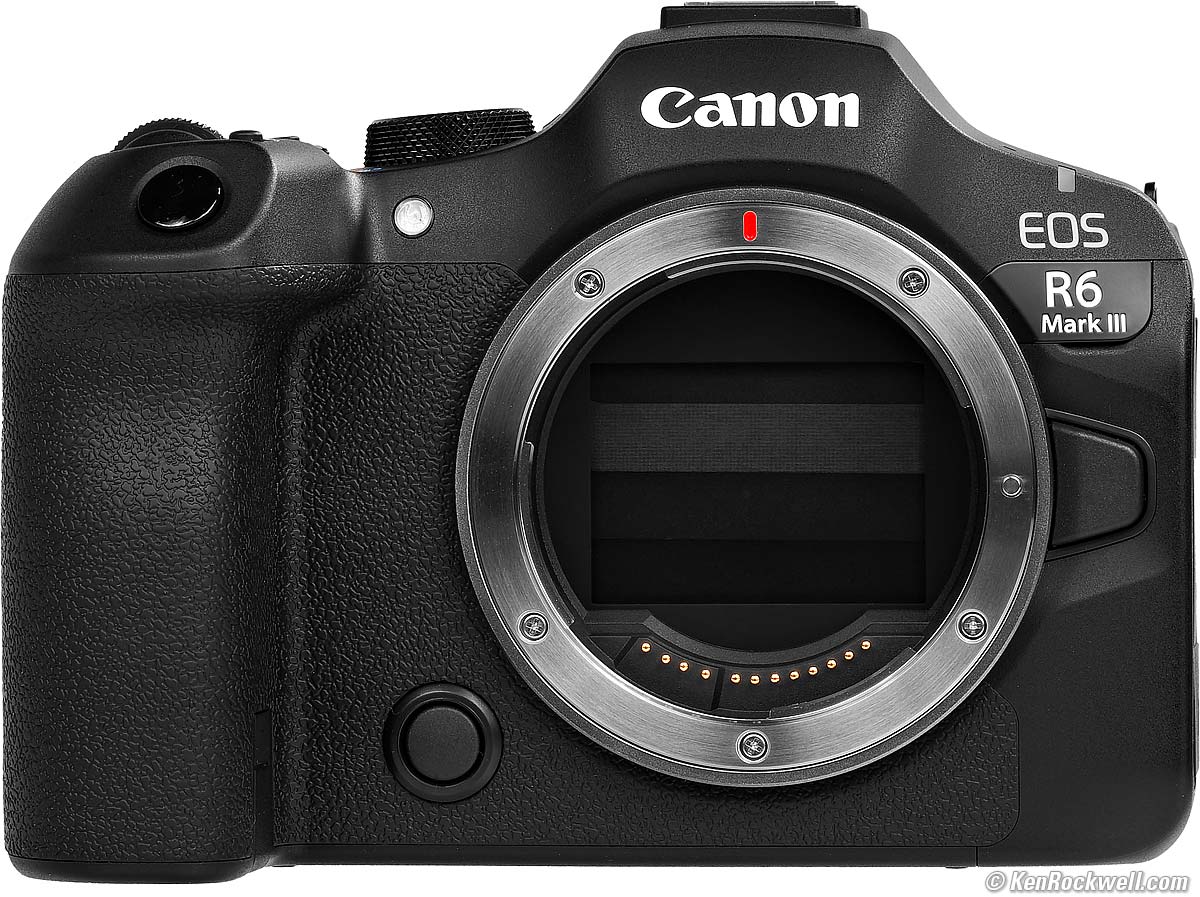
Canon EOS R6 Mk III, shutter set to close (default). bigger.
You can select if the shutter closes or stays open with power-off. I leave it at its default of CLOSED to protect and keep dust off my sensor.
You can set this at MENU > WRENCH page 6 > Shutter at shutdown.
Controls
Customizing Controls R6 III review section index top of guide
Customize Buttons for Shooting and for Playback
Set these at MENU > CUSTOM CONTROLS page 1 > Customize buttons for Shooting or MENU > CUSTOM CONTROLS page 4 > Customize Buttons for Playback.
HINT: I prefer to set my RATE/COLOR button (upper left rear) to AF/MF so I can set this for lenses that have no AF/MF switch.
HINT: I don't waste this camera on video, so I program my red MOVIE button next to the shutter to be an as-shot crop button ("Switch between crop/aspect"). It now swaps among full-frame, APS-C crop and Square. To shoot movies, I turn the top left switch to MOVIE and use that same red button.
HINT: I prefer to set my rear AF-ON button to MENU so I can set my MENU using my shooting (right) hand.
HINT: I prefer to set my rear ✻ button to Start/stop Whole-Area AF Tracking.
HINT: I prefer to set my rear [-+-] button to "Direct AF area selection," in which it swaps between my available AF Area Selection Modes.
HINT: The M-Fn button does its magic when it's set to DIAL FUNC, or you can set it to other regular single functions. Personally I set it to swap between ONE SHOT and SERVO AF.
Customize Dials and Lens Control Rings
Set these at MENU > CUSTOM CONTROLS page 1 > Customize dials/control ring.
There are a few rings and dials, but not that many functions to which to set them.
The options showing a down arrow mean that the ring will only respond during a half-press of the shutter to prevent accidental adjustment.
The Top Front Control Dial R6 III review section index top of guide
HINT: I turn my top front control dial with the right (bottom) side of my index finger, not the pad of my index finger.
It sounds weird, but I have to go through a lot of uncomfortable contortions to move this dial with my fingertip, while it's easy with the side of my index finger.
Multi-Function (M-Fn) Button R6 III review section index top of guide
I prefer to set my M-Fn button (between the shutter and front control dial) to set my AF system, while by default the M-Fn button (near the shutter button) is set to DIAL FUNC which makes it one of many ways to set WB/Metering, Advance mode/AF Mode, Flash Comp./ISO and Picture Style/AF Area mode.
Tap the M-FN button to wake it up and/or tap it again select among four combinations of settings, assuming its still set to the default of DIAL FUNC. Once you tap M-Fn, move the front or rear dial to set what you're going to set, then tap the shutter to return to shooting.
Easy!
By default it's set to allow changing eight different settings, and you can program it for up to ten functions at:
MENU > CUSTOM CONTROLS page 1 > Customize buttons for shooting > M-Fn > (leave it at DIAL FUNC) > press the SET button > press INFO > and now you can select any of the ten positions and then select which function you would like in that spot.
If you add more than eight functions you'll see five, rather than four, pairs of settings as you press M-Fn, and if you remove settings you don't need, you'll see fewer pairs and be about to swap among them with fewer clicks. It's all programmable; it doesn't get better than this!
You can reprogram the M-Fn button to be another single-purpose button as I do, and you may be able to program other buttons to behave as a multi-function M-Fn button if you can program it to " DIAL FUNC."
Quick Control [Q] Screen R6 III review section index top of guide
Press the [Q] button either above the big rear dial or on the top right of the rear LCD while shooting to see many settings superimposed around the sides of the screen. This is one of many ways to make a lot of shot-to-shot settings.
Once the [Q] screen is up, you can use the touch screen, dials or rear nubbin to move around and set things.
You can program what's on the Q screen at MENU > CAMERA page 8 > 📷Quick Control customization.
Live Color RGB Histograms R6 III review section index top of guide
Neither Nikon nor Sony can do this at all, but Canons can show you live RGB histograms in your finder before you take the picture.
Most other brands of cameras, and the R6 III by default only show a useless B&W histogram, but set this below and you can get a live RGB histogram in the upper right. Color histograms are needed for color photography to avoid overexposing anything with color.
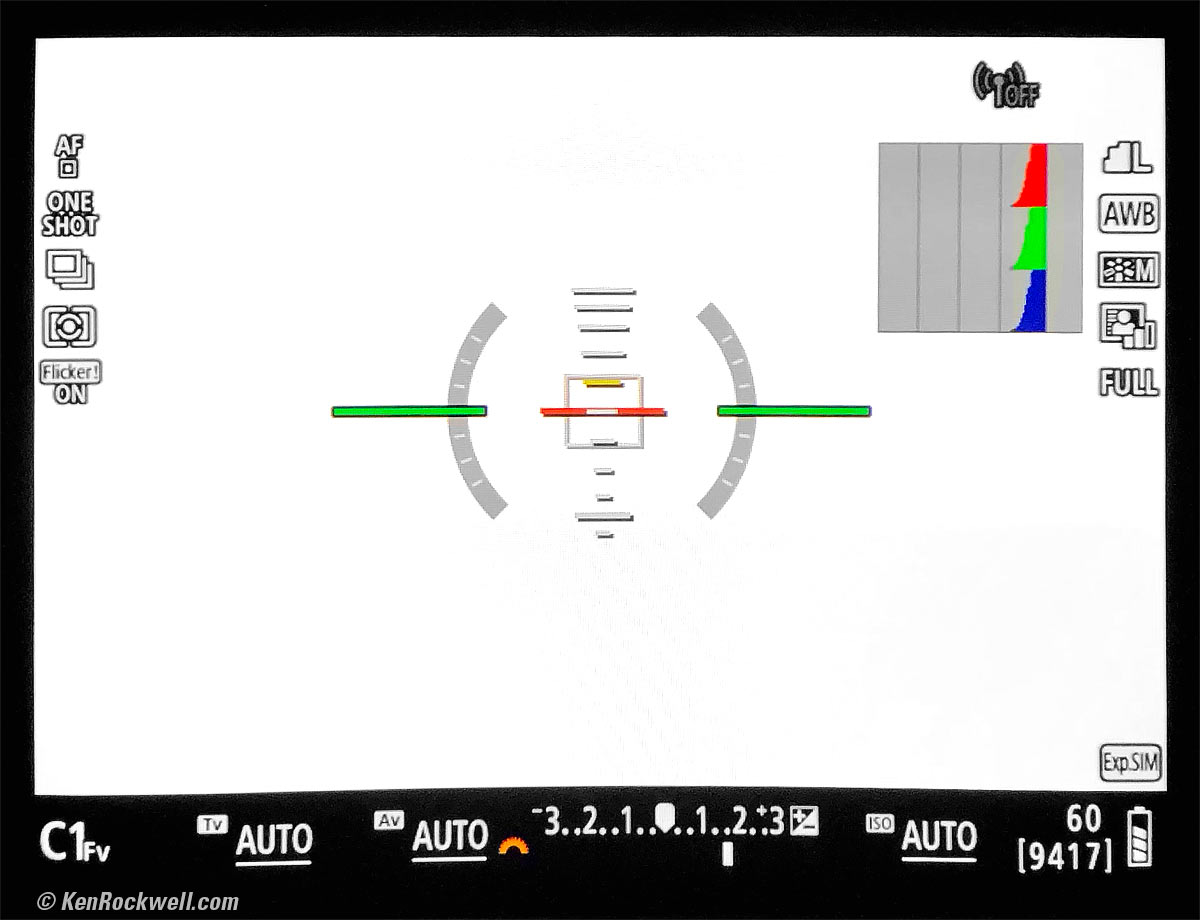
Set this at
MENU > CAMERA page 8 > Shooting info. disp. > Brightness info > Histogram setting > Brightness/RGB > RGB.
I prefer to make the histogram smaller so I don't take up too much of the screen, which I set at
MENU > CAMERA page 8 > Shooting info. disp. > Brightness info > Histogram setting > Display size > Small.
Customize the Finder & LCD R6 III review section index top of guide
You can select what gets displayed at MENU > CAMERA page 8 > Shooting info. disp.
You can program up to five different sets of preferred displays at MENU > CAMERA page 8 > Shooting info. disp. > Screen info. settings > INFO button.
Once set, you select among these sets while shooting by pressing the INFO button repeatedly.
If you'd rather just have one or two sets, you can disable the extras by unchecking the others at MENU > CAMERA page 8 > Shooting info. disp. > Screen info. settings.
You can set quite a few different kinds of displays, you can set different ones for the LCD and for the finder, and even select the size of the finder image at MENU > CAMERA page 8 > VF display format. The Display 2 option makes the finder image a little smaller so you can hold the camera further away from your eye and still see the entire image.
Vertical Finder Displays R6 III review section index top of guide
I set my finder data to rotate when held vertically! Set this at MENU > CAMERA page 8 > Shooting info. disp. > VF vertical display > ON:
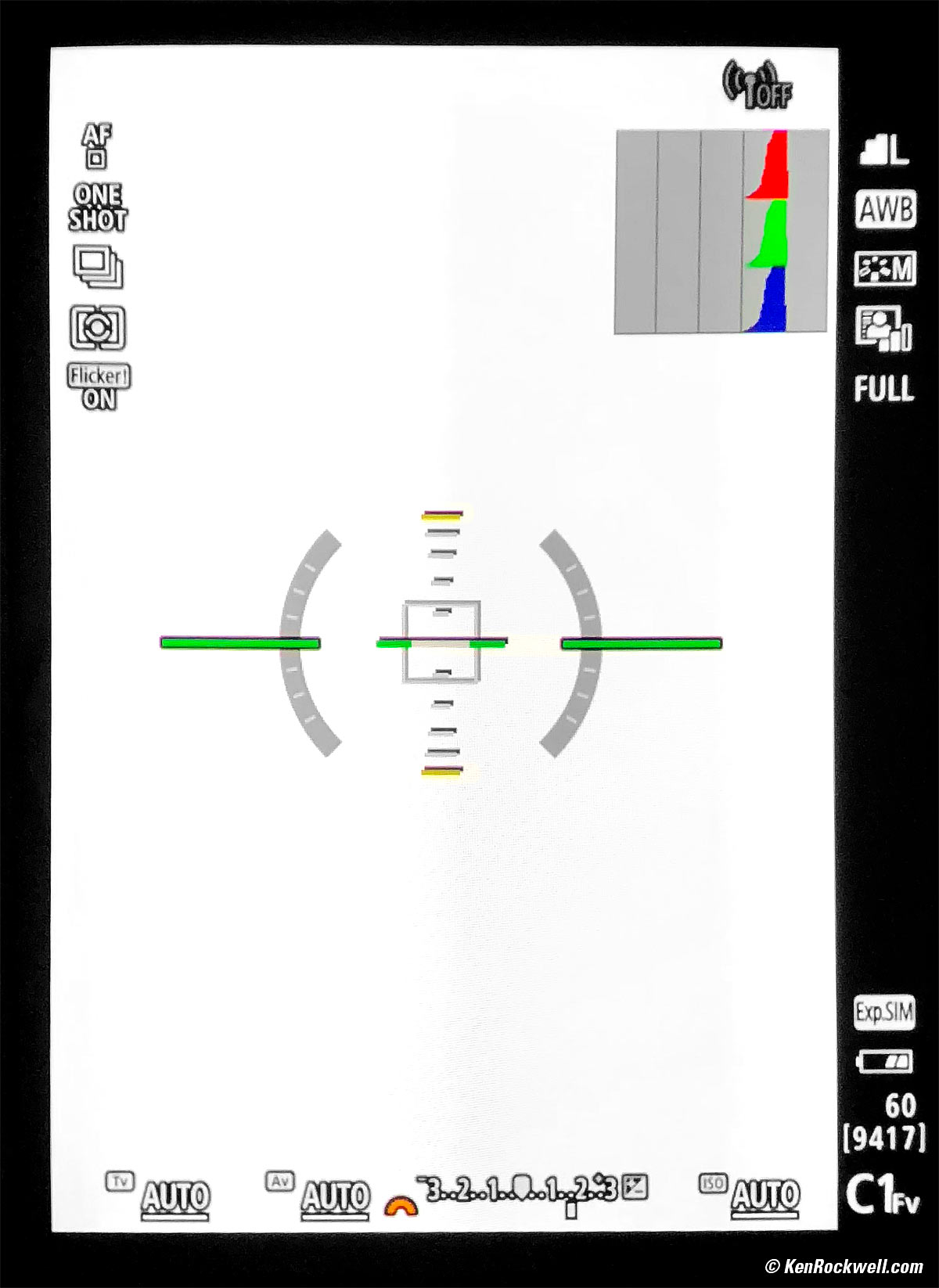
Actual view through Canon EOS R Electronic viewfinder. (The EOS R6 III is similar and it's much sharper in actual use than in this special photograph.)
I've turned on almost every display option here; just press the INFO button a few times to get a clear window through which to compose if you prefer.
Display Brightnesses R6 III review section index top of guide
Set these at MENU > WRENCH page 4 > Screen brightness and MENU > WRENCH page 4 > Viewfinder brightness.
I always use AUTO for viewfinder brightness.
Since the rear screen brightness has to be set manually, you may want to set different screen brightnesses in the C1, C2 and C3 presets to save and recall your brightness preferences so you can use one for outdoors and one for indoors. Easy!
Fast Finder Update Rate before Rolling Video R6 III review section index top of guide
When the top left dial is set to VIDEO mode, by default the finder reverts to a slow frame rate while you're not rolling video to save power. This is the
MENU > CAMERA page 10 > Standby: Low res. > ON setting.
For smoother finder motion while video isn't rolling, set:
MENU > CAMERA page 10 > Standby: Low res. > Off.
Regardless of this setting, the finder updates fast for smoother motion when you're rolling at the higher video frame rates, and never updates at faster rates if you're set to shoot at the slower video frame rates.
Autofocus R6 III review section index top of guide
Overview: The Four Dimensions of Autofocus
AF settings make much more sense when you understand that AF systems work in four dimensions, and that each setting below only applies to some of these different dimensions.
The first dimension is obvious: it's distance, the near-and-far or in-and-out dimension, called the Z-axis by scientists. Some telephoto and macro lenses have focus limiters that limit the range of distances over which you can focus.
The next dimension is time. Sometimes we want our AF system to focus on a stationary object and lock (ONE SHOT), or we may want our AF system to track and continue to focus as our subject moves around (SERVO). The R6 III even has an AI FOCUS setting which looks at the subject, and selects between ONE SHOT and SERVO all by itself!
The last two dimensions are left-right and up-down; the x- and y-axes. Different AF Areas are in different parts of your screen. There are quite a few settings that relate to how and when and which of these AF areas are used to start focusing, and if they're allowed to move around or not to track subjects as they move around your image.
AF SERVO or ONE SHOT
The first AF setting we see at MENU > AF page 1 (or the second item at the top left after pressing the [Q] button) is AF operation. This selects between ONE SHOT, AI FOCUS and SERVO.
ONE SHOT means the EOS R6 III focuses once and locks. Use this for still subjects.
SERVO means the EOS R6 III continuously autofocuses and tracks moving subjects.
A third mode, AI FOCUS, automatically picks one of the other two modes depending on if the subject is moving or not.
HINT: This is such an important shot-to-shot setting that I program my M-Fn button (in front of the shutter button) to swap between ONE SHOT and SERVO with just a tap.
AF Area Colors AF Settings index top
Green boxes mean LOCKED in ONE-SHOT autofocus.
Blue boxes mean we're both tracking and in-focus in SERVO.
Gray means unfocused. I've never seen these.
Using the LCD Touch Screen to Select AF Areas While Using the EVF AF Settings index top
Better than using the rear thumb nubbin, I set my R6 III so I can glide my finger around the rear LCD to select AF points as I look through the finder.
Set this at MENU > CUSTOM CONTROLS page 3 > Touch & drag AF settings > Touch & drag AF: Enable, Positioning method: Relative, Active touch area: Right and Rel. sensitivity: 0.
Set this and you can swipe your finger around the touch screen as you're looking through the finder for faster, easier and more precise positioning of the AF area than clicking around with the rear thumb nubbin.
Swapping between manual Touch LCD selection and Auto AF Area Selection AF Settings index top
I leave my R6 III set to All Area AF (MENU > AF page 1 > AF area, or the top left option after pressing the [Q] button), and presuming the Touch Screen is active as just set above, if it's not selecting what you need automatically, touch the screen while you're still looking through the finder to select one AF Area and move it around manually.
This is easy: I prefer to use Auto Area, and only if my EOS R6 III isn't selecting the correct area automatically I then will manually select an area by simply swiping around on the touch LCD. I don't have to make any manual AF mode changes other than just touching the screen. BRAVO!
AF Area Selection Modes AF Settings index top
These are how we select and use our AF areas which are all over our image.
Selecting AF Area Modes Quickly AF Settings index top
There are loads of different modes that select how and which AF Areas are used.
You select the AF Area mode at the top left of the [Q] screen, or at MENU > AF page 1 > AF area.
I only use two of them (1-Point AF and Whole Area AF), so I deactivate all the other AF Area selection modes at MENU > AF page 5 > Limit AF areas > and uncheck all that I don't use. It's much faster to select between just two than among all of them!
HINT: To swap between AF Area selection modes with just one tap, I program my [-+-] button (back top right button) to "Direct AF Area Selection."
If you set the touch screen to select AF areas, it clairvoyantly swaps from All-Area to Single-Area modes as soon as you start selecting them with your finger on the LCD as you look through the finder. BRAVO!
Subject Detection AF Settings index top
I leave subject detection at AUTO, so my R6 III figures out what I'm shooting all by itself.
You can select the subject type manually to people or animals or other things at MENU > AF page 2 > Subject to detect. I leave it at Auto.
Of course you can program a button to set this if you set it often.
Eye Detection AF Settings index top
Eye detection is set at MENU > AF page 2 > Eye Detection. I leave it at Auto.
Auto Eye Detection means the EOS R6 III focuses on the nearest subject eyeball as it should. It doesn't mean eye-controlled AF-area selection as in the EOS R1, EOS R3 and 35mm EOS 3.
AF Tracking AF Settings index top
Getting Tracking Autofocus
Select SERVO AF operation, which lets the AF system continuously track focus in and out.
It won't track focus if you leave it in ONE SHOT.
If things are moving it will probably will select SERVO automatically if you're set to AI FOCUS, while selecting SERVO will ensure it tracks.
Tracking Exposure in Continuous Advance Mode AF Settings index top
Not only do you have to select SERVO to get tracking autofocus, you also have to select SERVO AF operation for exposure to track from frame to frame in Continuous advance mode!
Weird, but true. Leave AF in ONE SHOT and exposure locks at the first frame, along with focus.
Exposure only tracks (changes) from frame-to-frame if you're in SERVO autofocus.
If things are moving it will probably automatically select SERVO if you're set to AI FOCUS.
How to Lock Focus and Exposure in Continuous Advance mode AF Settings index top
I doubt you'd want to do this since the whole point of Continuous advance mode is to track moving things, but set ONE SHOT AF in the Quick Control or any other screen and the EOS R6 III will lock both focus and exposure at the first frame of any sequence shot in Continuous advance mode.
Adjusting SERVO Tracking AF Settings index top
In SERVO the camera will track subjects all over the frame using multiple sensors. Normally the R6 III just figures this all out on its own, and it also allows us to adjust how it tracks things at MENU > AF page 3 if we so desire. I've never had to adjust these away from their AUTO settings, but if you feel the need, here you go.
To adjust these manually, go to MENU > AF page 3, select M, then tap COLOR  and have at it.
"Tracking sensitivity" means how tenacious is the camera to staying locked on one subject even if obstacles get in the way as you follow it. Setting +1 or +2 for Tracking sensitivity lets it refocus on new things faster, while -1 or -2 tells it to take longer until it decides you've lost the subject and want to focus on a new one, all while tracking in one sequence of photos.
"Accel/decel. tracking" means how quickly it will adapt to changes in subject speed. Ever since the 1980s AF systems have been able to track objects moving at a constant speed; they predict where it will be next based on how fast it's moving. If you set Accel/decel. tracking to +1 or +2 it will allow it to adapt more quickly to changes in subject speed, while setting it to -1 or -2 will keep it more locked-on to a constant speed.
It may seem tempting to set both of these to +2 to let it adapt much more quickly, but these also mean it's more likely to go focus on the wrong thing if things get between you and your subject, or if the subject gets out of your frame for a moment.
Likewise be careful setting them towards -2, as these settings will make it want to stay with what it thinks is the subject — even if the actual subject just changed direction quickly!
I've never had to adjust these settings at MENU > AF 3, but if you're not getting the results you want, feel free to play around. Leaving these SERVO tracking options at AUTO lets it figure out what's going on and adapt to the situation, which is as I leave it. Older cameras lacked the AUTO ability here.
Stopping Whole-Area AF Tracking
Sometimes my R6 III locks on to something all by itself and won't let go and shows all sorts of crazy shape-shifting AF areas, or I'll accidentally tap my LCD while using the finder and start the same thing.
If your R6 III is selecting big AF areas all by itself with constantly shifting sizes and shapes (Canon calls this "Whole area AF tracking") and you want it to calm down and return to normal All-Area AF auto-selection, press MENU twice, or take your eye away from the finder and tap the [▢OFF] icon near the top right of the rear LCD.
HINT: An even faster way to do this is that I program my ✻ button on the top right back of my R6 III to start or stop Whole-Area AF tracking. Select "Start/stop whole area AF tracking" for the function of the ✻ button, and tapping it will start or stop this.
Focus Distance Display R6 III review section index top of guide
Select the in-finder focus-distance scale at MENU > CAMERA page 8 > Shooting info. disp. (scroll down to see this) > Lens info display > Focus distance disp.
Manual-Focus Override R6 III review section index top of guide
By default, there is no always-responsive instant manual-focus override as we take for granted in our DSLRs. By default, the focus ring is ignored in AF.
To get manual override in ONE SHOT (or in AI FOCUS if things hold still) AF mode, we need to set:
MENU > AF page 6 > Lens electronic MF > One-Shot —> enabled. Feel free to play around with the various options.
or otherwise the focus ring is always ignored in AF.
Now manual focus override works if you turn the ring while continuing to hold the shutter halfway, but only after focus locks in ONE SHOT. In SERVO the camera keeps tracking all the time and ignores the focus ring. Sorry.
Manual Focus Mode R6 III review section index top of guide
If your lens has no AF/MF switch, like the RF 24-240mm, select manual focus at MENU > AF page 1 > Focus mode > MF.
Manual Focus Peaking R6 III review section index top of guide
Focus peaking is set at MENU > AF page 6 > MF peaking settings > Peaking > ON. It's OFF by default.
Focus & Playback Magnifiers R6 III review section index top of guide
Tap the rear 🔍 button to magnify by 5× or 10× . Tap again to return to 1×.
I find the 🔍 button hard to find by feel, so you program your SET button to be a magnifier. Tapping SET will toggle among 1×, 5× and 10×.
HINT: I prefer to program my SET button to playback & magnify with just one tap, and use the little 🔍 button in the few cases I need a focus magnifier.
HINT: Use the rear nubbin or swipe the rear LCD to move the magnified area.
HINT: You also can use the rear nubbin or the rear LCD to move the magnified area even if you're looking through the finder and the rear LCD is off, at least if you activate touch & drag as I do.
Hand-Held Focus Bracketing, Stacking & Compositing = Infinite Depth-of-Field R6 III review section index top of guide
There is a trick in the EOS R6 III that lets us get unlimited depth of field by letting the R6 III shoot a series of focus-bracketed shots and then compositing the sharpest parts of each into one final ultrasharp image (samples from the R8 at that link).
The R6 III can do all this in-camera, no need for software or a computer to stack and composite the images.
Canon suggests a tripod, but my R6 III works great even hand-held.
Canon suggests only some of the newest lenses work well, while I find all of my EF lenses on my EF to RF adapter work great.
This process has many names, including Pan Focus and Focus Stacking:

One Frame of Many. bigger.
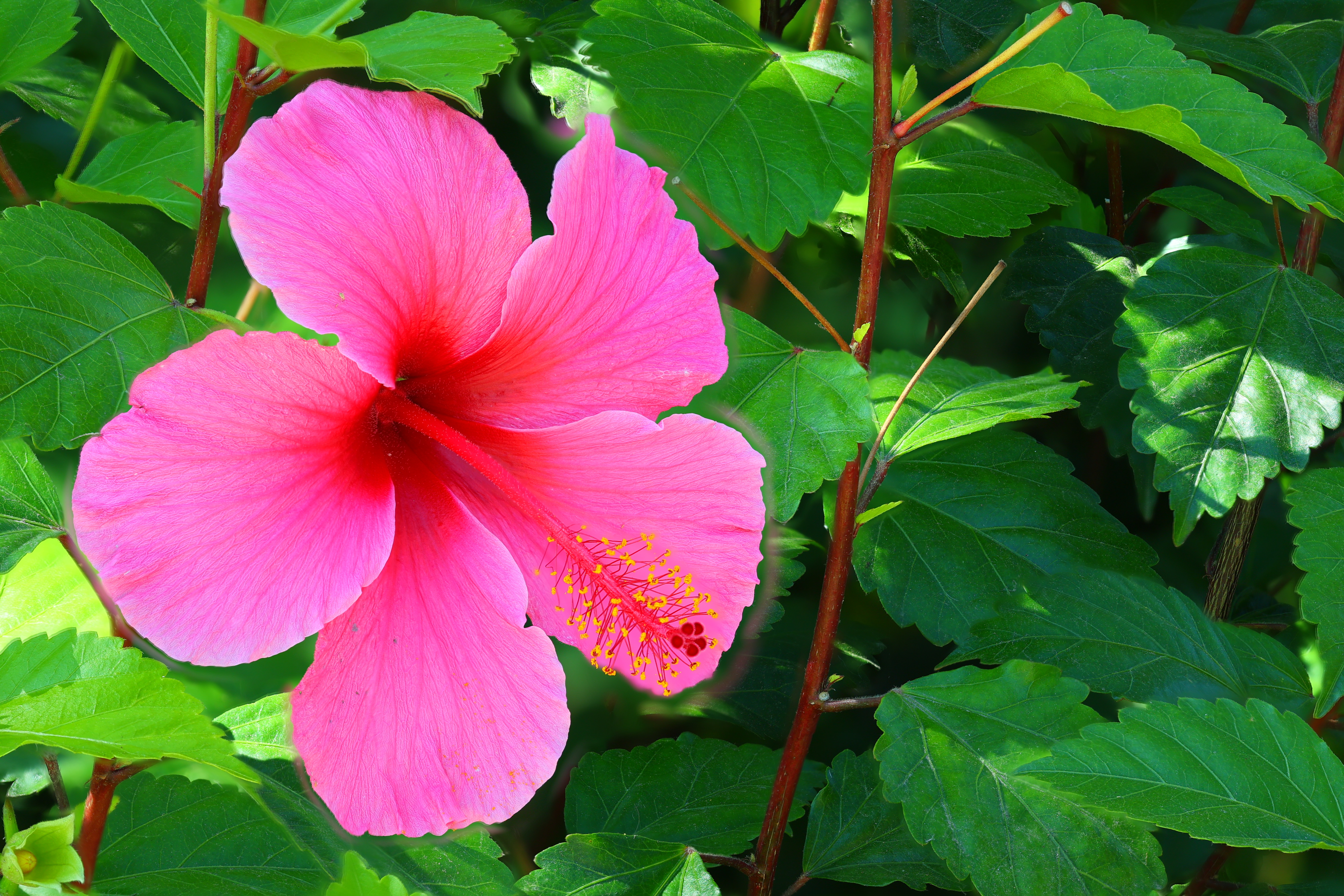
In-Camera Composite of 100 Frames, Magenta Hibiscus, 9:45 AM, Wednesday, 15 August 2023. Canon EOS R8, EF 180mm f/3.5L Macro on EF to RF control ring adapter on a tripod in the wind at 0.11× macro ratio (1:9) at 6.2 feet (1.9 meters) wide-open at f/3.5 at 1/200 at Auto ISO 160 (LV 10.6), exactly as shot. bigger or full-size © camera-original composite from about 100 frames.
Works Hand-Held! R6 III review section index top of guide
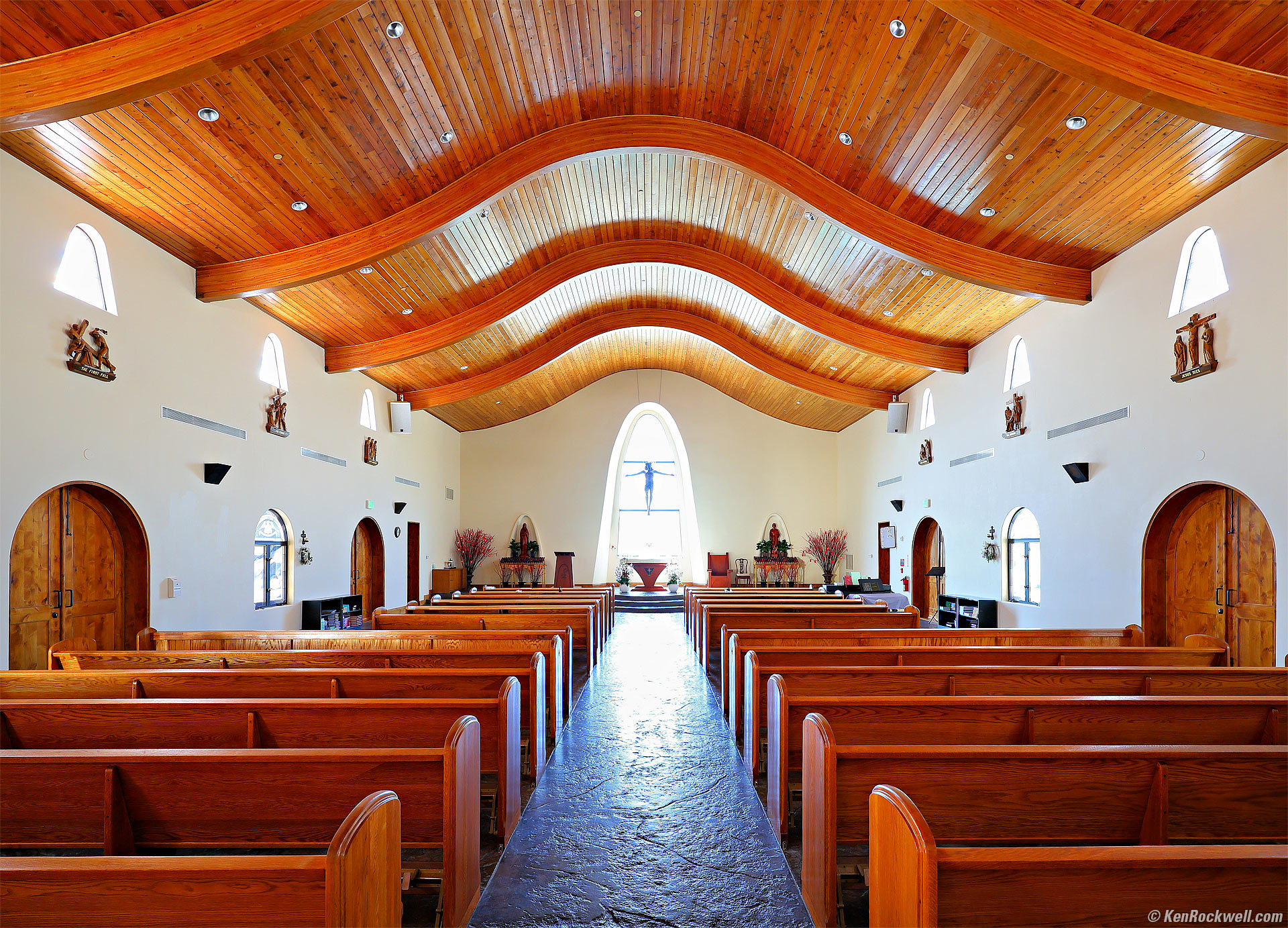
Monastery, Lucerne Valley, California, 11:09 A.M., 06 February 2026. Canon EOS R6 III, RF 16-28mm f/2.8 IS STM at 16mm wide-open at f/2.8, hand-held focus-bracketed sequence with each frame exposed at 1/10 at Auto ISO 320, +0.3 stops exposure compensation (LV 4.7), Radiant Photo and Skylum Luminar Neo software to add light, perspective correction in Photoshop. More tech details. bigger or fit-to-screen.
Almost no one knows that it's easy to shoot the R6 III hand-held for focus-bracketed sequences that are then composited in-camera to give perfect pan-focus results.
In English, it's easy to set the camera to take a series of hand-held photos at every focus distance, and then the camera combines all these into one photo with everything in perfect focus! This works hand-held, automatically aligning every frame as it combines them into a final result, all in-camera as you shoot — NO tripod needed.
This is brilliant. It lets me shoot at ultrasharp ISO 100 at f/2.8 with superb stabilization at a tenth of a second hand-held, and I still get better, sharper, deeper focus than if I had hauled a tripod to make a 3.2 second exposure at f/16. Bravo, Canon! Nikon and Sony still can't do this, requiring us to waste time later on a computer to combine their images, and I don't know if their software is smart enough to combine hand-held images as Canon does.
Works Hand-Held — at Night!!! R6 III review section index top of guide
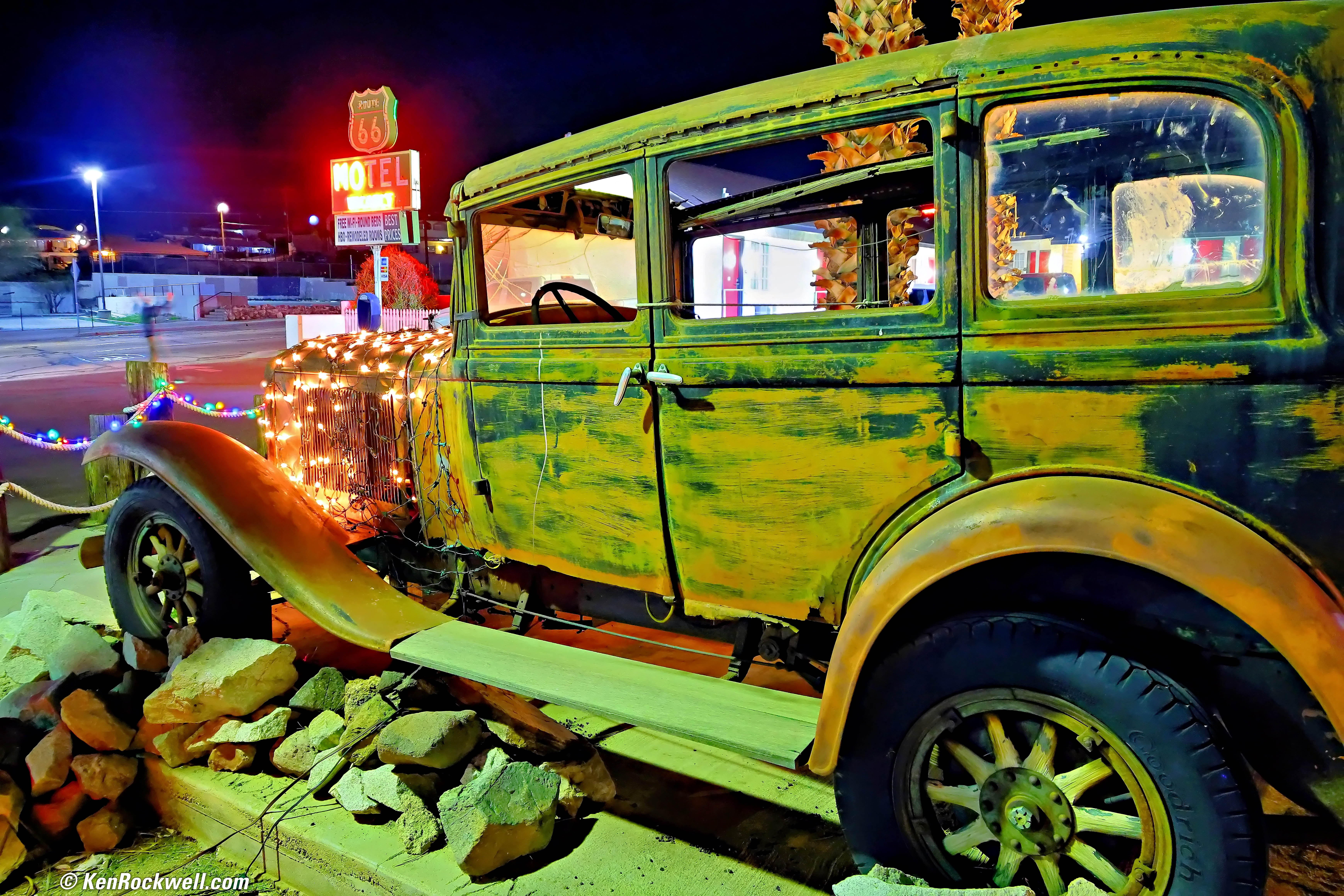
Old Car and Route 66 Sign, Main Street, Barstow, California, 8:36 P.M., 06 February 2026. Canon EOS R6 III, RF 24-240mm IS USM at 24mm for a focus-bracketed series of shots composited in-camera hand-held at 1/8 wide-open at f/4 at Auto ISO 4,000 (LV 1⅔), Radiant Photo and Skylum Luminar Neo software to add light, perspective correction in Photoshop. More tech details. bigger or fit-to-screen or full-resolution 32 MP, 4 MB JPG.
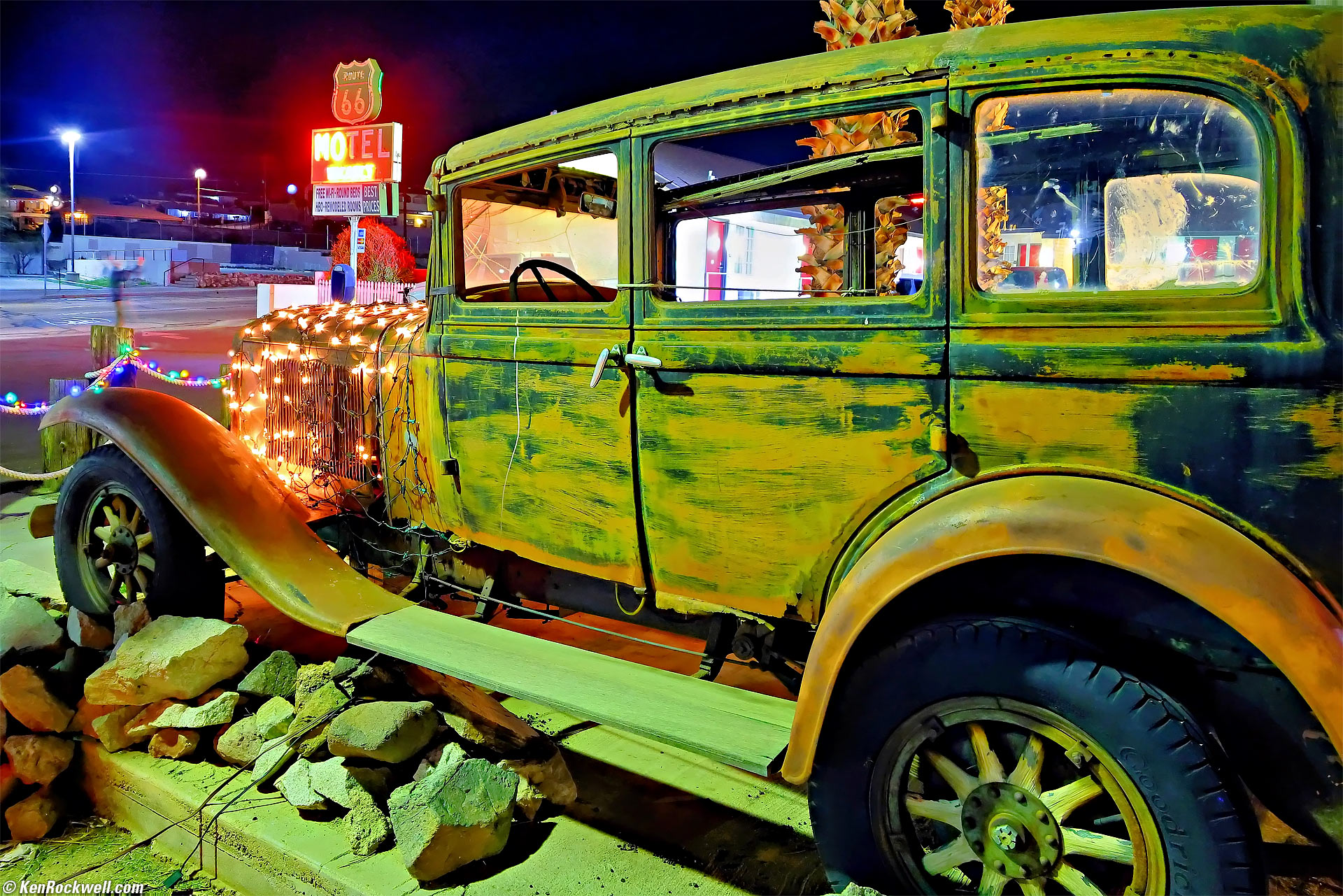
This is very simple today, and works great even hand-held.
To make a series of focus-bracketed shots that are composited into one final image, go to:
MENU > CAMERA page 5 > Focus bracketing:
and set:
Focus bracketing: enable.
Number of shots: 100 (default). Set this to taste if you like. You may need a larger number if you shoot at a large aperture or use a small focus increment; adjust to taste.
HINT: If it's shooting so many images that it's reaching far into the background that you don't want in focus (as in the flower photo above), use a smaller Number of shots.
Focus increment: 4 (default). Set this to taste if you like.
Exposure smoothing: enable (default). This evens-out differences in brightness between shots.
Depth composite: enable. This tells the R6 III to assemble the best sections of every image into one final, usable, ultrasharp image all by itself!
HINT: If you forget to set Depth composite to Enable so the R6 III does it itself, you'll have to go back to the stone age and do it manually in a computer later.
Crop depth comp: enable. This crops edges that might not be in all the shots.
HINT: I put Focus Bracketing in my My Menu for easy access. Sadly I can't seem to save these focus-stacking settings to my C1, C2 or C3 modes.
HINT: If it makes too many shots, as it often will once it focuses past the back of your subject and keeps going, you may see a message saying compositing stopped or that you used too large an aperture to get things in focus. Even though it may appear that it gave up, often it will save a composited image which doesn't include all the out-of-focus frames, but so what; you may still have the sharp composite you need saved to your card. I suspect Canon my clarify the messages in the future to make more sense. Right now it implies it saved nothing while in fact it worked fine.
Canon suggests a tripod, but my R6 III works great even hand-held as the shots above were made.
If you're on a tripod, use the lowest ISO you can like ISO 50 (L) or ISO 100, even in the dark, for the sharpest results. You should turn off Image Stabilization when on a tripod, but it probably works fine either way.
Canon suggests using one of the newest STM lenses, but I usually use my USM Canon EF 180mm f/3.5L Macro, which came out in 1996, and it works flawlessly, even hand-held!
Set a moderate aperture like f/8, although any aperture should work. Smaller apertures like f/22 soften the image due to diffraction, and wider apertures like f/2.8 may require many more shots and processing time to do the same thing.
Use available, natural or continuous lighting. I don't know that I'd use flash or studio strobes because 1.) you'd be using a lot of flash pops, and 2.) I don't know if the EOS R6 III will wait or can be set to wait after each exposure for flash or strobes to recycle.
Be sure your lens is set to AF and the camera is in SERVO, AI FOCUS or ONE SHOT autofocus. Don't set your lens to MF (Manual Focus) or this won't work because the lens won't focus.
Focus your camera on or slightly closer than the closest part of the scene, then press the shutter all the way down. The EOS R6 III will make a silent series of many images from your near focus out to a long way away. It's usually smart enough to make fewer than your preset Number of shots if it doesn't need them all. The reason to set a lower Number of shots is to make it stop once it's shot out to the longest distance you want in focus, otherwise it tends to run all the way out to near infinity. Experience may show you what's a good number for your typical setups.
The final composite image uses the time-stamp of the first image in the series and is file-numbered one more than the last image in the series, if that helps you find the final composite image.
The Olde-Fashioned Way for Hackers
In olden days before the R6 III and R8 we had to use Canon's free Digital Photo Professional software to composite all the images together later in our computer.
I haven't bothered with this since 2019 since it's a pain, however one advantage to doing this the hard way is that you can select which images to use for the composite which lets you control the in-focus region precisely and after you've shot it. Exclude images that have in-focus regions you want to remain soft.
If you prefer to do this on your computer, then:
1.) Load all the images into your Mac or PC.
2.) Open Canon's free Digital Photo Professional software, at least version 4.10.0 in which this feature was introduced.
3.) Find and select the group of images you want to process. Even if you shot a lot of images it helps to preview them and only include the ones that include the range of focus (depth of field) you want. Often you'll have many images that focus too far away and past your subject. If you don't include them it runs much faster. Ditto if any images are in-focus on distracting foreground elements; don't select those images and the system won't make the foreground in focus.
You can control the look of the background by including or excluding the images that have the background in focus. Select only the images with the desired subject in focus and that will give a super-sharp subject and nice, soft background. Choose all the images and it will make the background sharp, if there are shots with the background in focus. Obviously you get to choose this after you've shot, and can try it anyway you like until you get exactly the look you want.
4.) From your computer's top menu bar select TOOLS > DEPTH COMPOSITING > Start Depth Compositing tool. Leave all on defaults.
5.) Your computer makes a new folder with data, and saves a new "Depth Composited" image called DC_IMGxxxxx in the originally folder. You're done!
My 8-core 3GHz 32GB RAM Mac Pro (late 2013) on OS 10.14.3 Mojave draws about 160W from the wall and its fan spins at 1,030 RPM, up from its usual draw of 60~100W and 780 RPM fan for most other uses. You'd never notice it, but the computer does have to chew on all this math when running the program.
6.) I delete the folder with the extra data. I'm unsure why you'd want to save this, unless it helps you process the same image again.
The results aren't always perfect; if I have a subject in front of a detailed background and let the camera focus-bracket all the way to include a very distant background, the composited result may look weird at the subject's edges, especially if your lens changes image size as focus (breathes). No problem, run the software again but exclude the images that are focused on the background.
I've wondered if focus breathing (the image changing size as focused) would lead to distortion, but I haven't looked for it.
Shooting
Exposure Compensation R6 III review section index top of guide
This is the most important setting on the camera. It controls how light or dark are your images. Often you will need to use up to about a range of ±0.7 stops to get the picture to look right. There is no "correct" setting other than the one that looks right to you.
Often in contrasty light outdoors I'll use -0.7 to keep my vivid highlights from overexposing, later restoring the shadows with Radiant Photo Software.
Snow on overcast days often needs +1 or more stops to make the snow look natural. Most cameras make overcast snow look dull and gray if you don't add exposure.
Like every other EOS camera with a big dial on the back since 1987's first EOS 620, the big back dial adjusts exposure compensation at any time, unless you program it otherwise.
You can program an extra lens control ring to become exposure compensation — or program the M-Fn button, but honestly when Canon gives us a gift like the big back dial, I use it.
This is art and there are no "correct" settings. The correct setting is the one that looks right to you.
White Balance R6 III review section index top of guide
This is the second most important setting on the camera. "White Balance" is an archaic name for color balance, or how colors look.
I almost always shoot in Auto White Balance (AWB): Ambience priority. This lets ambient indoor, candle and fire light look warm.
Set this with the [Q] or M-Fn buttons, or at MENU > CAMERA page 4 > White balance.
The "White priority" option (AWB-W) makes warm lighting look white, in other words, it corrects completely for warm indoor light and removes any warm color cast. While the White priority option is scientifically more accurate, I prefer the warm indoor look from Ambience priority. This is art; use whichever looks best to you.
I'll only use the other non-AWB options if for some reason AWB isn't getting the right colors. No big deal; look at the playback or finder and set it to whatever looks best to you.
In difficult light you must be careful about how you set this, as it will have a huge bearing on how your pictures look. Too often people shoot in shade and get pictures that are too blue unless they set the proper white balance, for instance
This is art and there are no "correct" settings. The correct setting is the one that looks right to you.
Exposure Mode Dial R6 III review section index top of guide
Just turn the dial to select exposure modes.
I use Fv, P, Av, Tv or M, and once I get my new camera set as I like it, save all my settings for each of three various sets of circumstances into the C1, C3 and C3 presets.
Fv Exposure Mode R6 III review section index top of guide
Try this new Fv ("Function Value") exposure mode right between the [+] AUTO and P settings on the top MODE dial. It's all automatic unless you change something. I love it!
I really like Fv mode because it makes it easy to set any of shutter, aperture, compensation or ISO manually if you need to, and return to auto selection just as easily.
Fv mode is like Program mode, but lets you set individually any of Shutter, Aperture, Exposure Compensation or ISO, while the others continue to set themselves automatically. You can set more than one manually at a time, and those you don't set manually will change automatically as needed. Cool, huh?
If you want to change something, turn the top rear dial to select what you want to change (shown with an orange icon in the finder and on the rear LCD) and then turn the top front dial to change it. Once you set one item you can set other things by turning the top rear dial to select them.
The top front dial will change the aperture in this example below:

View through R5 finder (R6 Mark III is similar). The orange dial is left of the aperture, which will change when you turn the top front dial. Turn the top rear dial to move the orange dial icon to select other items to set. bigger.
The display underlines whatever the camera is controlling automatically, and has no underline for what you've set manually. Simple.
Unlike Program mode which resets any Program Shift as soon as the meter turns off, Fv settings don't reset even if you turn off the power. Your settings stay until you clear or reset them yourself.
Tap the rear 🗑 trash can (delete) button to reset a selected item back to AUTO, or hold it a moment to reset everything back to AUTO.
Even if you change something like Exposure Compensation by another method like the lens' control ring, a tap on the rear 🗑 trash can (delete) button will reset the selected item back to AUTO. Not to worry; every time you wake the camera it has little text hints about this.
Oddly in the Fv mode Auto ISO ignores any auto or manually set minimum shutter speeds below about 1/60. Weird, but it has been this way ever since Canon invented the Fv mode back in 2018. Sorry about that; this makes the Fv mode not useful me shooting still subjects in low light where I reliably handhold down to 1/8 all the time.
Picture Styles R6 III review section index top of guide
This is how we set saturation, contrast, sharpening and other aspects of your pictures.
These are critical to how your pictures look. This is an art and we all have different tastes. I want my pictures bold and vivid, you may not.
You should spend a lot of time here experimenting until you find your look. These settings have more to do with your picture than anything else other than your subject's lighting and your white balance and exposure settings.
Set these either at the [Q] screen, with the M-Fn button (when set to DIAL FUNC) or at
MENU > CAMERA 3 > Color Mode [✻S] > Picture Style ✻ > INFO > (select a setting) > INFO to set the critical particulars.
I use STANDARD [✻S] Picture Style setting for everything, and alter it as follows:
For photos of everything except people, I increase Saturation to +4 for wild, vibrant colors. For pictures of people I leave saturation at 0.
I increase Sharpening to Strength 7, Fineness 1 and Threshold 1. Use whatever looks good to you; this is art and we're all different. I probably set this too high; try Sharpening at 6 or 5 or 4 and see what you prefer.
Fineness sets the sharpening radius, or the size (fineness) of details that are sharpened the most. Fineness 1 sharpens the finest details rather than the coarser ones. Fineness 5 sharpens the coarser details, which at a distance looks like stronger sharpening, but it tends to hide the finer details.
Threshold sets the strength that details need to have in order to be sharpened. A low value like Threshold 1 means even the most delicate details are sharpened. A high setting like Threshold 5 means that only the strongest details are sharpened, leaving the softer details alone. Higher settings may be useful to prevent sharpening noise if you use high ISOs.
Shadow & Highlight Optimization R6 III review section index top of guide
I always set the shadow optimizer (Automatic Lighting Optimizer) to:
MENU > CAMERA page 3 > Auto Lighting Optimizer > Standard.
I don't use highlight recovery (Highlight Tone Priority), since it deactivates the shadow optimizer.
ISO R6 III review section index top of guide
I never set manual ISOs unless I'm on a tripod, on which I select ISO 100 for the sharpest results, especially indoors and at night.
There's no marked ISO button, but many ways to set it.
By default the top rear dial sets ISO. If you set a manual ISO this way and can't return to Auto ISO with the dial, you can return to Auto ISO by coming back from PLAY.
I change ISO from within the Fv mode or you can use the M-Fn button. I also will use the [Q] button, and of course you can set ISO at MENU > CAMERA page 2 > ISO speed settings, which I also add to my My Menu menu.
I almost always shoot in AUTO ISO and my camera always picks the slowest ISO which gives a sharp image. I set AUTO ISO so it can select anything from ISO 100~64,000 (MENU > CAMERA page 2 > ISO speed settings > ISO speed range). I prefer a grainy but sharp image at, say ISO 64,000 and 1/15 of a second to a smoother but blurry image, say at ISO 16,000 and 1/4 of a second.
For people, groups and portraits I set Auto ISO Minimum Shutter Speed to 1/125 (MENU > CAMERA page 2 > ISO speed settings > Min. shutter spd.).
For sports and action I set Auto ISO Minimum Shutter Speed to 1/500 to 1/2,000 depending on what it takes to freeze the action at hand. 1/1,000 is a good place to start. Just look at playback images and select the slowest speed that freezes action in any particular situation.
For everything else that holds still I set Auto ISO Minimum Shutter Speed to AUTO, which varies by itself depending on focal length. I usually set this two or three clicks slower at (MENU > CAMERA page 2 > ISO speed settings > Min. shutter spd. > Auto > (turn the front top dial two or three clicks to the left for Auto -2 or -3 slower) because image stabilization lets me hand-hold at these slower speeds.
Oddly in the Fv mode Auto ISO ignores any auto or manually set minimum shutter speeds below about 1/60. Weird, but it has been this way ever since Canon invented the Fv mode. If you want shutter speeds slower than 1/60 in Auto ISO, avoid the Fv mode.
Expand or Limit the Range of ISOs (L & H) R6 III review section index top of guide
You have to go here to enable ISO 50 (L) and ISO 102,400 (H). Set this at:
MENU > CAMERA page 2 > ISO speed settings > ISO speed range.
This has always been a weirdness with Canon: you have to go here to enable the highest and lowest ISOs, and while you're here you instead can limit them further, for instance, make only ISO 400 through ISO 1,600 work. The only reason I can fathom for this is if you give it to your mom and don't want her accidentally setting ISO 25,600 in daylight — as my mom does because her Sony A6000 has an ISO button she often hits by accident.
Flash R6 III review section index top of guide
The R6 III has the same I-TTL III flash system and traditional hot shoe as Canon's SLRs and DSLRs since the 1990s, as well as the latest 21-pin digital "multi function" contacts:
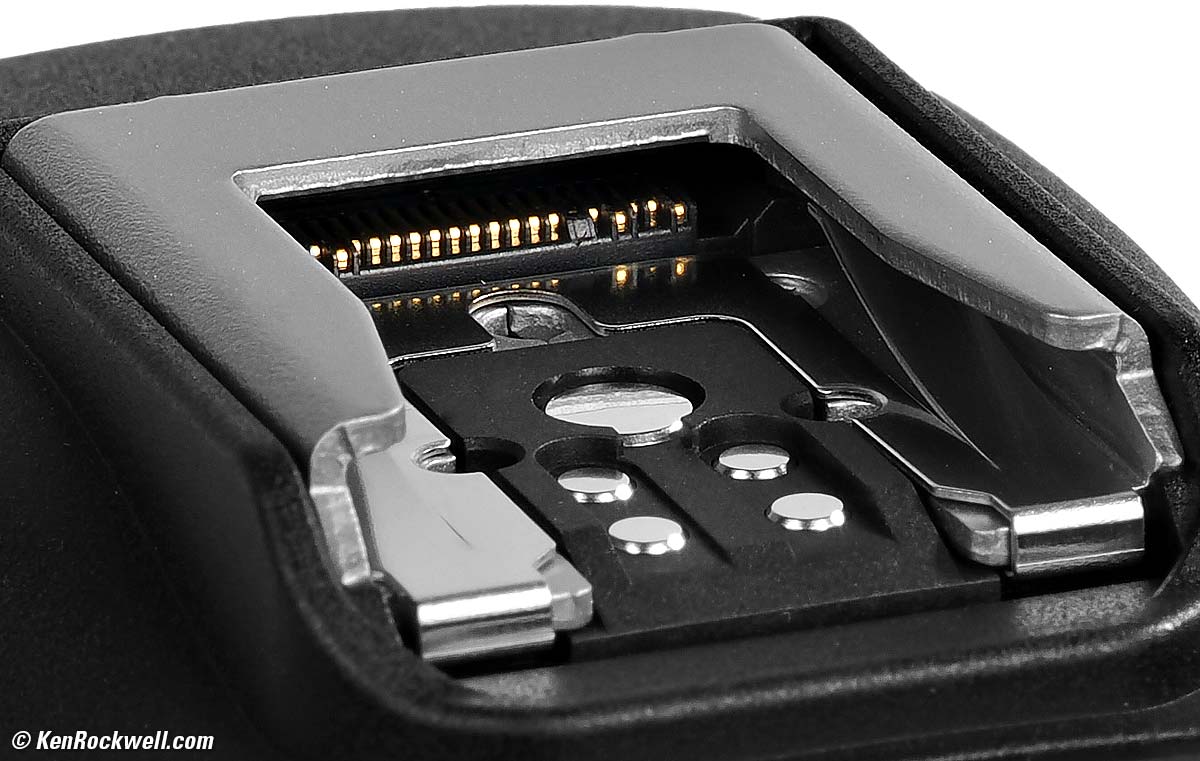
Therefor EOS R6 III works perfectly with all EX-series flash, as well as the newest EL-5 and EL-10 that have no traditional contacts and have only the newest "multifunction digital" contacts.
You can save money with old used flash which work as well as the newest flashes. I use my 580EX III (about $85 used if you know How to Win at eBay) when I want a lot of power, or my 320EX (about $50 used if you know How to Win at eBay and also available used at Amazon) when I'm traveling light.
Stabilizer Modes R6 III review section index top of guide
Thankfully the built-in sensor-shift stabilization just does its thing in concert with whatever stabilization the lens may (or may not) have without any need for adjustments or settings.
With an unstabilized lens a menu option appears at MENU > CAMERA page 7 > IS (Image Stabilizer) mode to turn the camera's internal stabilizer ON or OFF.
With a stabilized lens this menu option mostly disappears. That's good because instead you use the lens' own IS switch to turn both the lens' optical stabilizer and the camera's sensor-shift stabilization ON or OFF at once.
With a stabilized lens, there is no way to turn the in-camera and in-lens stabilizers ON or OFF separately. It's either all or none. Easy.
Lens Corrections R6 III review section index top of guide
Corner darkening, distortion and more are usually corrected by default.
You can usually can switch off any of these three corrections at MENU > CAMERA page 4 > Lens aberration correction, except with some lenses with which Canon won't let us turn off distortion correction.
If you turn off the Digital Lens Optimizer (DLO), you're offered à la carte options of reactivating lateral color fringe correction and/or diffraction correction without the rest of the DLO.
The only reason to turn off the DLO or others is if for some reason these are using too much processing power and slowing down the camera or sucking-down your batteries. I've never seen this happen, but if it concerns you, you probably don't need distortion correction when shooting portraits, sports or anything else that's shot at high frame rates.
Electronic Shutter & Silent Modes R6 III review section index top of guide
The options are standard mechanical, first-curtain electronic or silent fully electronic (which won't work with flash).
These are set at:
MENU > CAMERA page 6 > Silent shutter function
or
honestly I just go with the electronic shutter at:
MENU > CAMERA page 6 > Shutter mode > Electronic.
Silent mode is both the electronic shutter and it turns off the beeps and flash.
You only can set these if you first turn off flicker reduction at MENU > CAMERA page 2 > Anti flicker shoot. > OFF, otherwise both are grayed-out and the R6 III won't tell you why!
Drive (Advance) Modes R6 III review section index top of guide
The easiest way to select among Self Timer, Single, Continuous, Continuous High, etc. is to tap the M-Fn button (if set to DIAL FUNC) until the Drive Mode icon is highlighted and then turn the front dial to select them. Tap the shutter halfway to return to shooting.
You also can press the rear [Q] button and find the advance mode settings on the screen, or do it old-school at:
MENU > CAMERA page 6 > Drive mode.
Shooting at 40 FPS R6 III review section index top of guide
The EOS R6 III only runs above 12 FPS with its Electronic Shutter. See the full list of frame rates and settings.
To select the electronic shutter, you have to remember first to set Flicker Reduction to OFF (MENU > CAMERA 2 > Anti flicker shoot. > OFF) and after you've set that, then set Shutter Mode to Electronic (MENU > CAMERA 6 > Shutter mode > Electronic), otherwise it will stay in the fully mechanical or 1st curtain electronic shutter modes and not run anywhere near 40 FPS.
The trick is you have to set Flicker to OFF first and then set Shutter to Electronic because you can't set Shutter Mode to Electronic unless you've first deactivated Flicker reduction. Simon Says!
Once you've done this, select MENU > CAMERA 6 > Drive mode > H+ and you're good. Don't forget to select AF SERVO to track focus.
I usually set this with the [Q] or M-Fn buttons, or honestly I save all these settings into my C1, C2 and C3 modes rather than resetting all of them between shooting landscapes in C1 (slow frame rate, mechanical shutter, ONE SHOT AF & etc.) and sports in C3 (40 FPS, SERVO & etc.).
Exposure only tracks (changes) from frame-to-frame if you're in SERVO autofocus, or if AI FOCUS selects SERVO for you.
Long Exposures: Bulb Timer R6 III review section index top of guide
In BULB (B on the top MODE dial), an MM:SS timer shows in the finder or rear LCD, and switches between displays as you move your eyes. Cool.
Better, the R6 III, like many newer Canon cameras, has a clever BULB TIMER option at MENU > CAMERA page 6 > Bulb timer that lets us set precise long exposures out to 100 hours long. Select B on the top dial, enable Bulb timer, set the self timer, tap the shutter and walk away, no need for a remote cord or stopwatch. Bravo!
1.) Set the top mode dial to BULB (B)
2.) Set the Bulb timer at MENU > CAMERA page 6 > Bulb timer. In that menu set it to Enable and then you can press INFO to set the hours, minutes and seconds for your exposure. (The Bulb timer option is grayed-out unless the mode dial is at B.)

HINT: Set your Drive mode to Self Timer and you won't need to use a remote cord to eliminate camera shake!
4.) It will make an exposure while counting-up the elapsed time on the rear LCD and then close the shutter after your programed duration. If you want to end an exposure early, just tap the shutter again.
Since it closes the shutter early on a second press, you can reprogram BULB to work the same as a TIME setting by selecting a very long value for Bulb timer, but you do have to enable the Bulb timer each time you go into Bulb mode.
Self Timers R6 III review section index top of guide
These are set as one of the Drive Modes. I prefer to set them by pressing the [ Q ] button and setting the Drive Mode near the bottom left, and you can set this with the M-Fn button or old school at MENU > CAMERA page 6 > Drive mode.
The Drive Mode setting is saved and recalled as part of the C1, C2 and C3 modes; you can set one of these for tripod shots and use the 2-second self timer in it, so anytime I recall that C option, I'm at 2s self timer and fixed ISO 100 and everything else I set on a tripod, rather than Auto ISO and regular release etc.
Non-EF Manual-Focus Lenses on Adapters R6 III review section index top of guide
The EOS R6 III works flawlessly with Canon EF Lenses on Canon EF to RF Adapters because all the electronics talk to each other properly.
However, with Canon FD and other random manual-focus lenses on random adapters there are no electronic contacts, so the EOS R6 III thinks there is no lens attached and so it won't take pictures.
To get the EOS R6 III to shoot with randomly adapted lenses, set MENU > CUSTOM page 3 > Release shutter w/o lens > ON. This is OFF by default.
Use the Av or M exposure modes. Exposure will be poor in Fv, P or Tv modes because the EOS R6 III can't control the aperture of a non-electronic adapted lens.
HDR Modes R6 III review section index top of guide
Old-School Multiframe HDR Capture
Set the old-fashioned multi-frame HDR capture mode at MENU > CAMERA page 3 > HDR Mode.
These Regular HDR shots (HDR MODE) can be saved as either raw and/or HEIC or JPG and are usually tone-mapped for traditional printing and display.
Modern One-Shot HDR Capture & Possibly Display
This more modern HDR mode can capture files which also display without too much effort as HDR on appropriate modern displays.
Set MENU > CAMERA page 3 > [ ✻ ] HDR shooting (PQ) > HDR PQ > PQ.
HDR PQ shots are only recorded as raw and/or HEIF.
File Formats R6 III review section index top of guide
I shoot at LARGE 33 MP JPG, and set it to NORMAL (▟ stairstep icon) instead of the default of FINE (
For people and event photos or anything where I'm shooting a lot of images where I don't need 33 MP LARGE, often I may shoot at MEDIUM (15 MP) to make everything work even faster in post-production.
I never shoot raw, but you may do whatever you like.
If you want a JPG from a raw file you can convert them in-camera at MENU > [▶] PLAYBACK page 3 > RAW image processing.
HEIF (.HIF) Files R6 III review section index top of guide
While HEIF files may offer the potential for more dynamic range (or easy HDR Display) with the same file size as JPG, HEIF files probably won't be compatible with most existing computers, software or websites, so be careful that you can read or post them before you get all excited and shoot something important in HEIF.
It's like shooting raw; you have to be sure you have a way to read the files; HEIF is by no means a universal standard as are JPEGs.
The only way to shoot HEIF files is if you have the HDR PQ mode set at MENU > CAMERA page 3 > [ ✻ ] HDR shooting (PQ) > HDR PQ > PQ and have JPEG/HEIF selected at MENU > CAMERA page 1 > Image quality.
If you want to have a JPG version of an HEIF you can convert them in-camera at MENU > [▶] PLAYBACK page 3 > HEIF —> JPEG conversion.
Video R6 III review section index top of guide
I use my iPhone 17 Pro Max for all my video shooting, or a dedicated video camera — not a camera like this.
Large-format cameras like this need assistant camera operators who are dedicated manual focus pullers to track focus properly, as we do it in Hollywood. Yes, in Hollywood, it's all been shot with manual focus to this day. Autofocus in mirrorless cameras like the R6 III aren't smart enough to know which actor is speaking to be able pull focus back and forth between different actors and actresses.
To shoot video with the R6 III, tap the top red (movie) button to start and stop video recording. Since I set my red button to set the aspect ratio, I turn the top left dial to VIDEO and then I can use the red button near the shutter to start and stop video recording.
Most video settings are at MENU > CAMERA pages 9 and 10.
Playback
One-Tap Magnified Playback R6 III review section index top of guide
I program my SET button both to start playback and zoom-in with just one tap!
I set this at MENU > CUSTOM CONTROLS page 1 > Customize buttons for shooting > select the SET button > set to [▶]🔍 Magnify images during playback. This both starts playback and magnifies it in one click while in the shooting mode!
To make the next tap of the SET button return to the complete image in playback, I also set
MENU > CUSTOM CONTROLS page 4 > Customize buttons for playback > select SET > set to 🔍 Magnify/Reduce.
Pay close attention: we're programming this button both for shooting (to start magnified playback) and in playback (to return to the complete image while zoomed).
Once programmed, every time you hit the SET button it zooms playback in and out.
Of course programmed like this to start playback from the shooting mode it won't magnify focus while shooting; I rarely need this and use the dedicated 🔍 button if I need a focus magnifier.
Playback Information Screens R6 III review section index top of guide
Hit INFO to cycle around the many screens of different kinds of playback displays and information.
By default, there are TEN different screens of playback information!
To remove the screens you don't use so you can get to the ones you want faster, I disable (uncheck) all of then except for the first three at
MENU > [▶] PLAYBACK page 5 > Playback information display > and check or uncheck your selections. Be sure to hit OK for them to be remembered.
HINT: To get a very useful RGB color histogram on detail pages 2 through 10, rather than the relatively meaningless black-and-white default histogram, select any of screens 2 through 10 at MENU > [▶] PLAYBACK page 5 > Playback information display, hit the INFO option or button, and select RGB instead of Brightness for the Histogram display. You're welcome.
Delete Bursts ("Erase scene including image") R6 III review section index top of guide
If you made a series of shots in a Continuous advance mode, you'll see an "Erase scene including image" as well as the usual "Erase" option when you press the 🗑 trash can (delete) button.
"Erase scene including image" erases all the photos from a burst, unless you've marked some as Protected.
HINT: You can change the RATE/COLOR button (upper left rear) button to be a 🗝 Key button on playback to mark images as protected.
Managing Settings
C1, C2 & C3 Preset Modes R6 III review section index top of guide
These are three programmable spots on the top dial. Program them, and everything about the camera is instantly recalled, making it a one- or two- click swap between any three completely different sets of settings.
I live by these. I set C1 for photos of places and things, C2 for dogs and C3 for sports and action. Everything about the camera: EVF and LCD brightness, Saturation, frame rates, AF modes, resolution, image review options, Auto ISO settings and everything magically recall with one click of the dial.
Each time you turn the dial to one of the C1, C2 or C3 positions, everything is reset to what was stored in that position.
Feel free to change any settings as you shoot in the C1, C2 or C3 positions. By default you won't erase what you saved unless you choose to have these settings saved as you change them (explained below). Otherwise these changes stay until the camera times-out, usually one minute (you can change that duration in the menus), and the next time you go to shoot, even if you had changed something, you're back at your saved settings.
If you want to return to the saved settings more quickly, just move the dial to any other position and return.
New-Camera Setup C1,C2 & C3 index top
When I get a new camera I set everything as I want it in the Fv, P, Tv, Av or M mode.
I then save it to C1.
I change what I want about it in C1, and save it to C2.
I change what I want about it in C2, and save it to C3. This way things that I want the same in all these settings, like how I choose to program my controls, stay the same and I don't have to set them all from scratch for each setting.
I then select MENU > WRENCH page 7 > Custom shooting mode (C1 - C3) > Auto update set > Enable so that everything updates as I use and get familiar with my new camera. Now each setting updates as you change it. If you select another mode and come back to that mode it will be as you last left it.
I use this when I first get a camera and am still fine-tuning my favorites.
After I'm confident that my camera's presets are all as I want them, I then set MENU > WRENCH page 7 > Custom shooting mode (C1 - C3) > Auto update set > Disable so my preferred settings are fixed.
It's OK to leave this set at Auto Update all the time; just try to unset it if you're making big changes you don't want saved.
To Save a Suite of Settings C1,C2 & C3 index top
To save the complete camera-state setting of your EOS R6 III:
1.) Set the camera as you like. Everything is saved.
2.) Press: MENU > WRENCH page 7 > Custom shooting mode (C1 - C3) > Register settings > choose C1, C2 or C3 > OK.
Permanently Change a Stored Setting C1,C2 & C3 index top
To change a stored setting:
1.) Set the dial to the setting you want to change (C1, C2 or C3). This recalls that setting.
2.) Change something.
3.) Save the camera's current state back into that same dial position:
MENU > WRENCH page 7 > Custom shooting mode (C1 - C3) > Register settings > choose C1, C2 or C3 > OK.
If you select the wrong C1, C2 or C3, you will have overwritten the settings at that position.
Copy a Stored Setting C1,C2 & C3 index top
To copy a stored setting into another location:
1.) Set the dial to the setting you want to copy into the other position. This recalls that setting.
2.) Save the just-recalled camera state into the other dial position:
MENU > WRENCH page 7 > Custom shooting mode (C1 - C3) > Register settings > choose C1, C2 or C3 > OK.
If you select the wrong C1, C2 or C3, you will have overwritten the settings at that position.
Make a Temporary Change to a Stored Setting C1,C2 & C3 index top
Just change something as you would anywhere else.
By default (MENU > WRENCH page 7 > Custom shooting mode (C1 - C3) > Auto update set > Disable), the next time the camera wakes up or you re-select that setting, it will be back as it was saved.
The C settings are not altered unless you deliberately save something into them as described above, or if you set Auto Update:
Have C1, C2 & C3 Settings Update Automatically C1,C2 & C3 index top
The EOS R6 III resets the C1, C2 or C3 settings each time it turns on or you reselect C1, C2 or C3, unless you set:
MENU > WRENCH page 7 > Custom shooting mode (C1 - C3) > Auto update set > Enable.
My Personal C1, C2 & C3 Settings R6 III review section index top of guide
Everything about the camera is saved into each of these C1, C2 or C3 memories. This is just a little of what I save that changes for me from setting to setting.
I find these invaluable for most of my shooting as I often have to shoot many different kinds of different things from shot to shot, and over time this saves countless hours of piddling trying to reset every setting for each shooting scenario.
Obviously set all these as you want for whatever you shoot. Here's how I set mine:
C1 |
C2 |
C3 |
|
Used for |
People (general) |
||
P or Fv |
P or Fv |
P or Fv |
|
Standard with +4 Saturation and 7, 1, 1 sharpening |
Standard with 0 or +1 Saturation and 7, 1, 1 sharpening |
Standard with +4 Saturation and 7, 1, 1 sharpening |
|
Auto |
Auto |
Auto |
|
64,000 |
64,000 |
64,000 |
|
AUTO for the slowest possible hand-held speed that lets the camera use the slowest possible ISO for the sharpest pictures. I'll usually shift this to AUTO -2 or -3 Slower2 |
1/125 to freeze people talking2 |
1/1,000 to1/2,000 freeze jumping dogs2 |
|
AI FOCUS so it selects the mode by itself, or ONE SHOT if I know nothing's moving. |
AI FOCUS so it selects the mode by itself, or ONE SHOT if I know nothing's moving. |
SERVO |
|
| Whole area AF | Whole area AF | Whole area AF | |
| Auto | Auto or people | Animals | |
Mechanical |
1st curtain electronic |
Electronic |
|
Usually not |
Usually not for action Usually for portraits |
||
Continuous Low (3 FPS) |
Continuous Low (3 FPS) |
High or High+ (20 or 40 FPS) for action Continuous Low (3 FPS) for portraits |
1.) I allow it to go to the highest possible ISO because I prefer a sharp but grainy image over a blurry, but ungrainy, one. If I need 1/8 of a second for a sharp shot at ISO 64,000, I prefer that over shooting at a "cleaner" ISO 32,000 but getting blurry images at 1/4 of a second.
2.) Set the slowest shutter speed value by trial-and-error to the slowest speed that gets a sharp shot most or all of the time.
3.) If the camera isn't finding the subject by itself, I'll tap the rear LCD to select an AF point.
4.) I rarely take it off Auto for general shooting since it works so well. I'll set it to dedicated subjects in the C1, C2 and C3 settings because these save and recall with no additional effort.
Alternate Settings for C4, C5 and C6 (which don't exist) R6 III review section index top of guide
As you can see I'd really like to have C1, C2, C3, C4, C5 and C6 settings, but Canon didn't ask me.
Here's some other way's I'd program these depending on what I'm doing.
I haven't tested to see if saving and recalling complete camera states also recalls the C1, C2 and C3 settings, which if it does means you could save everything to a card and recall whichever has the bank of settings you need that day.
C4 (wishful thinking) |
C5 (wishful thinking) |
C6 (wishful thinking) |
|
Used for |
Sports & Action |
Tripod Shots indoors or at night |
|
P or Fv |
Av set to f/8 |
Manual at f/22 and 1/250 |
|
Standard with 0 or +1 Saturation and 7, 1, 1 sharpening |
Standard with +4 Saturation and 7, 1, 1 sharpening |
Standard with +4 Saturation and 7, 1, 1 sharpening |
|
Auto |
100 |
100 |
|
64,000 |
n/a |
n/a |
|
1/500 ~ 1/2,000 or whatever it takes to stop the action2 |
n/a |
n/a |
|
SERVO |
ONE SHOT |
Manual Focus |
|
| Whole area AF | Whole area AF | n/a | |
| People | Auto | n/a | |
Electronic |
Electronic |
1st curtain electronic |
|
No |
Usually not |
Always, with umbrellas |
|
High or High+
(20 or 40 FPS) |
2 second self-timer |
Single |
1.) I allow it to go to the highest possible ISO because I prefer a sharp but grainy image over a blurry, but ungrainy, one. If I need 1/8 of a second for a sharp shot at ISO 64,000, I prefer that over shooting at a "cleaner" ISO 32,000 but getting blurry images at 1/4 of a second.
2.) Set the slowest shutter speed value by trial-and-error to the slowest speed that gets a sharp shot most or all of the time.
3.) If the camera isn't finding the subject by itself, I'll tap the rear LCD to select an AF point.
Save/Load Settings To/From Card R6 III review section index top of guide
Now that you've spent all day setting your camera, here's how you can save all the settings to a card, and restore them to your camera.
Now that you have all this set, you can save these settings to a card at
MENU > WRENCH page 7 > Save/load cam settings on card > Save to card > OK.
Each time you save, it increments the CAMSET0x.CSD file name so you can have multiple files on your card.
Want to see a log of when you saved these settings or reset the camera? They're at MENU > WRENCH page 8 > Show Log.
My Personal Settings Files R6 III review section index top of guide
If you'd like to set your R6 III exactly as I set mine (the C, C2 & C3 settings as well as everything else), simply download my personal CAMSET04.CSD file (411 kB, 02 March 2026, v1.0.0 firmware) on your computer and copy it to the top-level of a card (don't put it in the DCIM or any other folder) using a card reader.
Put a card in your R6 III and press:
MENU > WRENCH page 7 > Save/load cam settings on card > Load from card > select the appropriate file (CAMSET04.CSD) if there is more than one > OK.
Your R6 III will become a copy of mine, possibly complete with my personal information programmed into the EXIF of each of your files.
Be sure to set your own personal EXIF information in your camera if you choose to use my settings.
My personal CAMSET04.CSD file won't do anything on your computer and certainly won't do anything here in your browser; you download it from this link to wherever your computer saves downloads, and then use your computer to copy this file to a card from which the camera can load the settings.
Before you put my settings in your camera you should save your own settings first by pressing
MENU > WRENCH page 7 > Save/load cam settings on card > Save to card > OK
and then copy that file to your computer for safe keeping in case you hate my settings.
If you really screw up, I don't know that anyone would ever need this since it's easy to reset the camera, but just for grins here's the CAMSET01.CSD file I saved when I first opened my virginal R6 III.
You probably can't load these if your camera is already in the C1, C2 or C3 position (try the P setting), and only works if the file isn't in any folder but is in the top-level directory of the card, the same place as the DCIM folder — just not in the DCIM folder. Otherwise you won't be able to load settings from a card. It doesn't run or do anything on your computer; it only runs in the R6 III.
Here's an older CAMSET08.CSD file (411 kB, 03 February 2026, v1.0.0 firmware) in which C3 is set for sports (as shown in C4 above). I used these settings before I solved the flying dog pardox, now contained in my CAMSET04.CSD file (411 kB, 02 March 2026, v1.0.0 firmware).
© Ken Rockwell. All rights reserved. Tous droits réservés. Alle Rechte vorbehalten. Alla rättigheter förbehållna. Toate drepturile rezervate. Niciun vampir nu a fost implicat în crearea acestei lucrări. Doe! I solved the flying dog dilemma!!! Omnia jura reservata. Ken Rockwell® is a registered trademark.
Help Me Help You
I support my growing family through this website, as crazy as it might seem.
The biggest help is when you use any of these links when you get anything. It costs you nothing, and is this site's, and thus my family's, biggest source of support. These places always have the best prices and service, which is why I've used them since before this website existed. I recommend them all personally.
If you find this page as helpful as a book you might have had to buy or a workshop you may have had to take, feel free to help me continue helping everyone.
If you've gotten your gear through one of my links or helped otherwise, you're family. It's great people like you who allow me to keep adding to this site full-time. Thanks!
If you haven't helped yet, please do, and consider helping me with a gift of $5.00.
As this page is copyrighted and formally registered, it is unlawful to make copies, especially in the form of printouts for personal use. If you wish to make a printout for personal use, you are granted one-time permission only if you PayPal me $5.00 per printout or part thereof. Thank you!
Thanks for reading!
Ken Rockwell.